> ## Documentation Index
> Fetch the complete documentation index at: https://docs.flowla.com/llms.txt
> Use this file to discover all available pages before exploring further.
# Attio automations
> Trigger Flowla workflows from Attio events like deal stage changes and attribute updates.
## TL;DR
Trigger Flowla workflows from Attio events — like a deal stage changing or an attribute being updated — to automatically create rooms, personalise content, and keep your CRM in sync.
***
### Why it matters
Attio tracks every stage of your deal pipeline. When something changes there, that's the right moment for Flowla to act. By using Attio as a trigger, you can:
* **Create a personalised room the moment a deal reaches a new stage** — auto-fill company name, contact details, and deal data so your team hits the ground running
* **Update Attio when something happens inside the room** — when a buyer completes an action or section, automatically log it as an engagement note on the deal record
* **Keep both platforms in sync** — room views, action completions, and content engagement flow back to Attio automatically, so your CRM always reflects real buyer activity
***
### What you can use as triggers
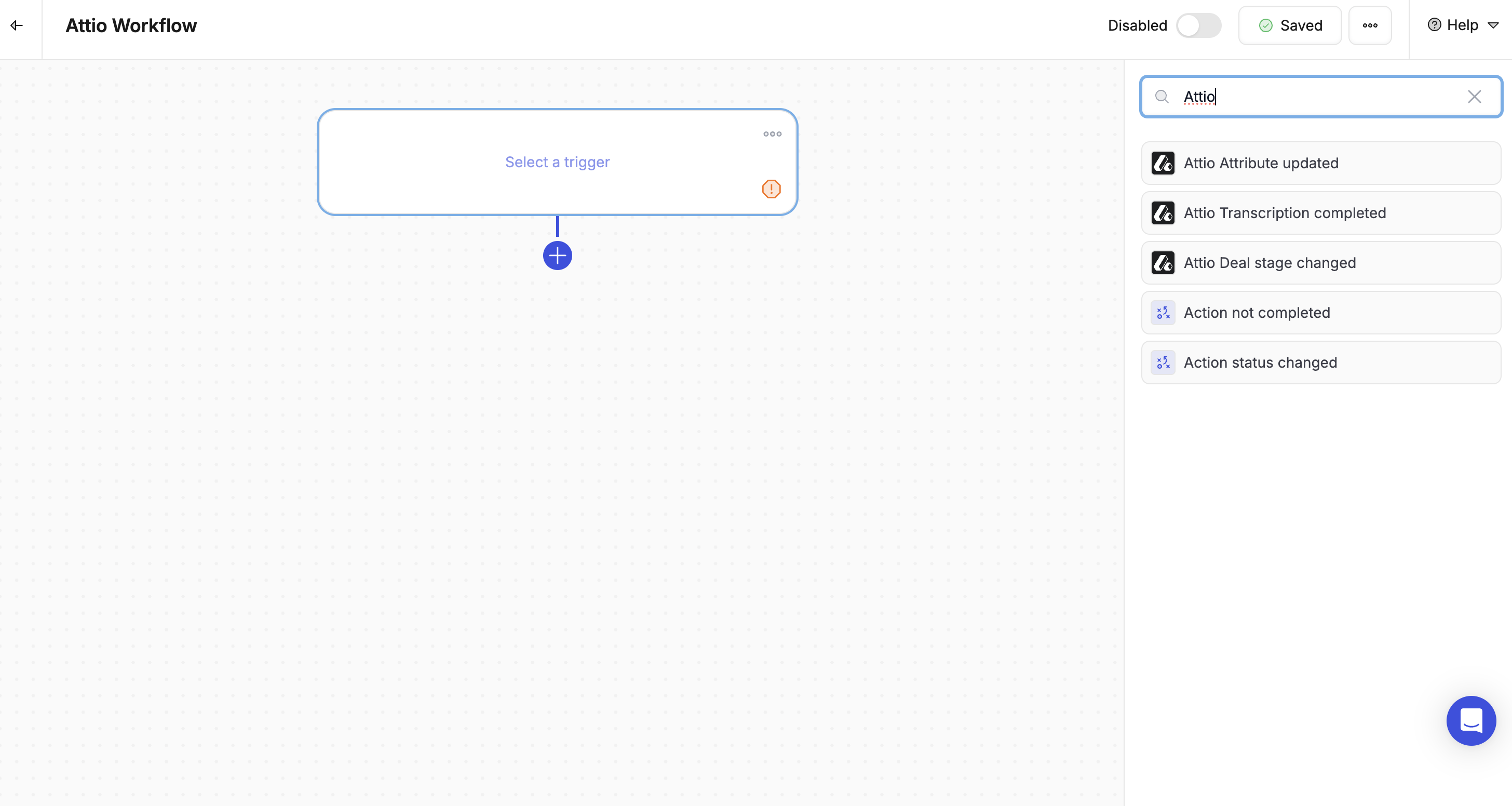
Flowla currently supports the following Attio-triggered workflows:
* **Deal Stage Changed** — when a deal moves to a specific stage (e.g. *In Progress* or *Closed Won*), trigger room creation or content updates
* **Attribute Updated** — when a deal or contact attribute is updated in Attio, trigger room actions or personalisation updates
#### Actions you can trigger from Attio events
Using the Attio triggers above, you can:
* **Create a room from a template**
* **Assign the room creator based on the deal owner**
* **Fill variables** using company, contact, or deal data from Attio
* **Unlock room sections** based on deal stage progression
* **Log room activity** back into Attio as engagement notes
***
### How to set it up
In Flowla, navigate to **Workflows** in the main navigation.
Click **+ Create New Workflow** then **Add Trigger**.
Select **Attio** as the trigger type, then choose the event:
* **Deal stage changed**
* **Attribute updated** — e.g. a specific field value changing
Add the actions you want to trigger:
* Create a room from a template
* Unlock a section
* Change the room's status
* Add CRM data as variables
 Learn more about setting up the two-way sync between Flowla and Attio in the [Attio integration guide](/integrations/Attio).