> ## Documentation Index
> Fetch the complete documentation index at: https://docs.flowla.com/llms.txt
> Use this file to discover all available pages before exploring further.
# Forms overview
> Collect information from customers with smart forms that support conditional logic and automation.
## TL;DR
Forms let you collect structured information, from sales qualification details to onboarding requirements, directly inside your rooms. No separate survey links, no chasing answers over email.
***
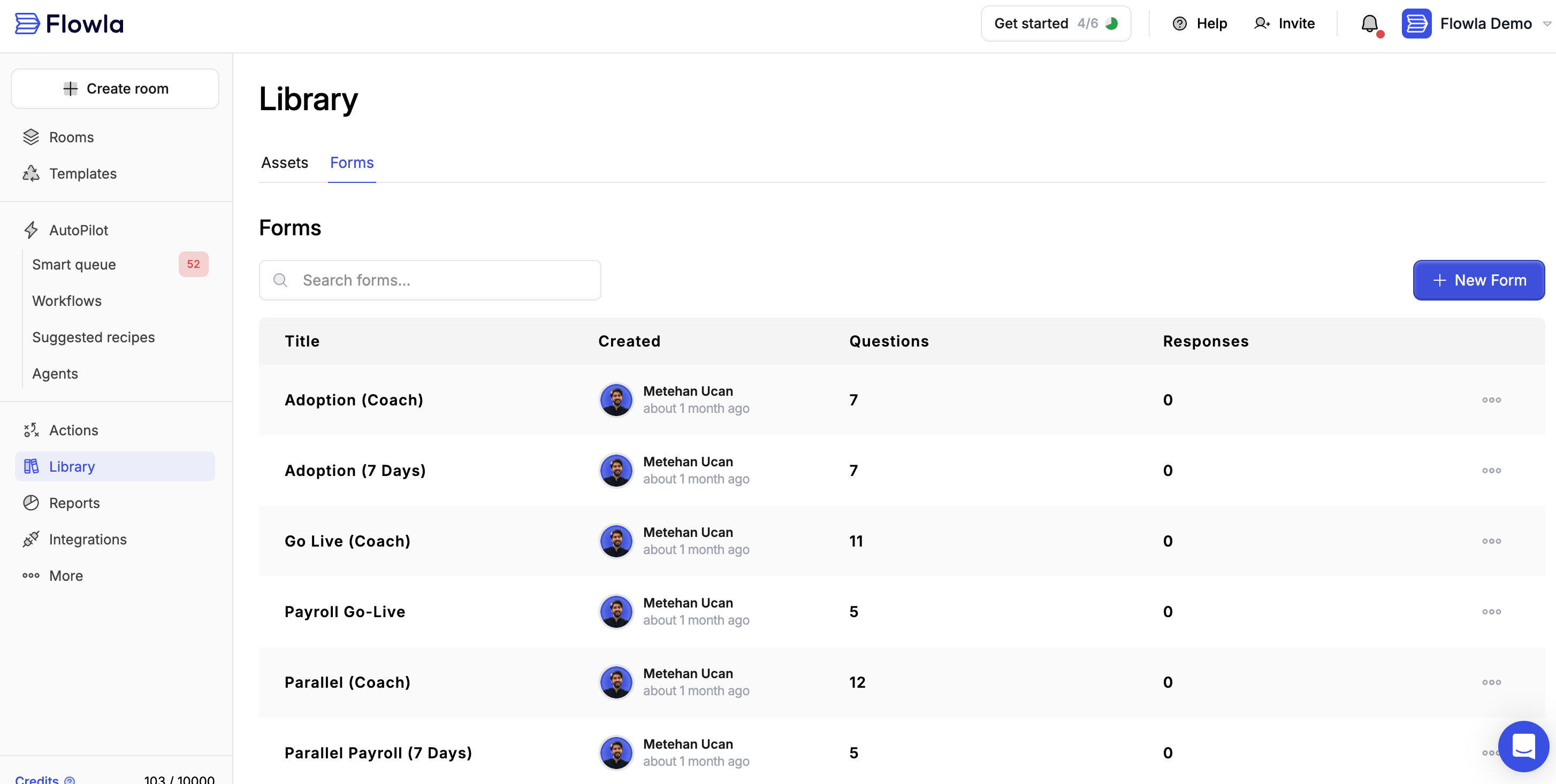 Navigate to forms from **Library → Form**
***
## Where forms fit in Flowla
Forms let you collect structured information from customers directly inside your rooms. Instead of sending separate survey links or chasing answers over email, you embed forms right where your customer is already engaged — making it much more likely they'll actually complete them.
Forms connect seamlessly with rooms and workflows:
* **Embed in rooms** — Add forms to any section of your room
* **[Trigger workflows](/automations/automations-overview)** — Use form submissions to kick off automated actions
* **Sync to CRM** — Push form responses to [HubSpot](/integrations/HubSpot) or [Salesforce](/integrations/SalesForce) automatically
***
## Common use cases
**Sales qualification**
Collect budget, timeline, and decision-maker information before your next call.
**Onboarding intake**
Gather technical requirements, team contacts, and project goals during kickoff.
**Feedback collection**
Get structured feedback at key milestones throughout the customer journey.
**Document requests**
Request files, contracts, or other materials with file upload fields.
***
## How forms work end to end
1. **Create** — Build your form with the question types you need
2. **Configure** — Add logic rules to show or hide questions based on answers
3. **Embed** — Add the form to one or more rooms
4. **Collect** — Customers submit responses directly in the room
5. **Review** — View submissions in Flowla or sync them to your CRM
6. **Automate** — Trigger workflows based on form submissions
***
## Adding a form to a room
Navigate to the room where you want to add a form and enter edit mode.
In the section where you want the form, click **Add Page**.
On the new page, click **Add Action Plan**.
Click **Add Action Item** within the action plan.
Choose **Fill a form** from the action type options, then select an existing form from your library or create a new one.
When a respondent clicks the action, the form slides out on the right-hand side of the room for them to complete inline.
Embedding a form as an action item makes completion trackable — you'll see exactly who submitted it and can trigger follow-up workflows automatically when they do.
***
## Viewing form responses
Navigate to **Forms** from the main left-hand menu.
Click on the form whose responses you want to review.
In the top right corner of the form, click **Responses**.
Browse individual responses — each one shows who submitted it, when, and the answers they provided.
Navigate to forms from **Library → Form**
***
## Where forms fit in Flowla
Forms let you collect structured information from customers directly inside your rooms. Instead of sending separate survey links or chasing answers over email, you embed forms right where your customer is already engaged — making it much more likely they'll actually complete them.
Forms connect seamlessly with rooms and workflows:
* **Embed in rooms** — Add forms to any section of your room
* **[Trigger workflows](/automations/automations-overview)** — Use form submissions to kick off automated actions
* **Sync to CRM** — Push form responses to [HubSpot](/integrations/HubSpot) or [Salesforce](/integrations/SalesForce) automatically
***
## Common use cases
**Sales qualification**
Collect budget, timeline, and decision-maker information before your next call.
**Onboarding intake**
Gather technical requirements, team contacts, and project goals during kickoff.
**Feedback collection**
Get structured feedback at key milestones throughout the customer journey.
**Document requests**
Request files, contracts, or other materials with file upload fields.
***
## How forms work end to end
1. **Create** — Build your form with the question types you need
2. **Configure** — Add logic rules to show or hide questions based on answers
3. **Embed** — Add the form to one or more rooms
4. **Collect** — Customers submit responses directly in the room
5. **Review** — View submissions in Flowla or sync them to your CRM
6. **Automate** — Trigger workflows based on form submissions
***
## Adding a form to a room
Navigate to the room where you want to add a form and enter edit mode.
In the section where you want the form, click **Add Page**.
On the new page, click **Add Action Plan**.
Click **Add Action Item** within the action plan.
Choose **Fill a form** from the action type options, then select an existing form from your library or create a new one.
When a respondent clicks the action, the form slides out on the right-hand side of the room for them to complete inline.
Embedding a form as an action item makes completion trackable — you'll see exactly who submitted it and can trigger follow-up workflows automatically when they do.
***
## Viewing form responses
Navigate to **Forms** from the main left-hand menu.
Click on the form whose responses you want to review.
In the top right corner of the form, click **Responses**.
Browse individual responses — each one shows who submitted it, when, and the answers they provided.