> ## Documentation Index
> Fetch the complete documentation index at: https://docs.flowla.com/llms.txt
> Use this file to discover all available pages before exploring further.
# Coaching
> See how your team's real customer interactions measure up against your competencies, and find strengths and coaching opportunities.
Learning & Coaching is in beta and available to selected organizations.
Coaching scores how each rep performs in real customer interactions (meetings, emails, and room activity) against the competencies your team cares about. That makes it easy to spot strengths and coaching opportunities without sitting in on every call.
The competencies you define are also what [courses](/learning-coaching/courses) train. Coaching shows you where the gaps are, and a course helps close them.
***
## Set up competencies
Go to **Settings → Coaching** to define what REX should evaluate.
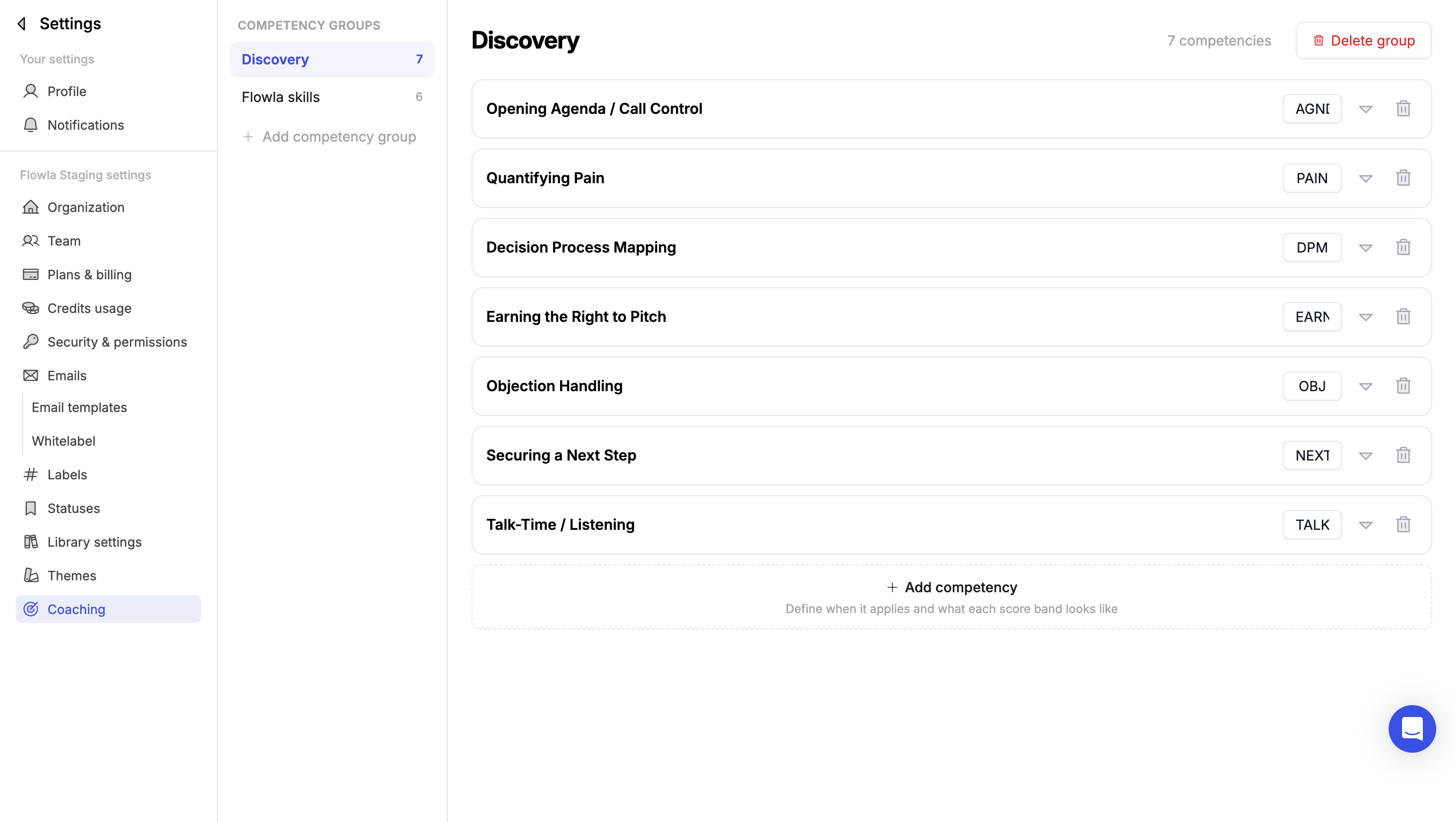 ### Competency groups
Competencies are organized into **competency groups**, such as Discovery or Product knowledge. Groups keep related competencies together, both on the Coaching page and in how scores are rolled up. Click **Add competency group** to create one.
### Competencies
Inside a group, click **Add competency** and define:
| Field | What it's for |
| - | - |
| **Name** and **short code** | How the competency is labelled, for example *Quantifying Pain* (PAIN) |
| **Relevant when** | The situation where the competency applies. If this isn't met in an interaction, REX gives no score, so reps aren't marked down for something that never came up. |
| **Weak** (0 to below 2) | What a weak performance looks like |
| **Moderate** (2 to below 4) | What a moderate performance looks like |
| **Strong** (4 to 5) | What a strong performance looks like |
Write each score band as observable behavior, like "Ties it to a specific manual step the buyer described". The more concrete the description, the more consistent the scoring.
### Different bars for different roles
One set of criteria covers every role by default. To hold specific groups or roles to a different bar, open a competency and add a tab for them.
***
## Review your team
Go to **Learning & Coaching → Coaching** to see the results.
### Competency groups
Competencies are organized into **competency groups**, such as Discovery or Product knowledge. Groups keep related competencies together, both on the Coaching page and in how scores are rolled up. Click **Add competency group** to create one.
### Competencies
Inside a group, click **Add competency** and define:
| Field | What it's for |
| - | - |
| **Name** and **short code** | How the competency is labelled, for example *Quantifying Pain* (PAIN) |
| **Relevant when** | The situation where the competency applies. If this isn't met in an interaction, REX gives no score, so reps aren't marked down for something that never came up. |
| **Weak** (0 to below 2) | What a weak performance looks like |
| **Moderate** (2 to below 4) | What a moderate performance looks like |
| **Strong** (4 to 5) | What a strong performance looks like |
Write each score band as observable behavior, like "Ties it to a specific manual step the buyer described". The more concrete the description, the more consistent the scoring.
### Different bars for different roles
One set of criteria covers every role by default. To hold specific groups or roles to a different bar, open a competency and add a tab for them.
***
## Review your team
Go to **Learning & Coaching → Coaching** to see the results.
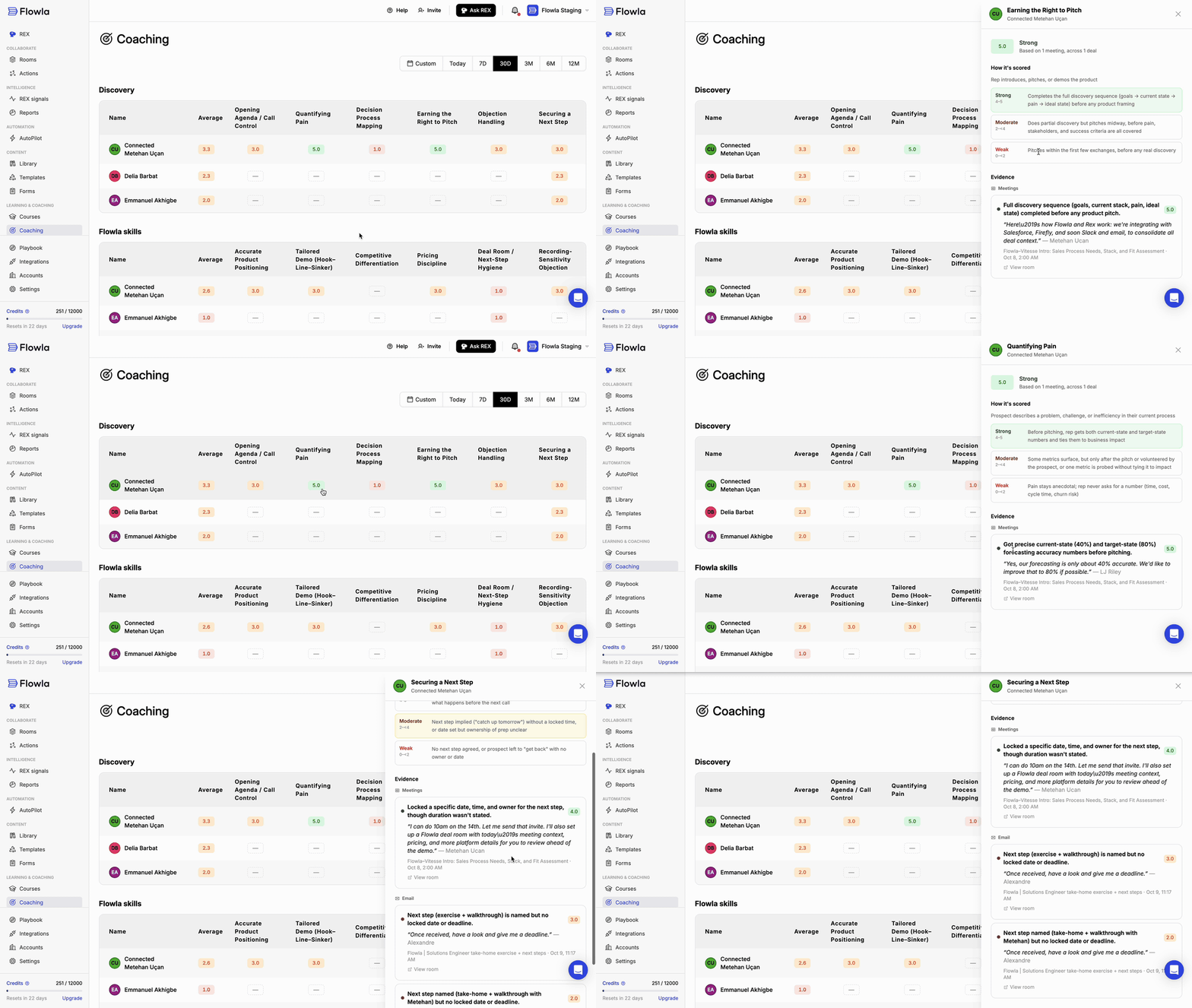 ### Scores
* Each competency group has its own table, with one row per rep showing their **Average** and their score for every competency in the group.
* Scores run from 0 to 5 and are color-coded by band: **Weak**, **Moderate**, or **Strong**.
* A dash means the competency hasn't been relevant in that rep's interactions yet, so there's nothing to score.
* Use the date range at the top to change the period: **Today**, **7D**, **30D**, **3M**, **6M**, **12M**, or a **Custom** range.
### Evidence behind a score
Click any score to open it in a side panel. The panel shows:
* **The score and its band**, and how many meetings and deals it's based on.
* **How it's scored**: the competency's description and its Weak, Moderate, and Strong criteria from [your settings](#competencies), with the band the rep landed in highlighted.
* **Evidence**: the moments REX scored, grouped by source, such as **Meetings** and **Email**. Each one has its own score, a short summary of what happened, and a direct quote with who said it, plus the meeting or email it came from and when. Click **View room** to open the related deal room.
Because every score links back to real quotes, you can see exactly why a rep scored the way they did and use those moments in your coaching conversations.
This documentation is built and hosted on [Mintlify](https://mintlify.com), a developer documentation platform.
### Scores
* Each competency group has its own table, with one row per rep showing their **Average** and their score for every competency in the group.
* Scores run from 0 to 5 and are color-coded by band: **Weak**, **Moderate**, or **Strong**.
* A dash means the competency hasn't been relevant in that rep's interactions yet, so there's nothing to score.
* Use the date range at the top to change the period: **Today**, **7D**, **30D**, **3M**, **6M**, **12M**, or a **Custom** range.
### Evidence behind a score
Click any score to open it in a side panel. The panel shows:
* **The score and its band**, and how many meetings and deals it's based on.
* **How it's scored**: the competency's description and its Weak, Moderate, and Strong criteria from [your settings](#competencies), with the band the rep landed in highlighted.
* **Evidence**: the moments REX scored, grouped by source, such as **Meetings** and **Email**. Each one has its own score, a short summary of what happened, and a direct quote with who said it, plus the meeting or email it came from and when. Click **View room** to open the related deal room.
Because every score links back to real quotes, you can see exactly why a rep scored the way they did and use those moments in your coaching conversations.
This documentation is built and hosted on [Mintlify](https://mintlify.com), a developer documentation platform.