> ## Documentation Index
> Fetch the complete documentation index at: https://docs.flowla.com/llms.txt
> Use this file to discover all available pages before exploring further.
# Courses
> Build structured training for your team, check understanding with quizzes, and track progress.
Learning & Coaching is in beta and available to selected organizations.
Courses let you build structured training that your team works through at their own pace, with quizzes to check what they've understood. They pair with [Coaching](/learning-coaching/coaching): Coaching shows where reps are strong or weak against your competencies, and courses train those same competencies.
***
## Create a course
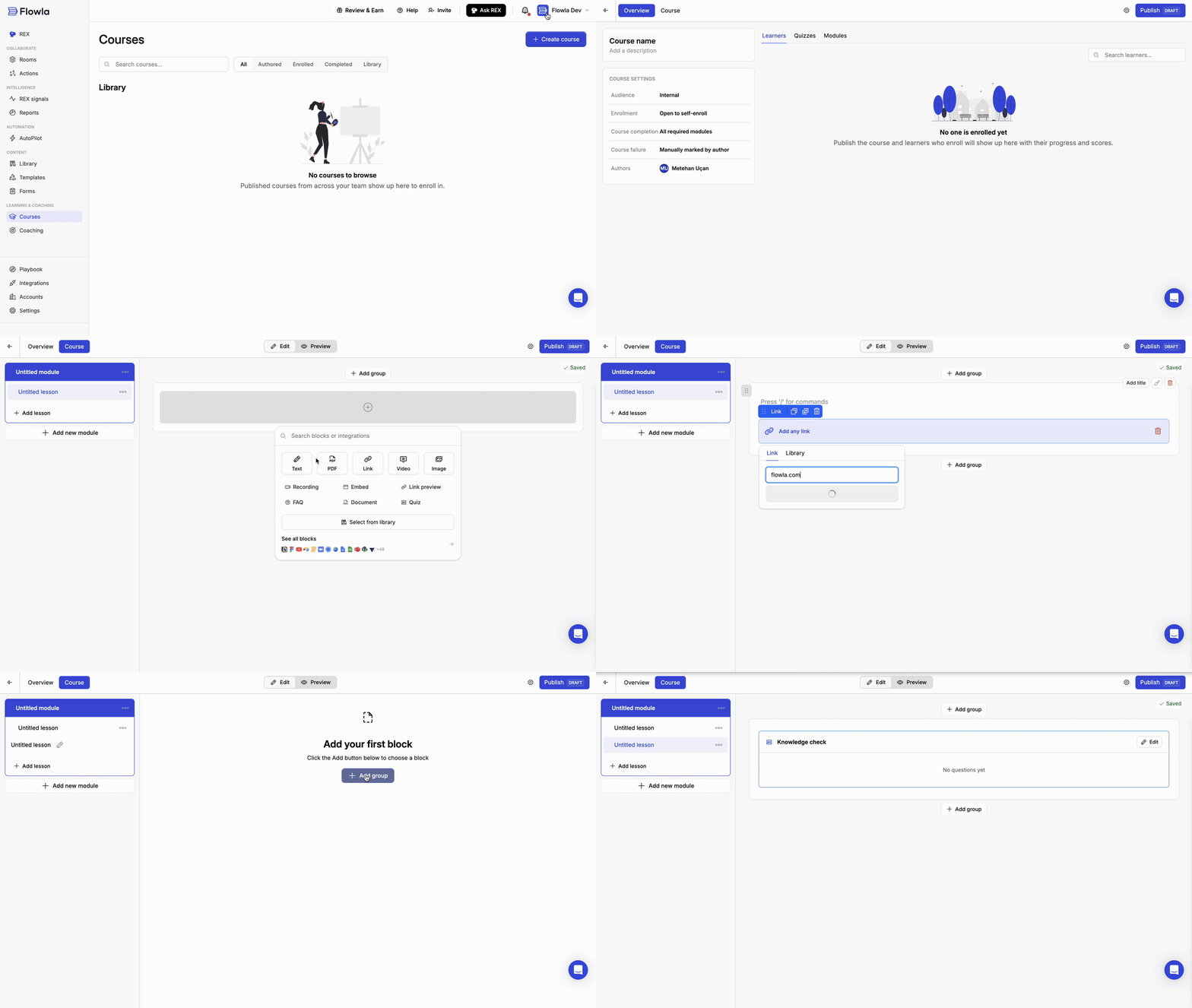
In the left navigation, go to **Learning & Coaching → Courses** and click **Create course**. Give the course a name and an optional description.
Switch to the **Course** tab to build it. A course is made of modules, and each module holds lessons. Click **Add lesson** or **Add new module** to grow the structure, then fill each lesson with blocks such as text, PDFs, links, videos, images, and documents. To check understanding, add a [Quiz](#quizzes) block just like any other block.
Review the [course settings](#course-settings) and [module settings](#module-settings).
[Publish](#publishing) the course when it's ready.
 ***
## Course settings
During the beta, these settings are fixed to the values below. They'll become configurable once Learning & Coaching comes out of beta.
| Setting | What it controls | Value during beta |
| - | - | - |
| **Audience** | Who the course is for | Internal |
| **Enrollment** | How learners join the course | Open to self-enroll |
| **Course completion** | When a learner has completed the course | All required modules |
| **Course failure** | When a learner has failed the course | Manually marked by author |
| **Authors** | Who can edit the course | The people you add |
***
## Module settings
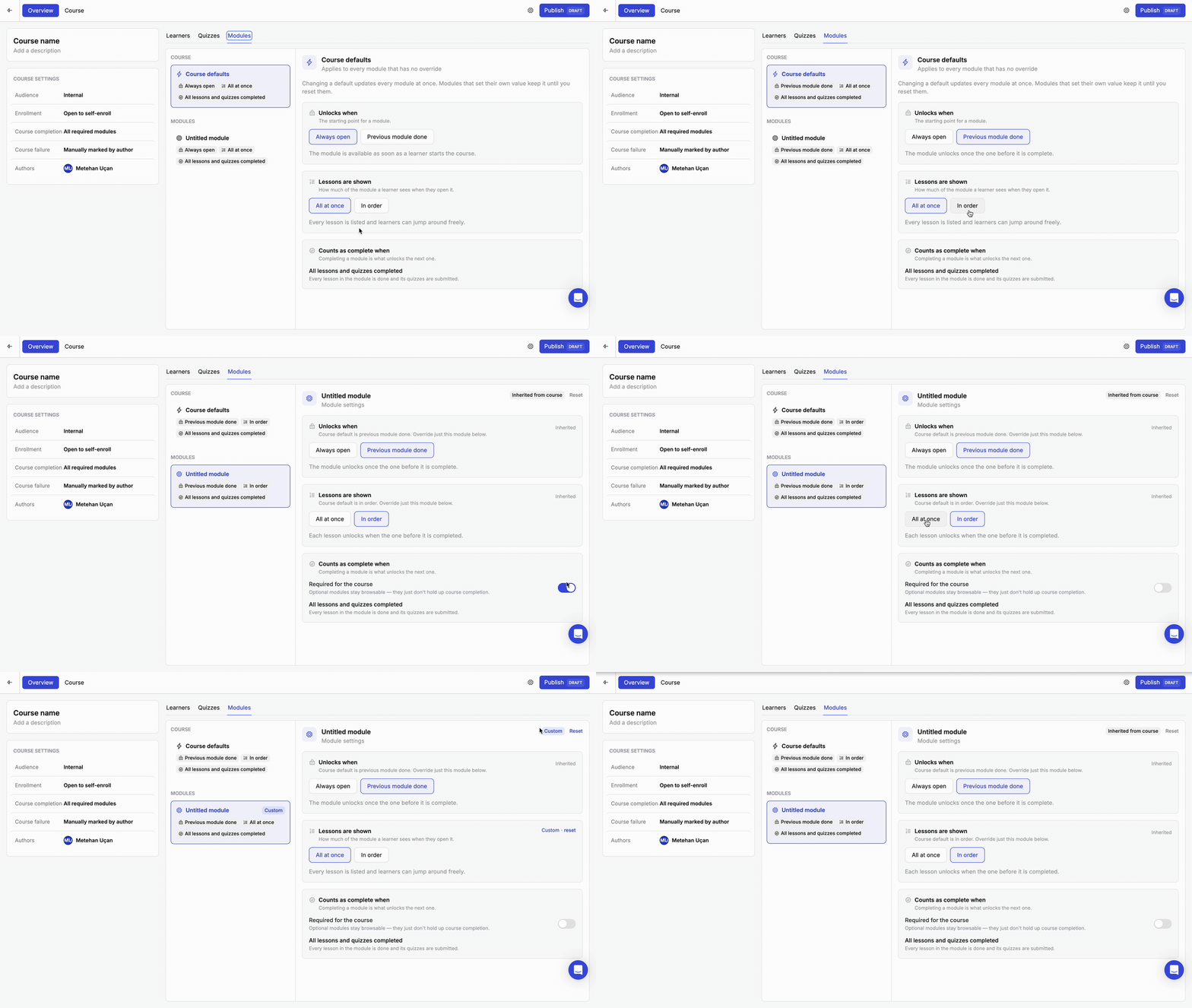
Open the **Modules** tab in the course overview to control how each module unlocks, how its lessons are shown, and when it counts as complete. Pick **Course defaults** or a single module on the left, and edit its rules on the right.
***
## Course settings
During the beta, these settings are fixed to the values below. They'll become configurable once Learning & Coaching comes out of beta.
| Setting | What it controls | Value during beta |
| - | - | - |
| **Audience** | Who the course is for | Internal |
| **Enrollment** | How learners join the course | Open to self-enroll |
| **Course completion** | When a learner has completed the course | All required modules |
| **Course failure** | When a learner has failed the course | Manually marked by author |
| **Authors** | Who can edit the course | The people you add |
***
## Module settings
Open the **Modules** tab in the course overview to control how each module unlocks, how its lessons are shown, and when it counts as complete. Pick **Course defaults** or a single module on the left, and edit its rules on the right.
 ### Course defaults and overrides
**Course defaults** apply to every module that doesn't have its own value. Changing a default updates all of those modules at once.
To change just one module, select it and pick a different value. The module is then marked **Custom** instead of **Inherited from course**, and it keeps its own value even if you change the course defaults later. Click **Reset** to make the module follow the course defaults again.
### Rules
| Rule | Options |
| - | - |
| **Unlocks when** | **Always open**: available as soon as a learner starts the course.
### Course defaults and overrides
**Course defaults** apply to every module that doesn't have its own value. Changing a default updates all of those modules at once.
To change just one module, select it and pick a different value. The module is then marked **Custom** instead of **Inherited from course**, and it keeps its own value even if you change the course defaults later. Click **Reset** to make the module follow the course defaults again.
### Rules
| Rule | Options |
| - | - |
| **Unlocks when** | **Always open**: available as soon as a learner starts the course.
**Previous module done**: available once the module before it is complete. |
| **Lessons are shown** | **All at once**: every lesson is listed and learners can jump around freely.
**In order**: learners work through the lessons in sequence. |
| **Required for the course** | On by default. Optional modules stay browsable, but they don't hold up course completion. |
| **Counts as complete when** | **All lessons and quizzes completed**: every lesson in the module is done and its quizzes are submitted. Completing a module is what unlocks the next one. |
***
## Quizzes
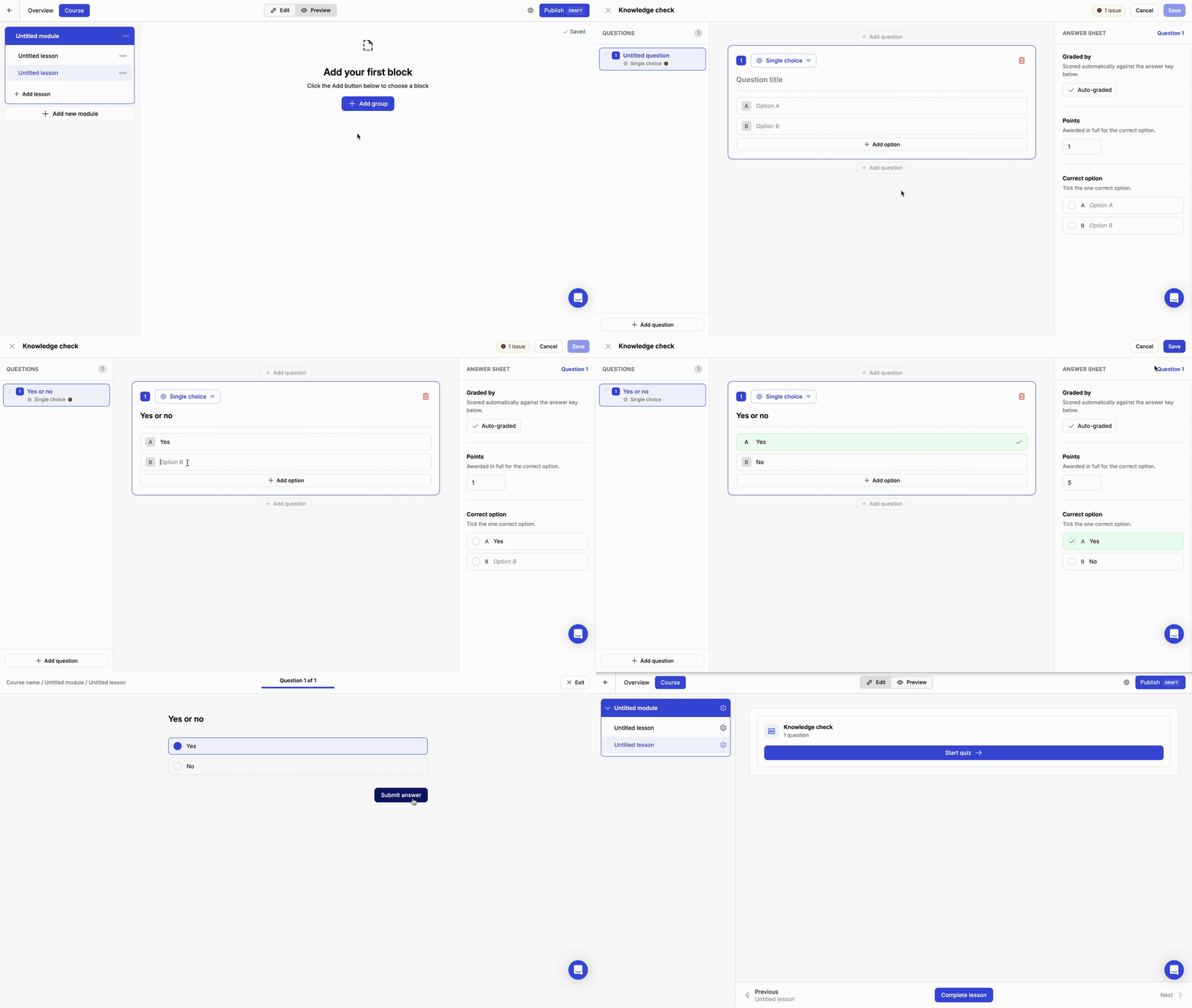
Add a **Quiz** block anywhere in a lesson. It's added as **Knowledge check**; click **Edit** on the block to open the quiz editor, add your questions, and click **Save**. Switch to **Preview** to take the quiz the way a learner would.
 ### Question types
| Type | What the learner does |
| - | - |
| **Single choice** | Picks the one correct answer |
| **Multiple choice** | Selects all answers that apply |
| **True / False** | Decides whether a statement is true |
| **Open text** | Writes a response |
| **Video response** | Records an answer |
### Grading
For each question, the **answer sheet** on the right sets how it's scored:
* **Single choice**, **Multiple choice**, and **True / False** questions are auto-graded against the answer key. Mark the correct option, then set the **points** awarded for a correct answer.
* **Open text** and **Video response** answers are graded manually during the beta.
The editor flags any issues, such as a question with no correct option marked. Fix them before you save the quiz.
***
## Publishing
A course you haven't published yet, or one with unpublished changes, shows **Publish · Draft**.
Click **Publish** in the course editor.
Optionally describe what's in this version, for example "First release."
Click **Publish course**. Learners in the course's audience can start it right away.
### Question types
| Type | What the learner does |
| - | - |
| **Single choice** | Picks the one correct answer |
| **Multiple choice** | Selects all answers that apply |
| **True / False** | Decides whether a statement is true |
| **Open text** | Writes a response |
| **Video response** | Records an answer |
### Grading
For each question, the **answer sheet** on the right sets how it's scored:
* **Single choice**, **Multiple choice**, and **True / False** questions are auto-graded against the answer key. Mark the correct option, then set the **points** awarded for a correct answer.
* **Open text** and **Video response** answers are graded manually during the beta.
The editor flags any issues, such as a question with no correct option marked. Fix them before you save the quiz.
***
## Publishing
A course you haven't published yet, or one with unpublished changes, shows **Publish · Draft**.
Click **Publish** in the course editor.
Optionally describe what's in this version, for example "First release."
Click **Publish course**. Learners in the course's audience can start it right away.
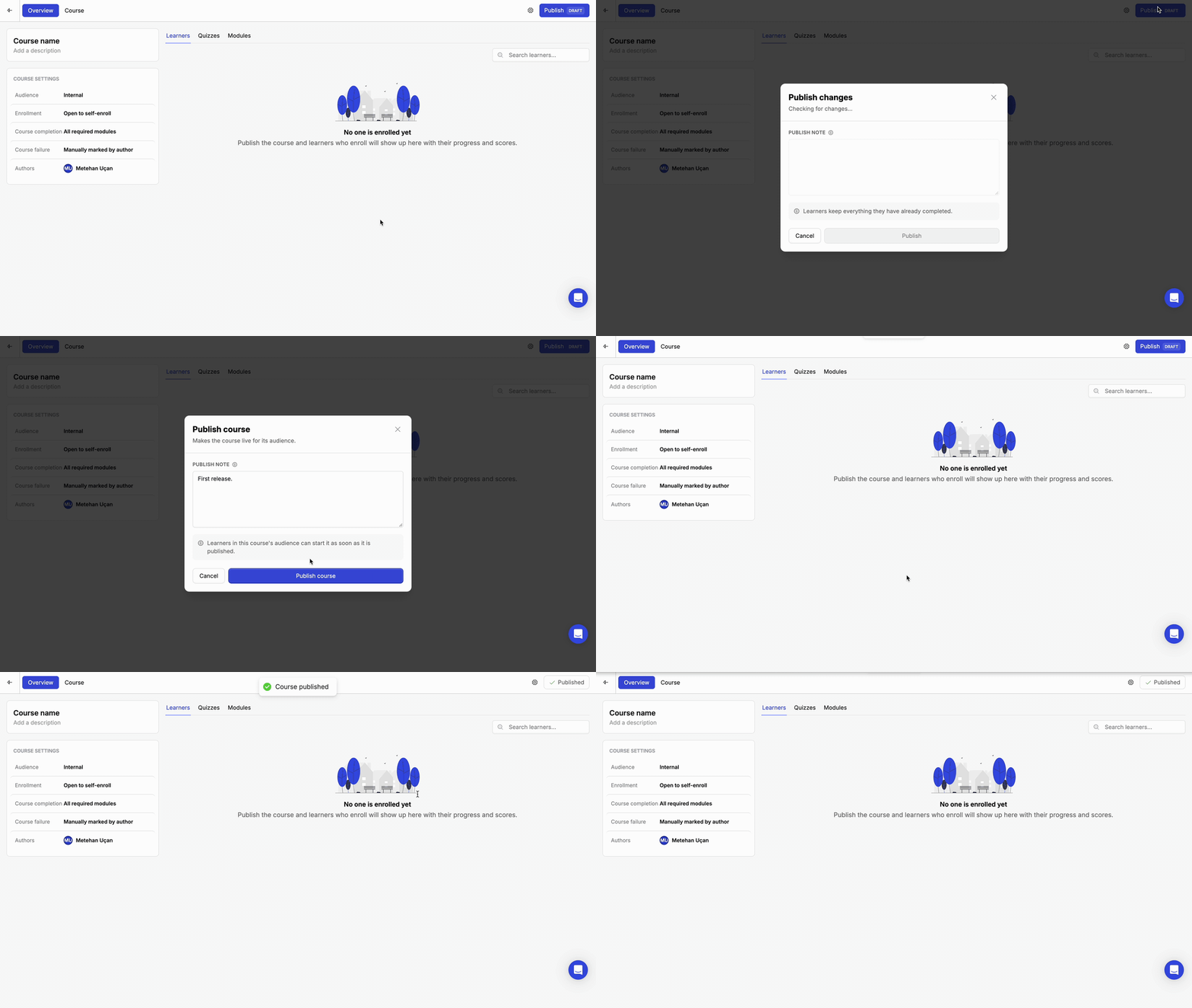 Once a course is live, any edits you make are saved as a draft. Learners keep seeing the last published version until you publish again.
***
## Track progress and review attempts
Once learners start a published course, open its overview to follow along.
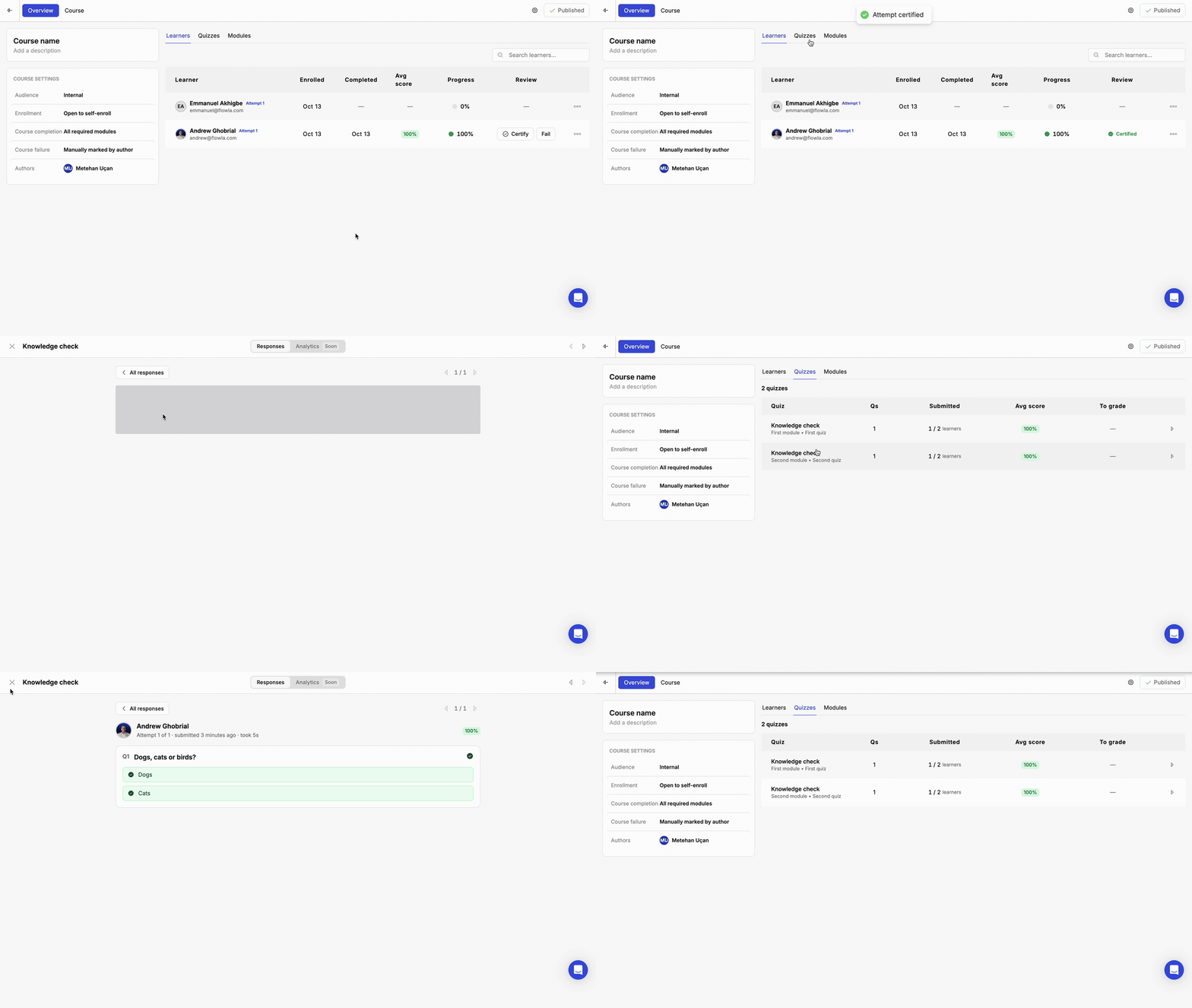
* **Learners** tab: everyone enrolled, with when they enrolled and completed, their average score, and their progress. Use **Certify** or **Fail** in the **Review** column to mark each attempt. Course failure is always marked manually by an author during the beta.
* **Quizzes** tab: every quiz in the course, with its number of questions, how many learners have submitted, the average score, and how many answers are waiting to be graded. Open a quiz to see its responses, filter by **All**, **Needs grading**, or **Graded**, and open a response to see a learner's answers.
Once a course is live, any edits you make are saved as a draft. Learners keep seeing the last published version until you publish again.
***
## Track progress and review attempts
Once learners start a published course, open its overview to follow along.
* **Learners** tab: everyone enrolled, with when they enrolled and completed, their average score, and their progress. Use **Certify** or **Fail** in the **Review** column to mark each attempt. Course failure is always marked manually by an author during the beta.
* **Quizzes** tab: every quiz in the course, with its number of questions, how many learners have submitted, the average score, and how many answers are waiting to be graded. Open a quiz to see its responses, filter by **All**, **Needs grading**, or **Graded**, and open a response to see a learner's answers.
 ***
## For learners
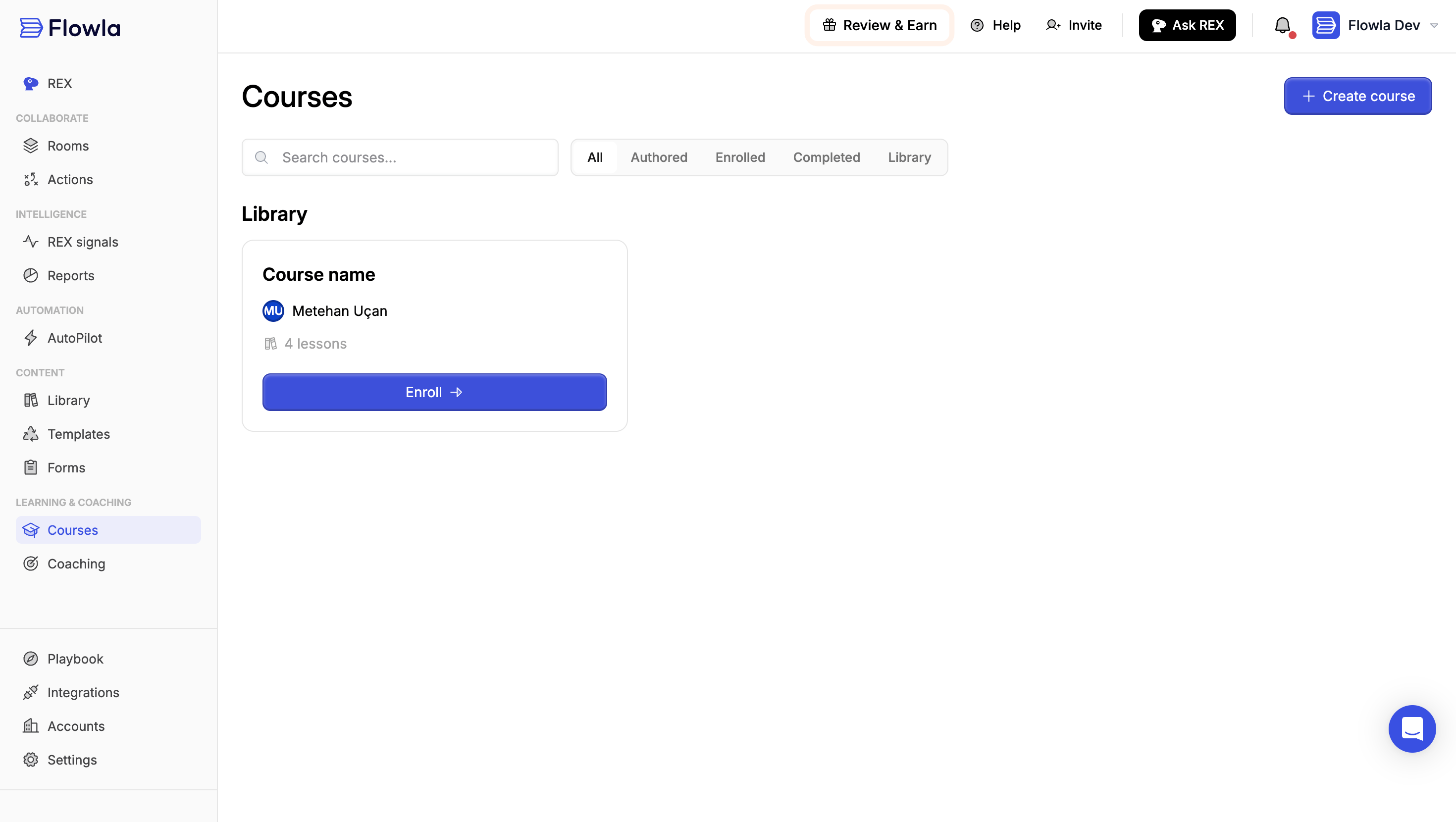
Learners find courses under **Learning & Coaching → Courses**. Published courses from across the team appear under **Library**; click **Enroll** to join one. Use the **Enrolled** and **Completed** filters to find courses you've already started or finished.
Inside a course, learners work through each lesson and click **Complete lesson** to move on. Attempt tracking records their progress, so authors can follow how far everyone has got.
***
## For learners
Learners find courses under **Learning & Coaching → Courses**. Published courses from across the team appear under **Library**; click **Enroll** to join one. Use the **Enrolled** and **Completed** filters to find courses you've already started or finished.
Inside a course, learners work through each lesson and click **Complete lesson** to move on. Attempt tracking records their progress, so authors can follow how far everyone has got.
 This documentation is built and hosted on [Mintlify](https://mintlify.com), a developer documentation platform.