> ## Documentation Index
> Fetch the complete documentation index at: https://docs.flowla.com/llms.txt
> Use this file to discover all available pages before exploring further.
# Managing actions
> Assign actions and track everything from one dashboard.
Every action in Flowla can have a clear owner, a deadline, and a status — so there's never any ambiguity about who's doing what and when. This section covers how to assign actions, set due dates, and use the actions dashboard to stay on top of everything across all your rooms.
***
## Assignees
Each action should have an assignee so there's never any confusion about who's responsible.
You can assign actions to a **customer** (e.g. "Sign the agreement") or a **teammate** via internal-only actions (e.g. "Review implementation checklist").
**Assignment types:**
| Type | Description |
| ------------------------ | ----------------------------------------- |
| **Internal team member** | Assign to someone on your team |
| **External contact** | Assign to a prospect or customer |
| **Primary contact** | Auto-assign to the room's primary contact |
| **Target company** | Assign the action to the whole company |
**To assign someone:**
This opens the assignee search.
Search for the person you want to assign.
This sends them an email letting them know they've been assigned.
Assigned users will see their thumbnail appear next to the action inside the mutual action plan.
### Dynamic Primary Contact
The Dynamic Primary Contact is automatically set to the first person you share the room with. When you create a room from a template, that person is assigned to any actions where **Dynamic Primary Contact** was selected — no manual updates needed. This is especially useful in templates, so you never have to re-assign actions every time you create a new room.
Assignees receive notifications when actions are assigned (if enabled), reminders for upcoming and overdue actions, and completion notifications to keep everyone in the loop.
***
## Due dates & start dates
### Fixed due dates
Set a specific deadline like "May 15" or "End of week" — useful when you've already agreed on timelines with the customer.
### Relative due dates
Tie the deadline to something that happens in the process, such as:
* "3 days after the room is created"
* "2 days after this section is completed"
* "1 day after another action is due or completed"
Relative due dates are especially powerful in templates — when someone creates a room from your template, all the deadlines calculate automatically based on when things actually happen. No manual date-setting required.
### Task statuses
| Status | Description |
| --------------- | ---------------- |
| **To do** | Not started |
| **In progress** | Work has begun |
| **Done** | Completed |
| **Cancelled** | No longer needed |
***
## Actions dashboard
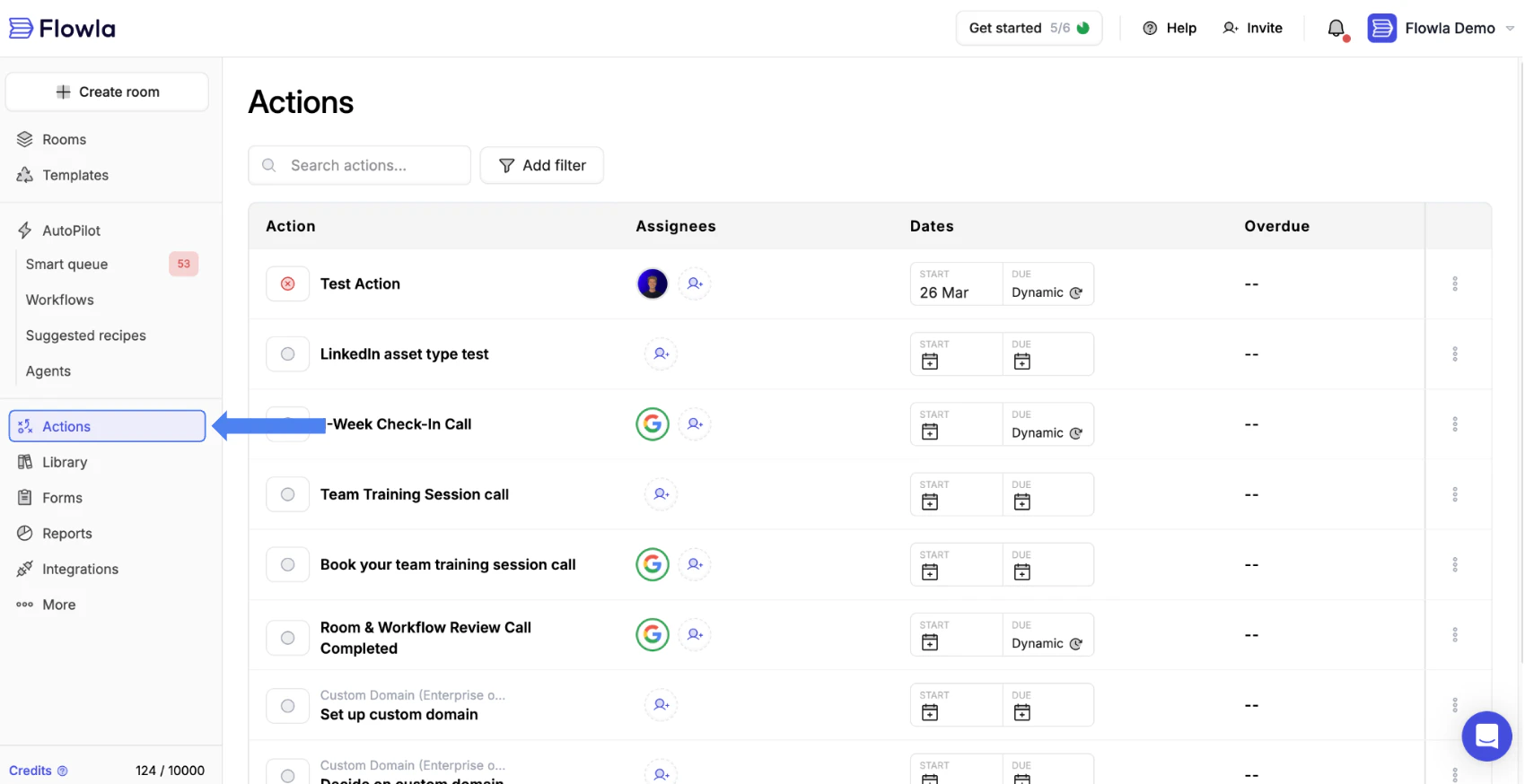
The actions dashboard gives you a single view of every action across all your rooms — without having to open each room individually. It's the fastest way to stay on top of what's overdue, what's coming up, and what your team is working on.
**To access:**
This opens the actions dashboard.
All actions across your rooms are listed here.
Filter by status, assignee, due date, or room.
**What you can do from the dashboard:**
* **Update status** — Mark actions as complete, in progress, or pending
* **Change assignee** — Reassign tasks to different team members
* **Edit due dates** — Extend or adjust deadlines
* **Navigate to room** — Click the room name to open the full context