> ## Documentation Index
> Fetch the complete documentation index at: https://docs.flowla.com/llms.txt
> Use this file to discover all available pages before exploring further.
# Invite your team
> Add teammates to your Flowla workspace and manage their roles and permissions.
Getting your team into Flowla is quick. Go to **Settings → Team → Invite User** to add teammates. Admins can assign any role; Members can invite other Members only.
***
### Team permissions
Team permissions control what administrative actions a user can perform:
| Permission | Capabilities |
| ---------- | -------------------------------------------------------------------------------------- |
| **Member** | Can create rooms and invite other Members. Cannot manage billing or deactivate users. |
| **Admin** | Full access — manage billing, deactivate users, invite admins, and change permissions. |
***
### User roles
User roles determine what a teammate can do within rooms:
| Role | Capabilities |
| ---------------- | ------------------------------------------------------------ |
| **Room Creator** | Can create, edit, and manage rooms. Full room functionality. |
| **Viewer-Only** | Can view rooms and analytics but cannot create or edit. |
***
### How to invite a teammate
In the top right, navigate to **Settings**.
Click **Invite teammates** in the settings menu.
Click the **Invite User** button.
Enter your teammate's email address.
Choose their **User Role** (Admin, Member, or Viewer Only). Each role's permissions can be customised.
Click **Send Invitation**.
They'll receive an email with a link to join the workspace.
***
### What you can invite based on your permission level
### If you're a Member
You'll see a simple form to enter the email address. The new user is added with **Member** permissions and **Room Creator** role by default.
### If you're an Admin
You have full control over the new teammate's access:
* Choose between Member or Admin permissions
* Assign Room Creator or Viewer-Only role
* The invitation email includes your workspace name
***
### How to deactivate a teammate
If you need to revoke access (requires Admin permission):
1. Go to **Settings → Team**
2. Find the teammate in the list
3. Click on **Status**
4. Select **Deactivate**
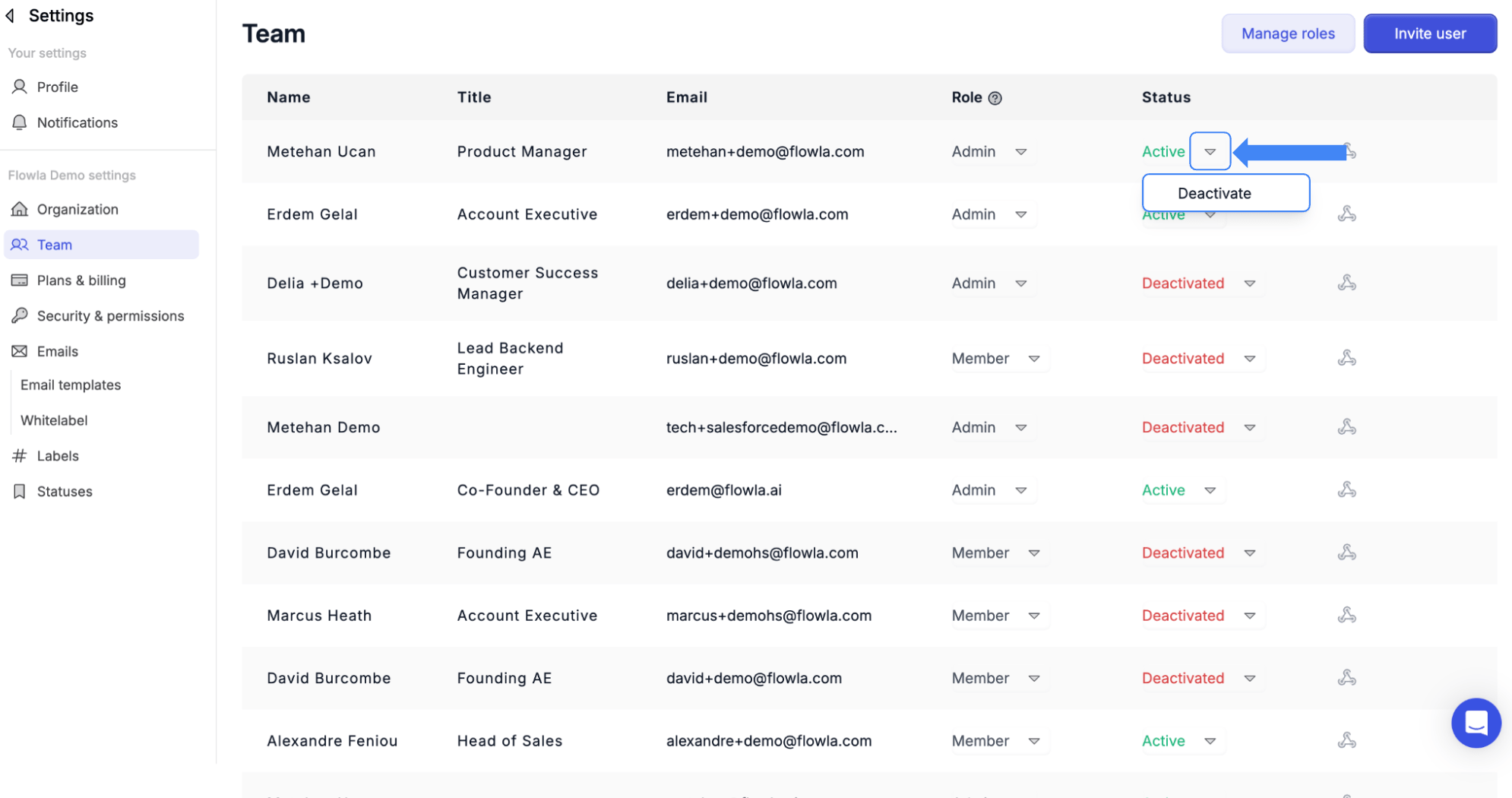 Deactivated users cannot log in or access Flowla, but their rooms and activity history remain intact. You can reactivate them later if needed.
***
### Managing existing team members
From the Team settings page, you can:
* **View all team members** — See everyone in your workspace
* **Change permissions** — Update Member/Admin status (Admin only)
* **Change roles** — Switch between Room Creator and Viewer-Only
* **Resend invitations** — For pending invites that weren't accepted
* **Deactivate/Reactivate** — Control account access
***
## Troubleshooting
**Likely cause:** Seat limit reached, or the invite wasn't sent correctly.
**Fix:** Check **Settings > Team** to see remaining seats. If at capacity, upgrade your plan. Otherwise, use the **Invite** button and ensure you're entering the correct email address.
**Likely cause:** You signed up independently with the same email before receiving the invite.
**Fix:** Contact support. They can merge or migrate your existing account into the team workspace.
**Likely cause:** No domain-based restriction is enforced by default.
**Fix:** Flowla doesn't currently auto-assign users to a workspace based on email domain. Manage invites manually and contact support about SSO domain locking options.
**Likely cause:** Your account is tied to your old email address.
**Fix:** Contact support with your old and new email addresses. They can update it manually.
Deactivated users cannot log in or access Flowla, but their rooms and activity history remain intact. You can reactivate them later if needed.
***
### Managing existing team members
From the Team settings page, you can:
* **View all team members** — See everyone in your workspace
* **Change permissions** — Update Member/Admin status (Admin only)
* **Change roles** — Switch between Room Creator and Viewer-Only
* **Resend invitations** — For pending invites that weren't accepted
* **Deactivate/Reactivate** — Control account access
***
## Troubleshooting
**Likely cause:** Seat limit reached, or the invite wasn't sent correctly.
**Fix:** Check **Settings > Team** to see remaining seats. If at capacity, upgrade your plan. Otherwise, use the **Invite** button and ensure you're entering the correct email address.
**Likely cause:** You signed up independently with the same email before receiving the invite.
**Fix:** Contact support. They can merge or migrate your existing account into the team workspace.
**Likely cause:** No domain-based restriction is enforced by default.
**Fix:** Flowla doesn't currently auto-assign users to a workspace based on email domain. Manage invites manually and contact support about SSO domain locking options.
**Likely cause:** Your account is tied to your old email address.
**Fix:** Contact support with your old and new email addresses. They can update it manually.