> ## Documentation Index
> Fetch the complete documentation index at: https://docs.flowla.com/llms.txt
> Use this file to discover all available pages before exploring further.
# Set up your profile
> Configure your profile to enable automatic personalisation across rooms and templates.
Your Flowla profile powers personalisation across every room you create. Fill it in once and Flowla automatically uses your name, title, phone number, and calendar link inside templates and workflows — no manual edits needed.
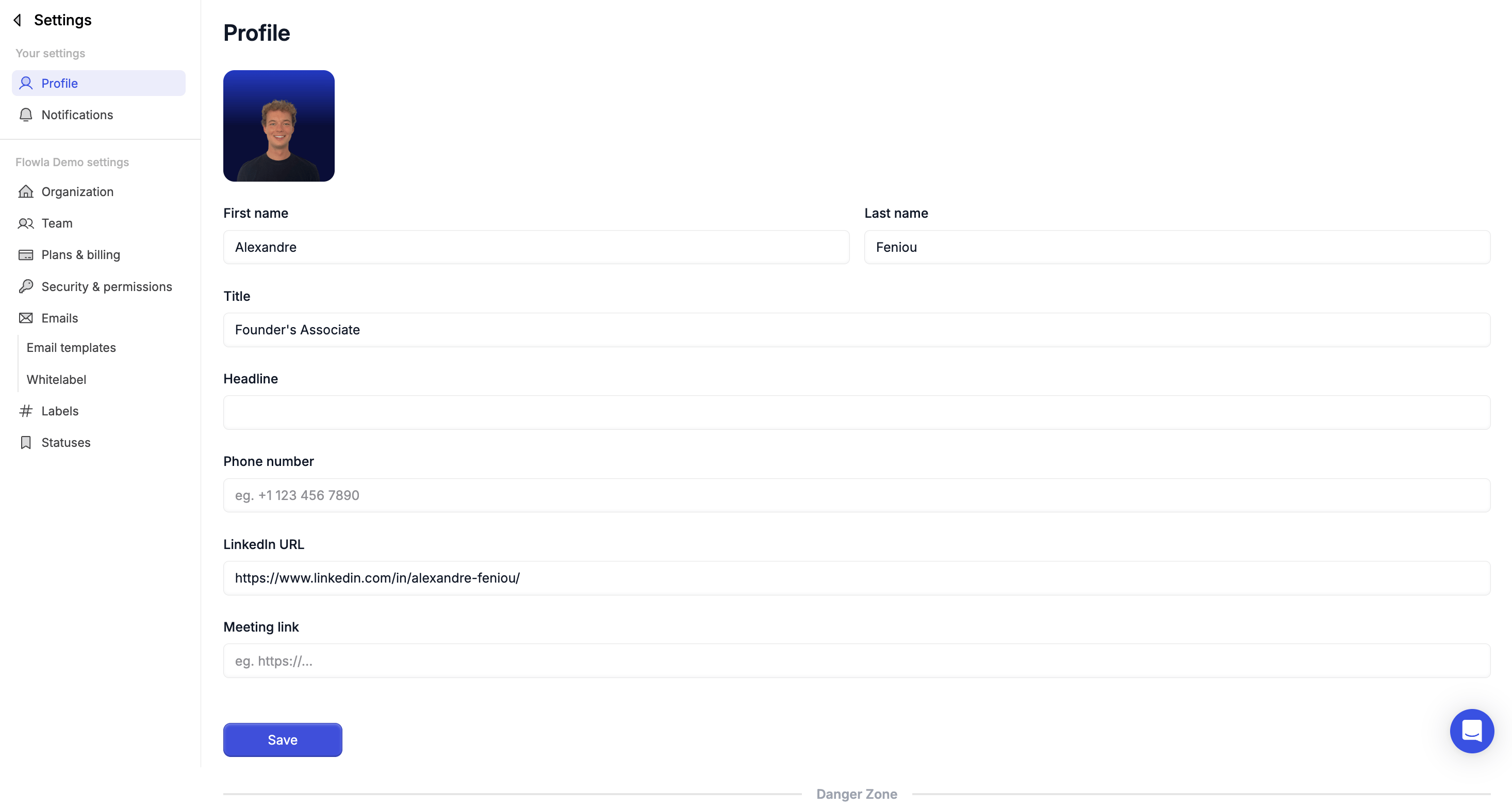
Head to **Settings → Profile** to update your details.
***
### How to set it up
Go to **Settings → Profile** and complete the following fields:
* **First and last name**
* **Title** (e.g. Account Executive, CSM)
* **Headline** (optional)
* **Phone number**
* **LinkedIn URL**
* **Meeting link** (for calendar booking)
* **Profile picture**
This information is used across rooms where you're listed as the creator.
 ***
### How your info gets used — variables
Once your profile is filled in, it powers dynamic variables in your templates. When someone on your team creates a room, Flowla automatically fills those variables using the creator's profile — keeping every touchpoint consistent.
| Variable | What it inserts |
| ------------------------------- | -------------------------- |
| `{{room_creator.full_name}}` | Your full name |
| `{{room_creator.title}}` | Your job title |
| `{{room_creator.phone_number}}` | Your phone number |
| `{{room_creator.meeting_link}}` | Your calendar booking link |
### Variable colour coding in the editor
* **Blue** — variable is filled correctly
* **Orange** — variable is missing data (go to your profile and fill in the missing field)
* In **presentation mode**, variables appear as normal text with no highlighting
If you see orange-highlighted variables in a room, head to **Settings → Profile** to fill in the missing field and unlock automatic personalisation across all your rooms.
**Want to customise your templates further?**
Check out the full guide: [Using Variables in Flowla](https://academy.flowla.app/en/articles/11490091-use-variables-to-personalize-content)
***
## Troubleshooting
**Likely cause:** Cached data from an old LinkedIn connection.
**Fix:** Go to **Settings > Profile** and disconnect/reconnect your LinkedIn account. Allow a few minutes for the update to propagate.
**Likely cause:** Not obvious from the UI, especially for SSO users.
**Fix:** Go to **Settings > Profile** and look for the password change option. If you signed up via Google SSO, password management is handled by Google — change it there.
***
### How your info gets used — variables
Once your profile is filled in, it powers dynamic variables in your templates. When someone on your team creates a room, Flowla automatically fills those variables using the creator's profile — keeping every touchpoint consistent.
| Variable | What it inserts |
| ------------------------------- | -------------------------- |
| `{{room_creator.full_name}}` | Your full name |
| `{{room_creator.title}}` | Your job title |
| `{{room_creator.phone_number}}` | Your phone number |
| `{{room_creator.meeting_link}}` | Your calendar booking link |
### Variable colour coding in the editor
* **Blue** — variable is filled correctly
* **Orange** — variable is missing data (go to your profile and fill in the missing field)
* In **presentation mode**, variables appear as normal text with no highlighting
If you see orange-highlighted variables in a room, head to **Settings → Profile** to fill in the missing field and unlock automatic personalisation across all your rooms.
**Want to customise your templates further?**
Check out the full guide: [Using Variables in Flowla](https://academy.flowla.app/en/articles/11490091-use-variables-to-personalize-content)
***
## Troubleshooting
**Likely cause:** Cached data from an old LinkedIn connection.
**Fix:** Go to **Settings > Profile** and disconnect/reconnect your LinkedIn account. Allow a few minutes for the update to propagate.
**Likely cause:** Not obvious from the UI, especially for SSO users.
**Fix:** Go to **Settings > Profile** and look for the password change option. If you signed up via Google SSO, password management is handled by Google — change it there.