> ## Documentation Index
> Fetch the complete documentation index at: https://docs.flowla.com/llms.txt
> Use this file to discover all available pages before exploring further.
# AI Blocks
> Build rich room layouts with the freeform editor, meeting blocks, and AI-generated content.
The Flowla editor gives you full control over how your rooms look and feel — with flexible layouts, a wide range of content blocks, and AI blocks that generate text and images directly from your call transcripts. This means you can turn a call recording into a polished, personalised room in minutes rather than hours.
***
## Freeform editor
### Groups and columns
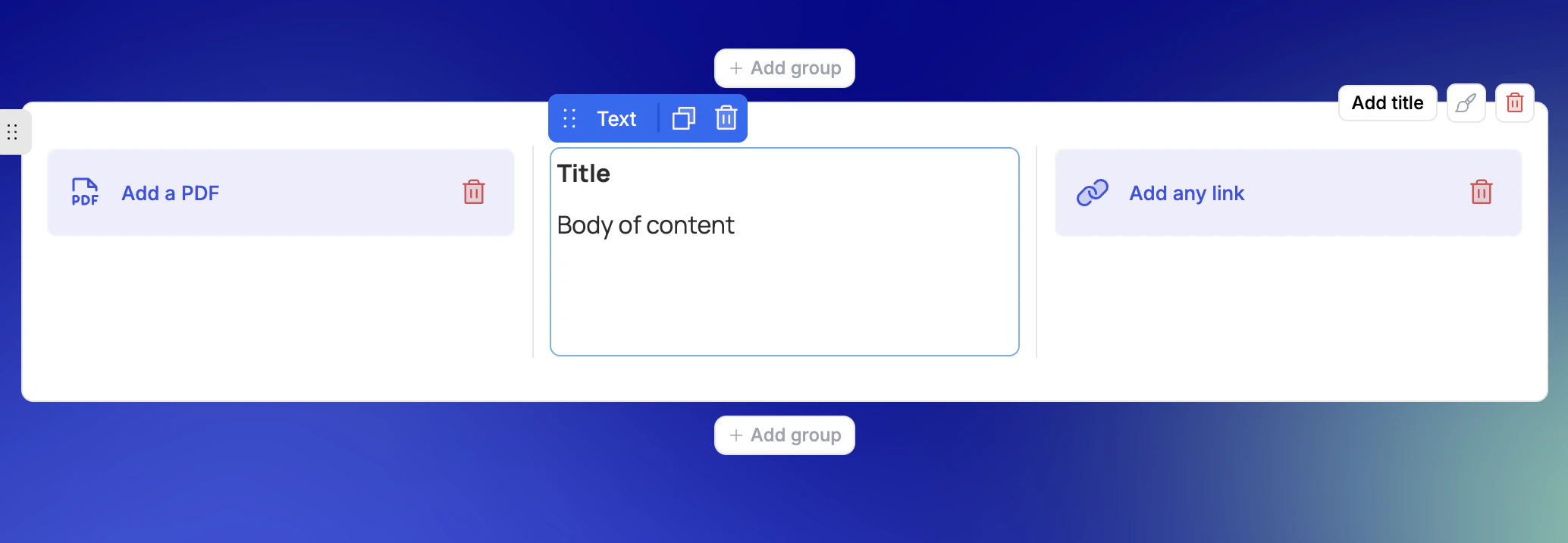
Content inside a room is organised into **groups** — the top-level containers that act as the building blocks of your layout.
* Each group can have an optional header and supports up to **3 columns**
* Build side-by-side layouts with flexible column arrangements
* Style groups individually or apply a style to the whole room
 ### Select from library
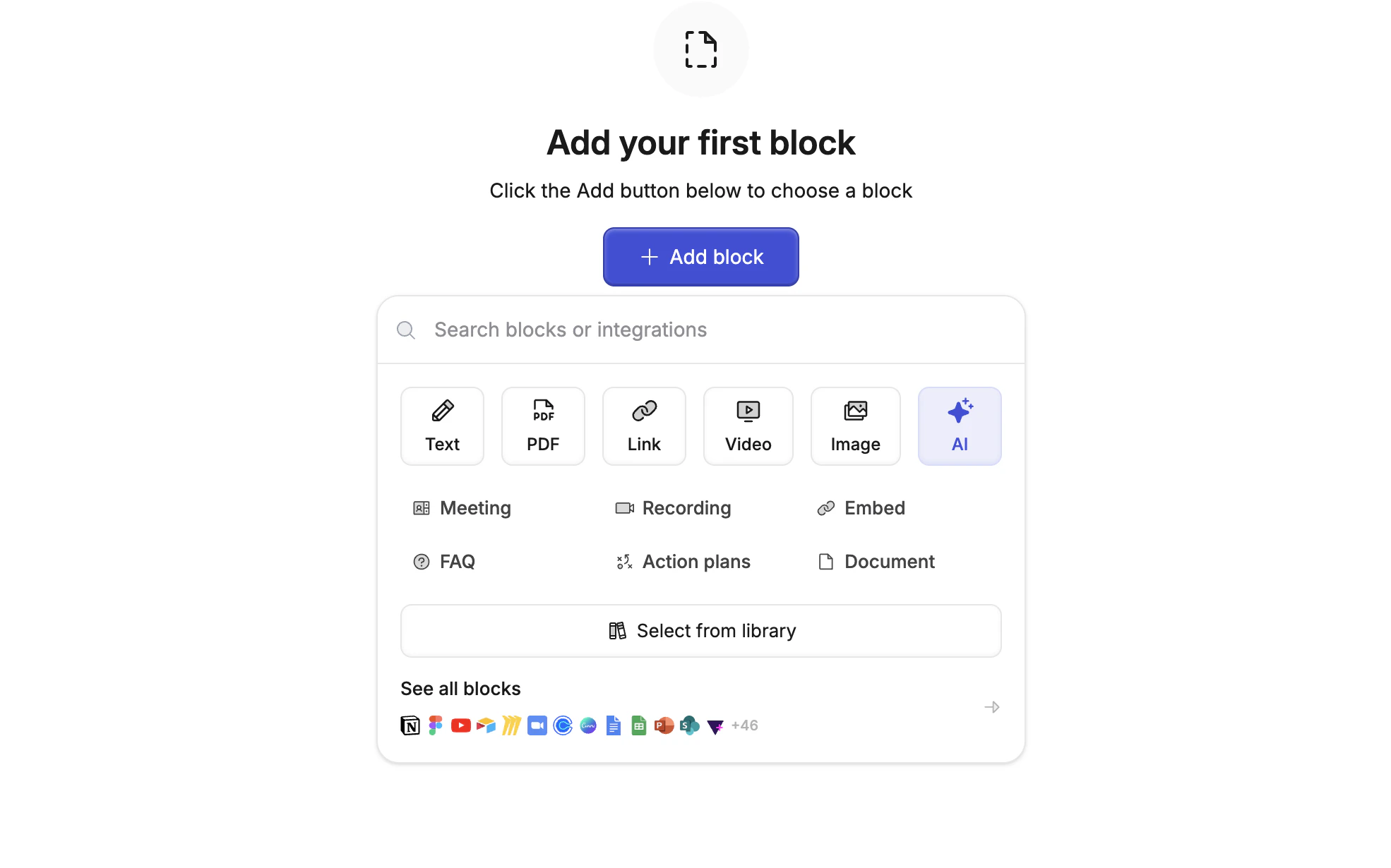
Pull any previously saved asset into the editor using **Select from library**. Reuse approved content across rooms without re-uploading — any updates to the asset in the library reflect everywhere it's used.
### See all blocks & integrations
Clicking **See all blocks** opens the full integrations panel, where you can connect and embed content from over 50 third-party tools directly into your room — including Notion, Figma, YouTube, Zoom, Canva, Google Docs, Google Sheets, PowerPoint, Pitch, and more.
### Drag, reorder, and save
* Groups and blocks are freely draggable — reorder your layout at any time
* Pull assets from your library directly into the editor
* Save any block back to your library in one click from the block options
***
## Meeting blocks
Meetings that sync into your rooms can be surfaced directly as content blocks inside the editor — connecting meeting intelligence with your buyer-facing room. This closes the loop between what was discussed on a call and what the prospect sees next, without any manual copy-pasting.
### Meeting list block
Add a **meeting list block** to display all meetings linked to a room, automatically populated as new calls are matched and synced.
* The list stays in sync automatically — as new calls are matched to the room, they appear in the block without any manual action
* Meetings are **linked** from the room, not duplicated — updates to meeting data reflect everywhere it's used
### Single meeting block
Add a **single meeting block** to highlight a specific call, with the title, description, date, and attendees displayed cleanly inline.
* A picker opens to let you select from the room's matched meetings
* Makes it easy to pull in the right call without manual searching
***
## AI blocks
AI blocks let you generate text and images directly inside a room, using your call transcripts as the source. Instead of manually writing a follow-up summary or business case after every call, the AI does it for you — grounded in what was actually said.
### Select from library
Pull any previously saved asset into the editor using **Select from library**. Reuse approved content across rooms without re-uploading — any updates to the asset in the library reflect everywhere it's used.
### See all blocks & integrations
Clicking **See all blocks** opens the full integrations panel, where you can connect and embed content from over 50 third-party tools directly into your room — including Notion, Figma, YouTube, Zoom, Canva, Google Docs, Google Sheets, PowerPoint, Pitch, and more.
### Drag, reorder, and save
* Groups and blocks are freely draggable — reorder your layout at any time
* Pull assets from your library directly into the editor
* Save any block back to your library in one click from the block options
***
## Meeting blocks
Meetings that sync into your rooms can be surfaced directly as content blocks inside the editor — connecting meeting intelligence with your buyer-facing room. This closes the loop between what was discussed on a call and what the prospect sees next, without any manual copy-pasting.
### Meeting list block
Add a **meeting list block** to display all meetings linked to a room, automatically populated as new calls are matched and synced.
* The list stays in sync automatically — as new calls are matched to the room, they appear in the block without any manual action
* Meetings are **linked** from the room, not duplicated — updates to meeting data reflect everywhere it's used
### Single meeting block
Add a **single meeting block** to highlight a specific call, with the title, description, date, and attendees displayed cleanly inline.
* A picker opens to let you select from the room's matched meetings
* Makes it easy to pull in the right call without manual searching
***
## AI blocks
AI blocks let you generate text and images directly inside a room, using your call transcripts as the source. Instead of manually writing a follow-up summary or business case after every call, the AI does it for you — grounded in what was actually said.
 ### Output formats
* Set the output to **Text** to generate summaries, follow-ups, or other written content
* Set the output to **Image** to produce visuals — infographics, diagrams, or visual summaries — embedded directly in the room
### Automated generation
Set an AI block to generate automatically using the latest meeting transcript synced to the room — no manual trigger needed.
Re-generation feeds the previous AI block output as additional context, improving results over time as more meetings are added.
### Async generation
Triggering an AI block no longer locks you in place. Navigate freely across steps or rooms while content generates in the background.
A notification lets you know when generation completes — no waiting, no watching the screen.
***
## Credit usage
| Output type | Credits consumed |
| ---------------- | ---------------- |
| Text generation | 4 credits |
| Image generation | 8 credits |
Credits are deducted each time an AI block generates output. See [Plans & billing](/plans-billing/credits) for details on your credit balance.
### Output formats
* Set the output to **Text** to generate summaries, follow-ups, or other written content
* Set the output to **Image** to produce visuals — infographics, diagrams, or visual summaries — embedded directly in the room
### Automated generation
Set an AI block to generate automatically using the latest meeting transcript synced to the room — no manual trigger needed.
Re-generation feeds the previous AI block output as additional context, improving results over time as more meetings are added.
### Async generation
Triggering an AI block no longer locks you in place. Navigate freely across steps or rooms while content generates in the background.
A notification lets you know when generation completes — no waiting, no watching the screen.
***
## Credit usage
| Output type | Credits consumed |
| ---------------- | ---------------- |
| Text generation | 4 credits |
| Image generation | 8 credits |
Credits are deducted each time an AI block generates output. See [Plans & billing](/plans-billing/credits) for details on your credit balance.