> ## Documentation Index
> Fetch the complete documentation index at: https://docs.flowla.com/llms.txt
> Use this file to discover all available pages before exploring further.
# Personalising rooms
> Customise rooms with company branding, variables, and visual styling to create personalised experiences.
Every room in Flowla can be automatically tailored to the company you're selling to - pulling in their logo, filling in their name across all your content, and keeping your dashboard organised by account.
***
## Target company
Each room is usually dedicated to one company. Setting a target company personalises the room automatically: it pulls in the company's branding, fills in company-related variables, and keeps your dashboard organised. Prospects notice when content speaks directly to them — a room that shows their logo and uses their company name feels intentional, not generic.
Learn more about [room variables](/rooms/room-variables) for dynamic personalisation.
### Select a target company when creating a room
During room creation, on the **Choose company** step:
**Option A: Create or select a company in Flowla**
Search by domain or name to quickly create and link a target company.
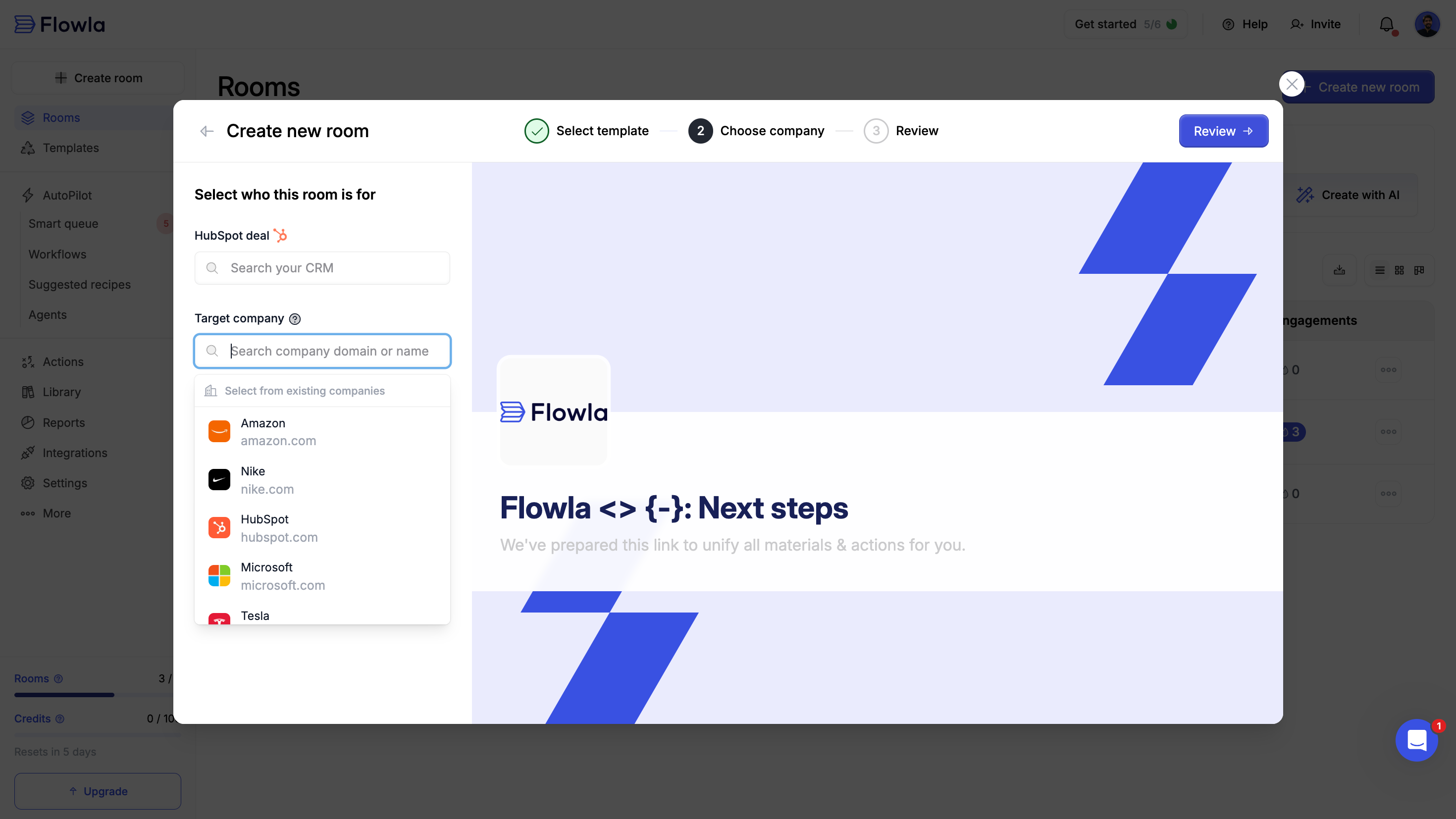 **Option B: Select a [HubSpot](/integrations/HubSpot) deal**
When you select the relevant deal:
* Flowla automatically pulls the deal's company information, including branding and logo
* Deal information syncs to your room
* Room engagement data syncs back to your CRM
### Change the target company on an existing room
Navigate to the room you want to update.
This opens the company settings panel.
Search for or create a new target company.
### Edit company details inside a room
Navigate to the room with the company details you want to update.
This opens the company settings panel.
Update the company name, logo, or other details.
Changes apply immediately to the room.
### Manage companies centrally
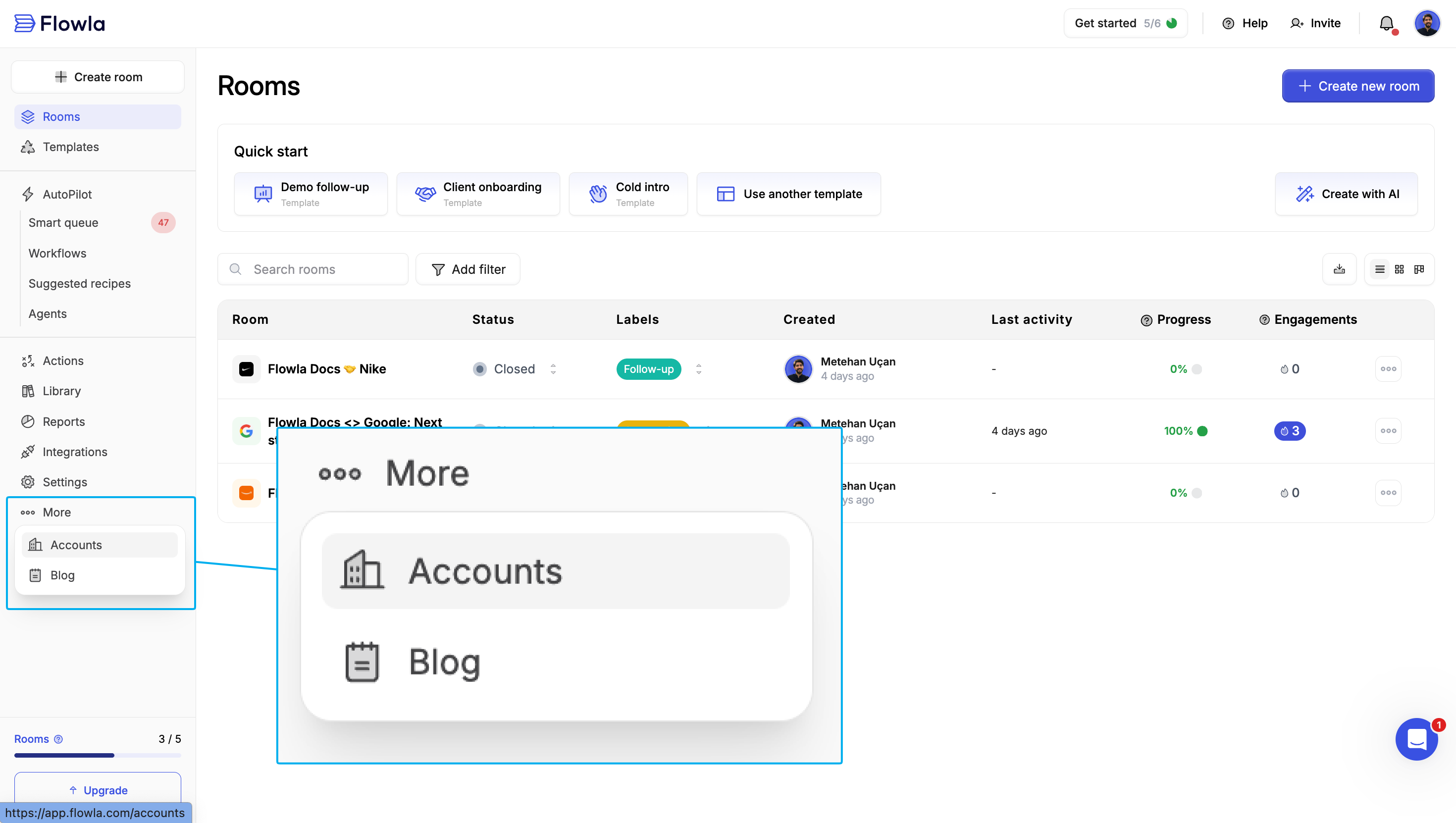
Go to **More → Accounts** to manage all your companies in one place:
* Update company information across all associated rooms
* Merge duplicate companies
* Add or update company logos
Merging duplicate companies updates all associated rooms at once — a quick cleanup here keeps your dashboard tidy and your CRM data accurate.
**Option B: Select a [HubSpot](/integrations/HubSpot) deal**
When you select the relevant deal:
* Flowla automatically pulls the deal's company information, including branding and logo
* Deal information syncs to your room
* Room engagement data syncs back to your CRM
### Change the target company on an existing room
Navigate to the room you want to update.
This opens the company settings panel.
Search for or create a new target company.
### Edit company details inside a room
Navigate to the room with the company details you want to update.
This opens the company settings panel.
Update the company name, logo, or other details.
Changes apply immediately to the room.
### Manage companies centrally
Go to **More → Accounts** to manage all your companies in one place:
* Update company information across all associated rooms
* Merge duplicate companies
* Add or update company logos
Merging duplicate companies updates all associated rooms at once — a quick cleanup here keeps your dashboard tidy and your CRM data accurate.
 ### Target company and CRMs
Target companies are automatically pulled from the deal's associated company in HubSpot, Salesforce, and Attio.
When a room is linked to a CRM deal:
* The target company syncs from the deal's company record
* Company logo and details are pulled in automatically
* Changes in the CRM update the room's target company
***
## Room style
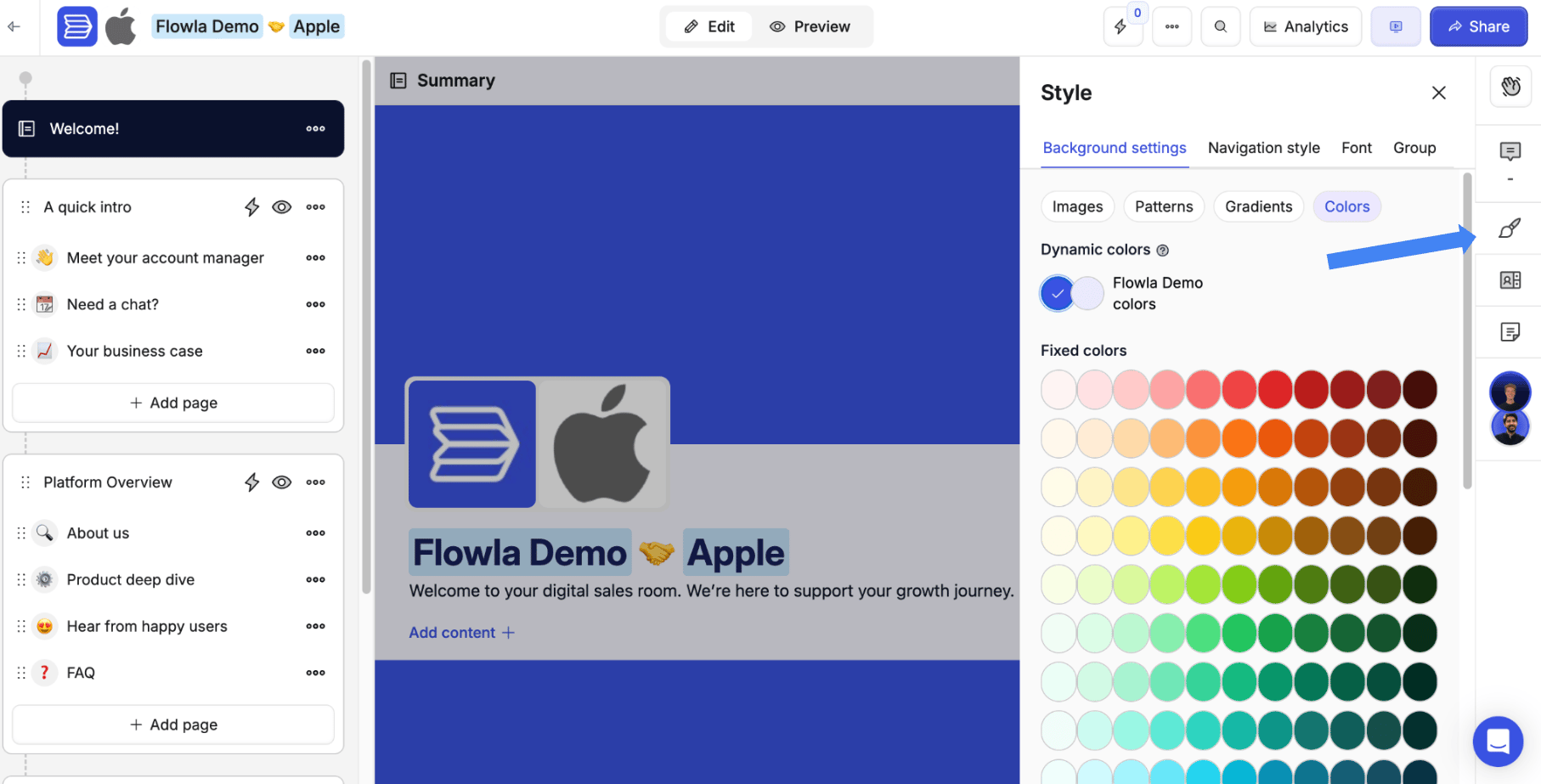
Rooms can be further personalised from the **Style** menu inside the room editor. A well-styled room reinforces your brand and helps your prospect feel like they're in a professional, curated space — not just another shared Google Doc.
### Background settings
In the **Style** menu, under **Background settings**, you can customise the room background:
| Option | Description |
| ------------- | ------------------------------------- |
| **Images** | Upload a custom background image |
| **Patterns** | Choose from pre-built pattern designs |
| **Gradients** | Apply gradient colour backgrounds |
| **Colors** | Set a solid background colour |
### Target company and CRMs
Target companies are automatically pulled from the deal's associated company in HubSpot, Salesforce, and Attio.
When a room is linked to a CRM deal:
* The target company syncs from the deal's company record
* Company logo and details are pulled in automatically
* Changes in the CRM update the room's target company
***
## Room style
Rooms can be further personalised from the **Style** menu inside the room editor. A well-styled room reinforces your brand and helps your prospect feel like they're in a professional, curated space — not just another shared Google Doc.
### Background settings
In the **Style** menu, under **Background settings**, you can customise the room background:
| Option | Description |
| ------------- | ------------------------------------- |
| **Images** | Upload a custom background image |
| **Patterns** | Choose from pre-built pattern designs |
| **Gradients** | Apply gradient colour backgrounds |
| **Colors** | Set a solid background colour |
 ### Navigation style
In the **Style** menu, under **Navigation style**, you can customise the sidebar:
* Adjust sidebar colours and contrast
* Configure navigation visibility
### Editor fonts
Set default font styles for all content blocks from the **Style** menu:
* **Font color** — Set the default text colour for content blocks
* **Font family** — Choose from available fonts to match your brand
### Navigation style
In the **Style** menu, under **Navigation style**, you can customise the sidebar:
* Adjust sidebar colours and contrast
* Configure navigation visibility
### Editor fonts
Set default font styles for all content blocks from the **Style** menu:
* **Font color** — Set the default text colour for content blocks
* **Font family** — Choose from available fonts to match your brand