> ## Documentation Index
> Fetch the complete documentation index at: https://docs.flowla.com/llms.txt
> Use this file to discover all available pages before exploring further.
# Actions
> Create trackable tasks and next steps that drive progress in your rooms.
## TL;DR
Actions are the interactive tasks in a Flowla room that guide users toward clear next steps — turning a room from a static document into a structured, outcome-driven experience. Most deals stall because next steps aren't clear. Actions make them explicit: both parties know exactly what needs to happen and who's responsible for it.
***
## What are actions?
Actions are the to-do items in your room. Unlike content (which informs), actions require completion and help move the process forward.
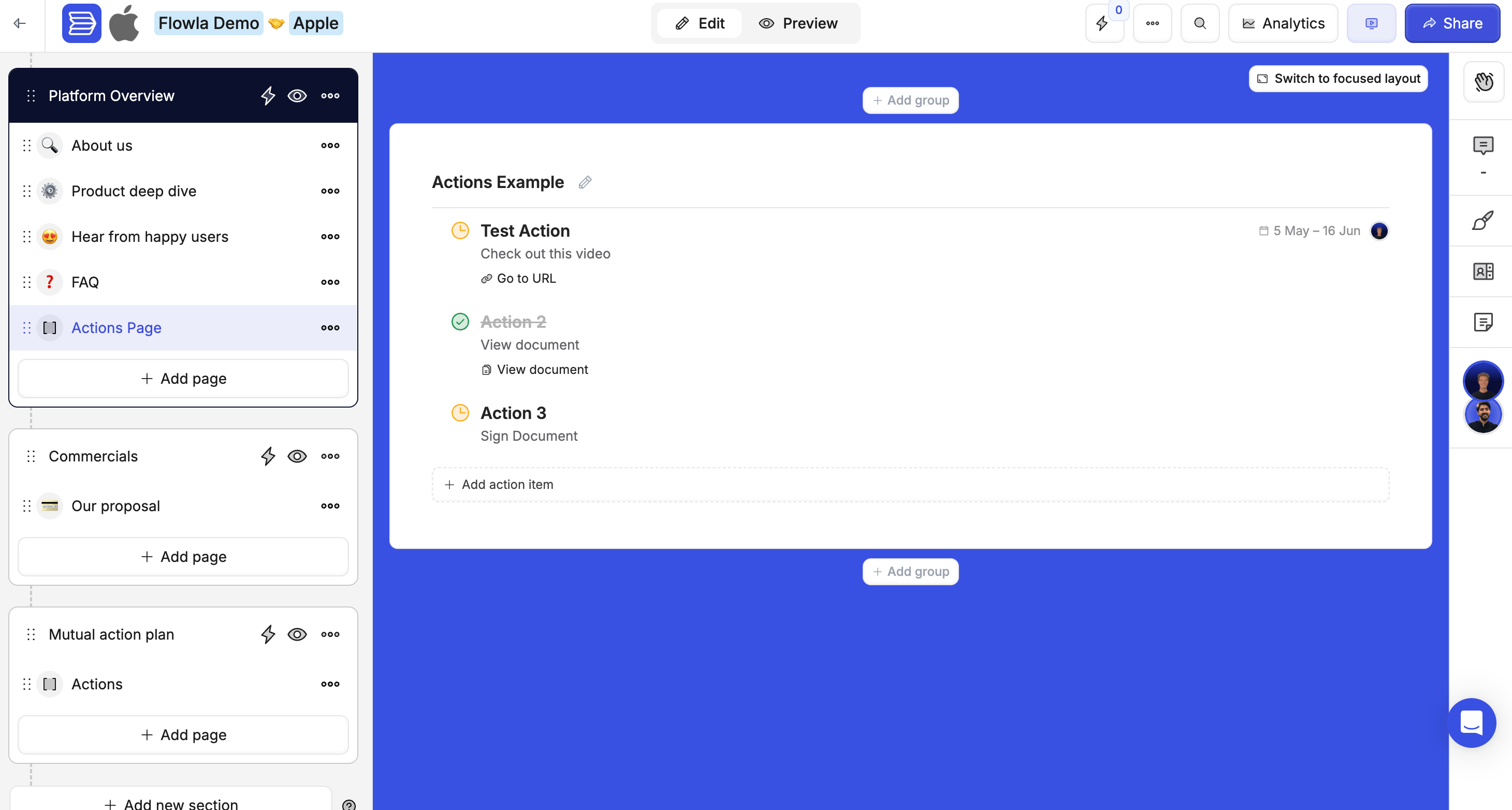 **Actions help you:**
* Guide users through a process step by step
* Collect input or confirmations
* Track progress and completion rates
* Trigger workflows and automation
* Create accountability with assignments and due dates
***
## Creating actions
Open your room and go to the right section.
This adds a new page within the section.
Click **Add block** on the new page.
Choose **Add Action Plan** from the block options.
Click on the action and fill in the title, description, action type, assignee, and due date.
***
## Types of actions
### Prospect-facing actions
These are visible to external users — your prospects and customers. They drive the deal, onboarding, or project forward by making the next step unmissable.
| Action type | What it does |
| ----------------------------- | ------------------------------------------------- |
| **Go to URL** | Direct the prospect to an external link |
| **Watch video** | Ask them to watch a specific video |
| **View document** | Have them review a document in the room |
| **Download a file** | Prompt them to download a file |
| **Fill a form** | Collect information via a form |
| **Book a meeting** | Let them schedule time directly |
| **Sign a document** | Request a signature on a contract or agreement |
| **Invite contacts** | Ask them to add other stakeholders to the room |
| **Sub-actions** | Break a larger action into smaller steps |
| **Collaborate with contacts** | Assign a shared task to multiple people |
| **Custom** | Create a freeform task with your own instructions |
### Internal actions
Internal actions are visible only to your team — completely hidden from buyers and external collaborators. This lets you manage behind-the-scenes work from the same room, without cluttering the customer's view.
**How to mark an action as internal:**
Open the action you want to make internal.
This opens the action options.
The action icon changes to indicate it's internal-only.
Only team members invited to the room (or with org access) can see internal actions.
### What customers see
| Your view | Customer view |
| ---------------------------------------- | ---------------------------- |
| All actions (internal + customer-facing) | Only customer-facing actions |
| Internal actions marked with icon | Internal actions hidden |
| Full task context | Clean, focused experience |
**Common internal action examples:**
* **Sales handoff:** Brief the CS team, confirm technical requirements, get legal approval
* **Deal preparation:** Customise the proposal deck, schedule an internal deal review, prepare the demo environment
* **Onboarding coordination:** Create a customer Slack channel, send the welcome kit, schedule an internal kickoff sync
Use internal actions with **workflows** to trigger automated Slack alerts or email nudges when internal tasks are completed.
***
## Action assignments
Assign actions to specific people to create clear accountability.
| Type | Description |
| ------------------------ | ----------------------------------------- |
| **Internal team member** | Assign to someone on your team |
| **External contact** | Assign to a prospect |
| **Primary contact** | Auto-assign to the room's primary contact |
| **Target company** | Assign the action to the whole company |
Assignees receive notifications when an action is assigned to them (if notifications are enabled). Reminders are sent for upcoming and overdue actions, and completion notifications keep everyone in the loop.
***
## Due dates and reminders
Set due dates to create urgency and accountability.
* Set specific dates or relative dates (e.g. "3 days after room creation")
* Automatic reminders go out before due dates
* Visual indicators show status at a glance
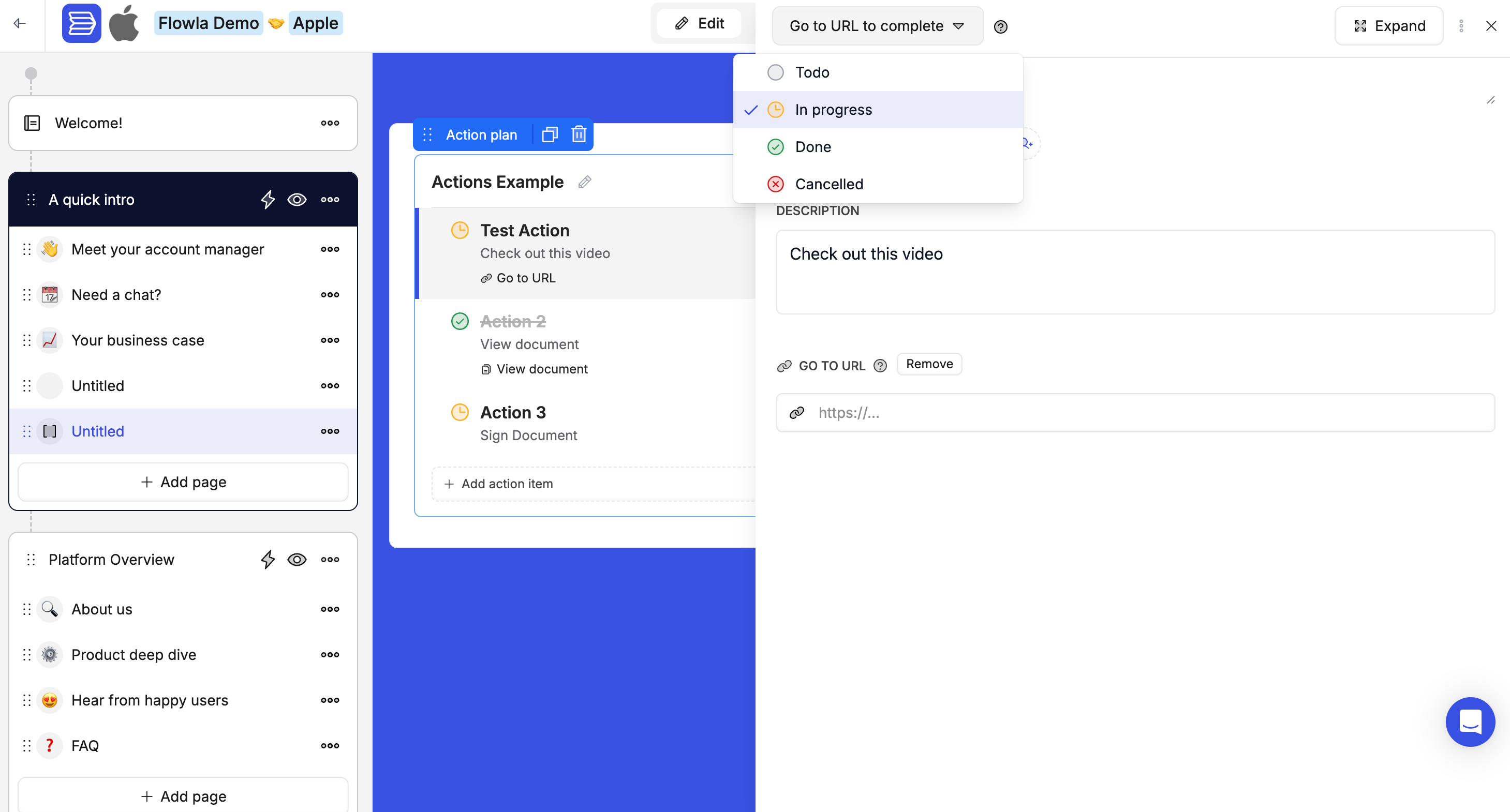
**Task statuses:**
| Status | Description |
| --------------- | ---------------- |
| **To do** | Not started |
| **In progress** | Work has begun |
| **Done** | Completed |
| **Cancelled** | No longer needed |
**Actions help you:**
* Guide users through a process step by step
* Collect input or confirmations
* Track progress and completion rates
* Trigger workflows and automation
* Create accountability with assignments and due dates
***
## Creating actions
Open your room and go to the right section.
This adds a new page within the section.
Click **Add block** on the new page.
Choose **Add Action Plan** from the block options.
Click on the action and fill in the title, description, action type, assignee, and due date.
***
## Types of actions
### Prospect-facing actions
These are visible to external users — your prospects and customers. They drive the deal, onboarding, or project forward by making the next step unmissable.
| Action type | What it does |
| ----------------------------- | ------------------------------------------------- |
| **Go to URL** | Direct the prospect to an external link |
| **Watch video** | Ask them to watch a specific video |
| **View document** | Have them review a document in the room |
| **Download a file** | Prompt them to download a file |
| **Fill a form** | Collect information via a form |
| **Book a meeting** | Let them schedule time directly |
| **Sign a document** | Request a signature on a contract or agreement |
| **Invite contacts** | Ask them to add other stakeholders to the room |
| **Sub-actions** | Break a larger action into smaller steps |
| **Collaborate with contacts** | Assign a shared task to multiple people |
| **Custom** | Create a freeform task with your own instructions |
### Internal actions
Internal actions are visible only to your team — completely hidden from buyers and external collaborators. This lets you manage behind-the-scenes work from the same room, without cluttering the customer's view.
**How to mark an action as internal:**
Open the action you want to make internal.
This opens the action options.
The action icon changes to indicate it's internal-only.
Only team members invited to the room (or with org access) can see internal actions.
### What customers see
| Your view | Customer view |
| ---------------------------------------- | ---------------------------- |
| All actions (internal + customer-facing) | Only customer-facing actions |
| Internal actions marked with icon | Internal actions hidden |
| Full task context | Clean, focused experience |
**Common internal action examples:**
* **Sales handoff:** Brief the CS team, confirm technical requirements, get legal approval
* **Deal preparation:** Customise the proposal deck, schedule an internal deal review, prepare the demo environment
* **Onboarding coordination:** Create a customer Slack channel, send the welcome kit, schedule an internal kickoff sync
Use internal actions with **workflows** to trigger automated Slack alerts or email nudges when internal tasks are completed.
***
## Action assignments
Assign actions to specific people to create clear accountability.
| Type | Description |
| ------------------------ | ----------------------------------------- |
| **Internal team member** | Assign to someone on your team |
| **External contact** | Assign to a prospect |
| **Primary contact** | Auto-assign to the room's primary contact |
| **Target company** | Assign the action to the whole company |
Assignees receive notifications when an action is assigned to them (if notifications are enabled). Reminders are sent for upcoming and overdue actions, and completion notifications keep everyone in the loop.
***
## Due dates and reminders
Set due dates to create urgency and accountability.
* Set specific dates or relative dates (e.g. "3 days after room creation")
* Automatic reminders go out before due dates
* Visual indicators show status at a glance
**Task statuses:**
| Status | Description |
| --------------- | ---------------- |
| **To do** | Not started |
| **In progress** | Work has begun |
| **Done** | Completed |
| **Cancelled** | No longer needed |
 ***
## How actions work with automation
Actions can both trigger and be triggered by workflows.
**Actions as triggers:**
* Action completed → Send a notification
* Action becomes overdue → Alert the team
* Specific action done → Unlock the next section
**Actions from workflows:**
* Automatically create actions when rooms are created
* Change action status based on CRM events
Learn more about [workflow triggers](/automations/triggers) and [actions](/automations/actions).
***
## Best practices
1. **Use clear, descriptive names** — "Review pricing proposal" is better than "Review document"
2. **Order actions logically** — Arrange them in the sequence you expect completion
3. **Limit prospect-facing actions** — Only include what's truly necessary
4. **Use internal actions generously** — Keep your team coordinated without cluttering the prospect view
5. **Set realistic due dates** — Create urgency without being unreasonable
6. **Connect to workflows** — Automate follow-ups and notifications for key actions
***
## Troubleshooting
**Likely cause:** You're using a standard content step instead of an action step.
**Fix:** Use an **Action** step and select the **File Upload** action type. This lets your prospect upload a file directly into the room.
**Likely cause:** The current file upload action supports one file per field.
**Fix:** Add multiple file upload action steps — one per file expected.
***
## How actions work with automation
Actions can both trigger and be triggered by workflows.
**Actions as triggers:**
* Action completed → Send a notification
* Action becomes overdue → Alert the team
* Specific action done → Unlock the next section
**Actions from workflows:**
* Automatically create actions when rooms are created
* Change action status based on CRM events
Learn more about [workflow triggers](/automations/triggers) and [actions](/automations/actions).
***
## Best practices
1. **Use clear, descriptive names** — "Review pricing proposal" is better than "Review document"
2. **Order actions logically** — Arrange them in the sequence you expect completion
3. **Limit prospect-facing actions** — Only include what's truly necessary
4. **Use internal actions generously** — Keep your team coordinated without cluttering the prospect view
5. **Set realistic due dates** — Create urgency without being unreasonable
6. **Connect to workflows** — Automate follow-ups and notifications for key actions
***
## Troubleshooting
**Likely cause:** You're using a standard content step instead of an action step.
**Fix:** Use an **Action** step and select the **File Upload** action type. This lets your prospect upload a file directly into the room.
**Likely cause:** The current file upload action supports one file per field.
**Fix:** Add multiple file upload action steps — one per file expected.