> ## Documentation Index
> Fetch the complete documentation index at: https://docs.flowla.com/llms.txt
> Use this file to discover all available pages before exploring further.
# Sections
> Organise your rooms into logical phases using sections with visibility controls and automation.
## TL;DR
Sections are the stages of your room. They group content and actions into logical phases that guide your prospect through their journey — in the right order, at the right time. By controlling what buyers see and when, you can guide them through a complex process without overwhelming them all at once.
***
## Section visibility
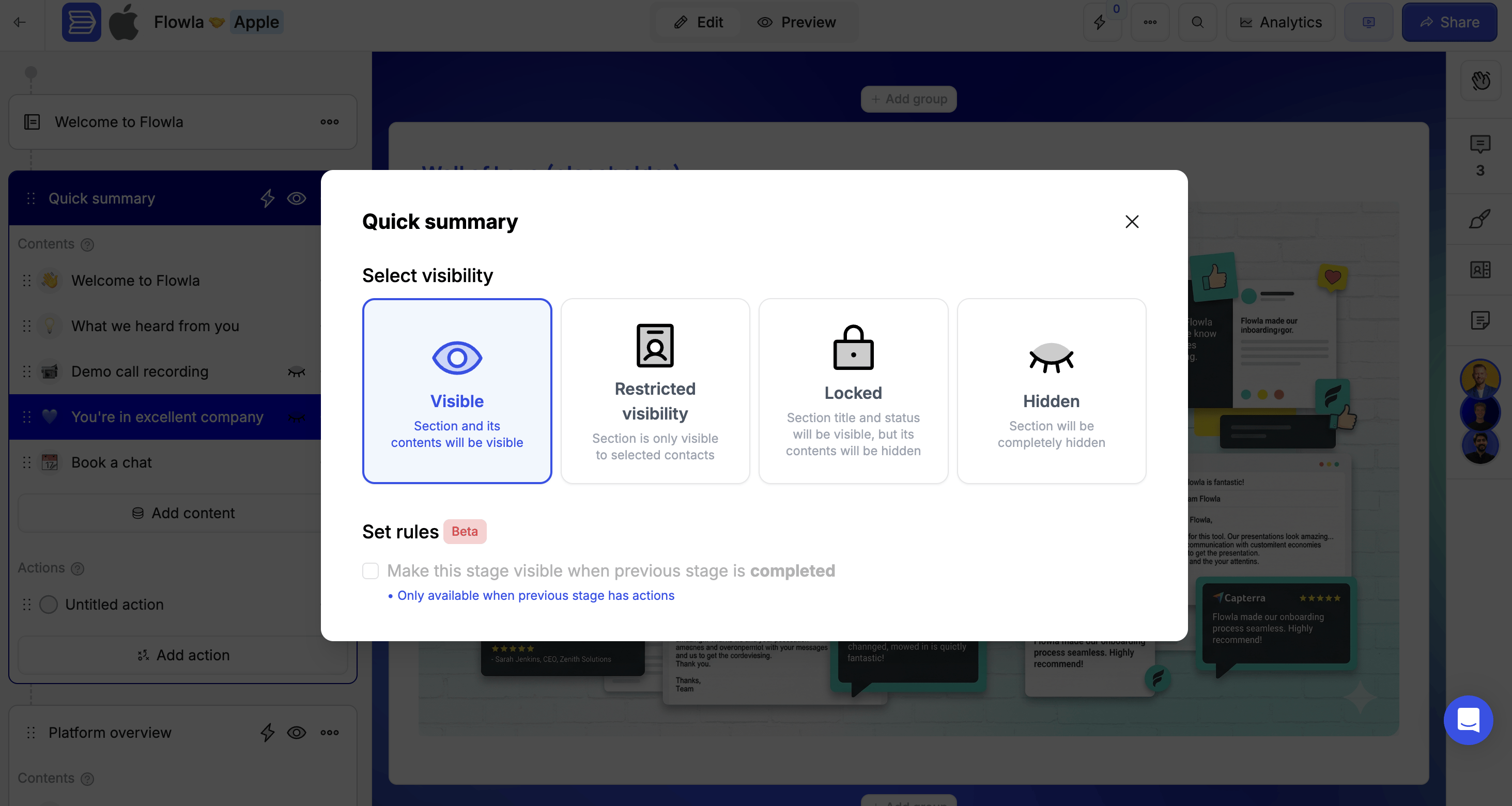
Control how and when sections appear to room visitors. Every section can be set to one of four states.
### Visible
The default state. The section and all its content are visible to anyone viewing the room.
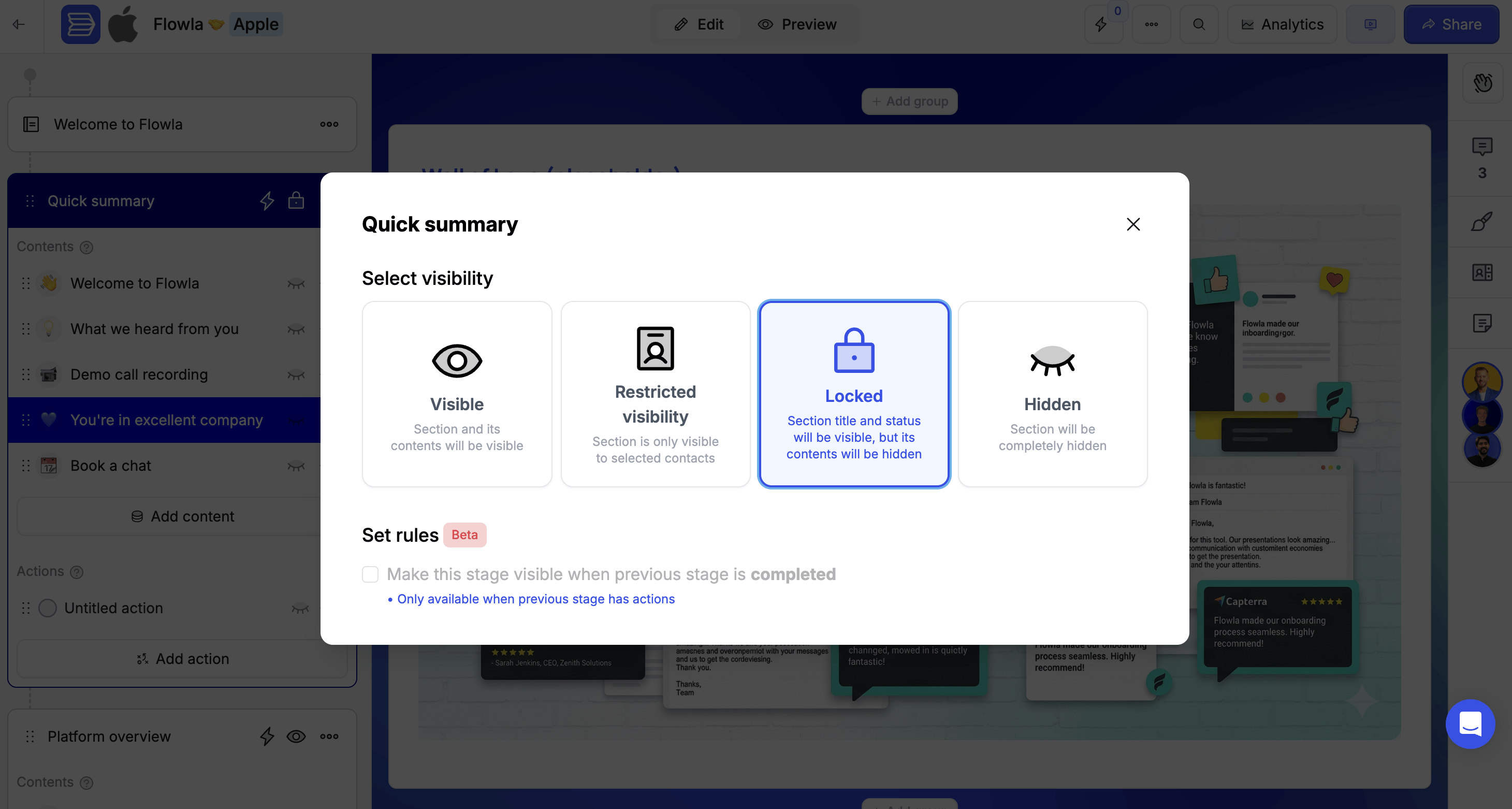
 ### Locked
The section title is visible, but the content and actions inside are hidden. Visitors can see that a phase exists — they just can't access it yet. This is a powerful way to show buyers there's a structured plan in place, which builds confidence even before they've reached those stages.
**Use locked sections to:**
* Show buyers there's a plan without overwhelming them upfront
* Keep later phases ready but hidden during early stages
* Build anticipation for what's coming next
**To lock a section:**
This opens the visibility options.
Visitors will see the section title but not its content.
Set it to auto-unlock when a previous section is completed.
### Locked
The section title is visible, but the content and actions inside are hidden. Visitors can see that a phase exists — they just can't access it yet. This is a powerful way to show buyers there's a structured plan in place, which builds confidence even before they've reached those stages.
**Use locked sections to:**
* Show buyers there's a plan without overwhelming them upfront
* Keep later phases ready but hidden during early stages
* Build anticipation for what's coming next
**To lock a section:**
This opens the visibility options.
Visitors will see the section title but not its content.
Set it to auto-unlock when a previous section is completed.
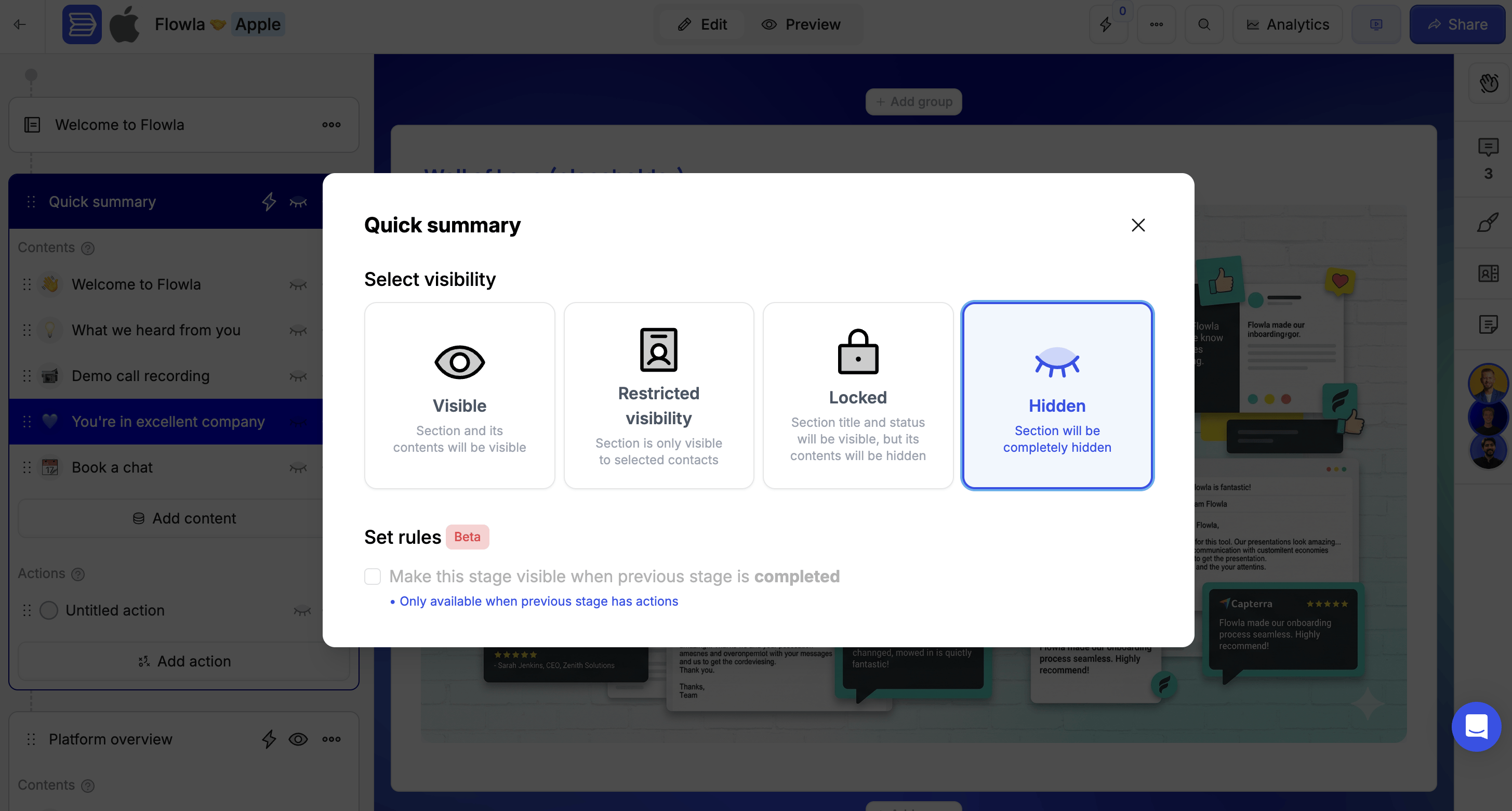
 ### Hidden
The section is completely invisible to visitors. They won't know it exists until you make it visible.
**Use hidden sections for:**
* Content that isn't ready yet
* Phases that only apply to certain prospects
* Internal preparation sections
**To hide a section:**
This opens the visibility options.
Visitors won't see the section at all.
Set it to appear automatically based on progress or an external event.
### Hidden
The section is completely invisible to visitors. They won't know it exists until you make it visible.
**Use hidden sections for:**
* Content that isn't ready yet
* Phases that only apply to certain prospects
* Internal preparation sections
**To hide a section:**
This opens the visibility options.
Visitors won't see the section at all.
Set it to appear automatically based on progress or an external event.
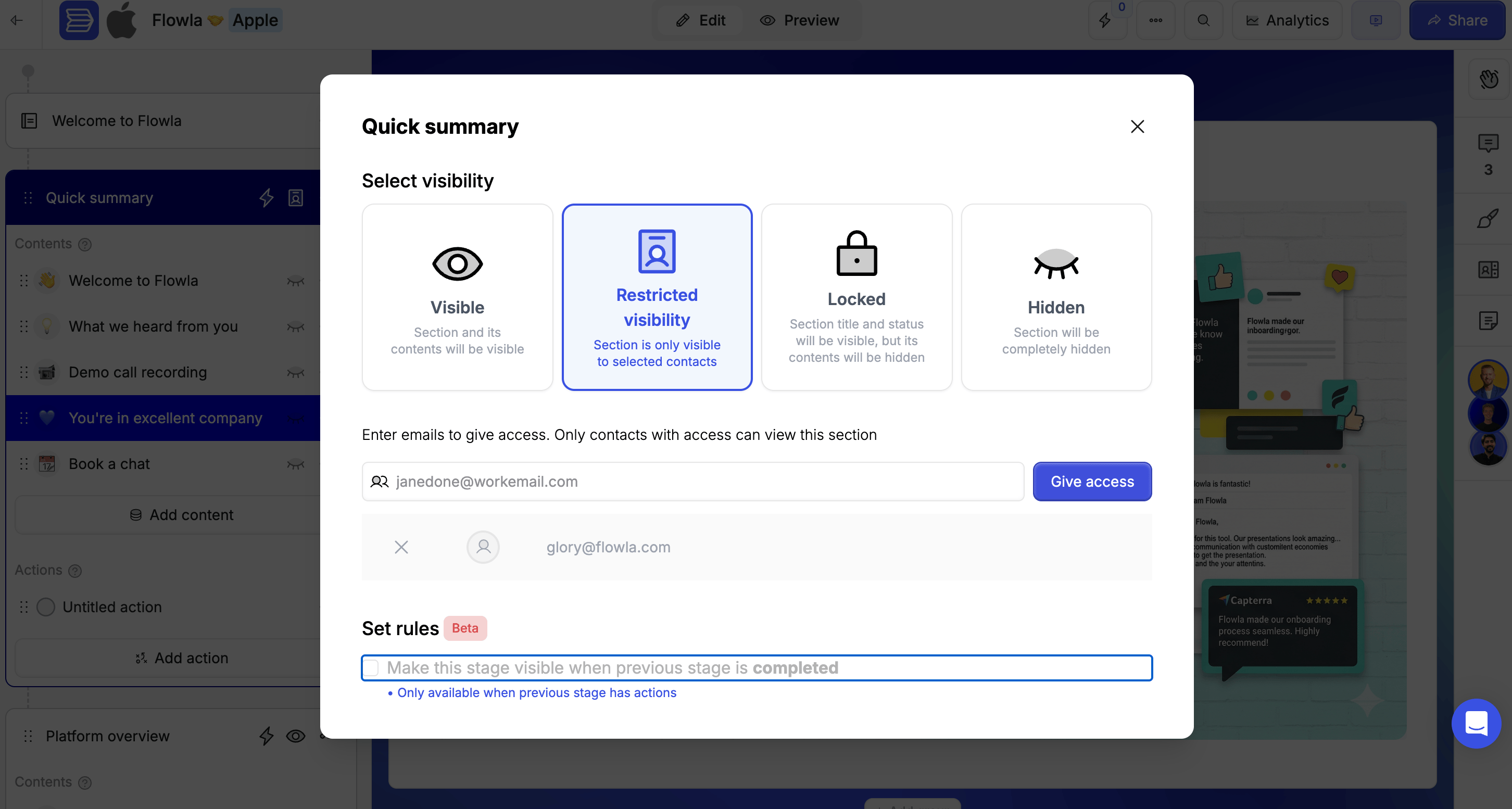
 ### Restricted visibility
The section is only visible to specific users — useful for sensitive content that shouldn't be seen by all stakeholders.
**To restrict a section:**
This opens the visibility options.
This opens the access control field.
Everyone else won't see the section.
### Restricted visibility
The section is only visible to specific users — useful for sensitive content that shouldn't be seen by all stakeholders.
**To restrict a section:**
This opens the visibility options.
This opens the access control field.
Everyone else won't see the section.
 ***
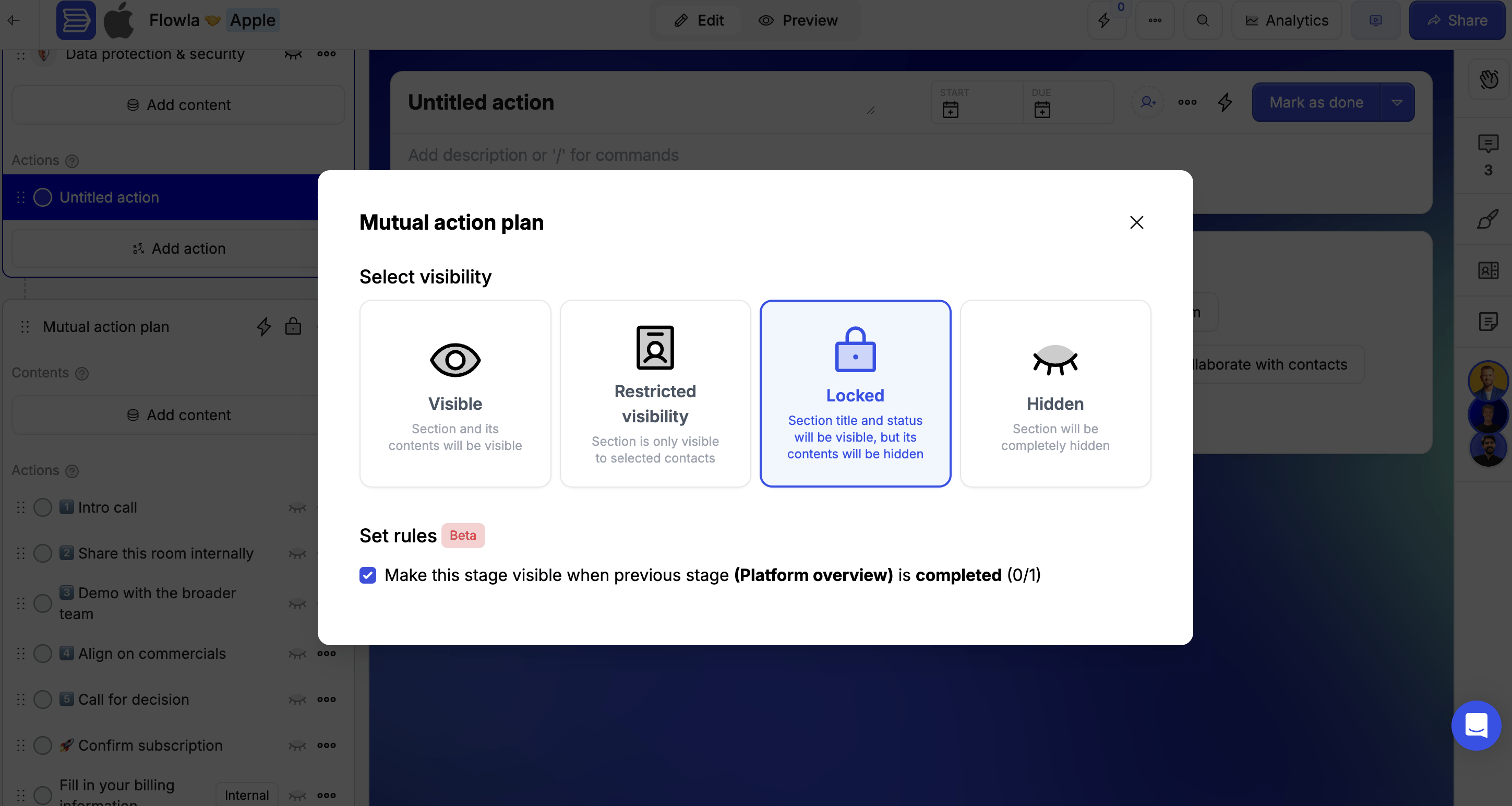
## Auto-unlock when the previous section is completed
Set a section to appear automatically once the buyer finishes the section before it.
**To enable:**
This opens the visibility options.
The section will unlock automatically when your prospect completes the previous section.
***
## Auto-unlock when the previous section is completed
Set a section to appear automatically once the buyer finishes the section before it.
**To enable:**
This opens the visibility options.
The section will unlock automatically when your prospect completes the previous section.
 ***
## Automate sections with workflows
Use workflows to control section visibility based on external events — not just in-room progress.
**Examples:**
* Deal moves from "Proposal" → "Closed Won" → Unlock "Onboarding" section
* CRM property updates to "Contract Signed" → Unlock "Implementation" section
* A form is submitted → Reveal personalised next steps
**Common CRM triggers:**
* **Deal stage changes** — Unlock the "Proposal" section when a deal moves to proposal stage
* **Property updates** — Show the "Legal" section when contract status changes
* **Form submissions** — Reveal next steps when a qualification form is completed
Learn more about workflow [triggers](/automations/triggers) and [actions](/automations/actions).
***
## Best practices for sections
1. **Keep each section focused** — One clear purpose per section (e.g. "Introduction", "Scheduling", "Contract")
2. **Lead with context** — Start each section with brief instructions so prospects know what to expect
3. **Use progressive unlocks** — Reveal sections as prospects move through the journey
4. **Leverage engagement data** — Track which sections get attention to improve sequencing
5. **Name sections clearly** — Use action-oriented names that guide the prospect
***
## Troubleshooting
**Likely cause:** A UI bug, or steps are locked due to a room setting.
**Fix:** Try refreshing the page. If steps are still stuck, contact support — this may be a platform bug.
***
## Automate sections with workflows
Use workflows to control section visibility based on external events — not just in-room progress.
**Examples:**
* Deal moves from "Proposal" → "Closed Won" → Unlock "Onboarding" section
* CRM property updates to "Contract Signed" → Unlock "Implementation" section
* A form is submitted → Reveal personalised next steps
**Common CRM triggers:**
* **Deal stage changes** — Unlock the "Proposal" section when a deal moves to proposal stage
* **Property updates** — Show the "Legal" section when contract status changes
* **Form submissions** — Reveal next steps when a qualification form is completed
Learn more about workflow [triggers](/automations/triggers) and [actions](/automations/actions).
***
## Best practices for sections
1. **Keep each section focused** — One clear purpose per section (e.g. "Introduction", "Scheduling", "Contract")
2. **Lead with context** — Start each section with brief instructions so prospects know what to expect
3. **Use progressive unlocks** — Reveal sections as prospects move through the journey
4. **Leverage engagement data** — Track which sections get attention to improve sequencing
5. **Name sections clearly** — Use action-oriented names that guide the prospect
***
## Troubleshooting
**Likely cause:** A UI bug, or steps are locked due to a room setting.
**Fix:** Try refreshing the page. If steps are still stuck, contact support — this may be a platform bug.