> ## Documentation Index
> Fetch the complete documentation index at: https://docs.flowla.com/llms.txt
> Use this file to discover all available pages before exploring further.
# Using the rooms dashboard
> Navigate, filter, sort, and manage all your rooms from the central dashboard.
The rooms dashboard is your central view for managing every room across your organisation — find rooms fast, track engagement, and act on what you see. As your team scales and rooms multiply, the dashboard becomes your way to stay on top of what's active, what's stalled, and where to focus your energy.
***
## Filter rooms
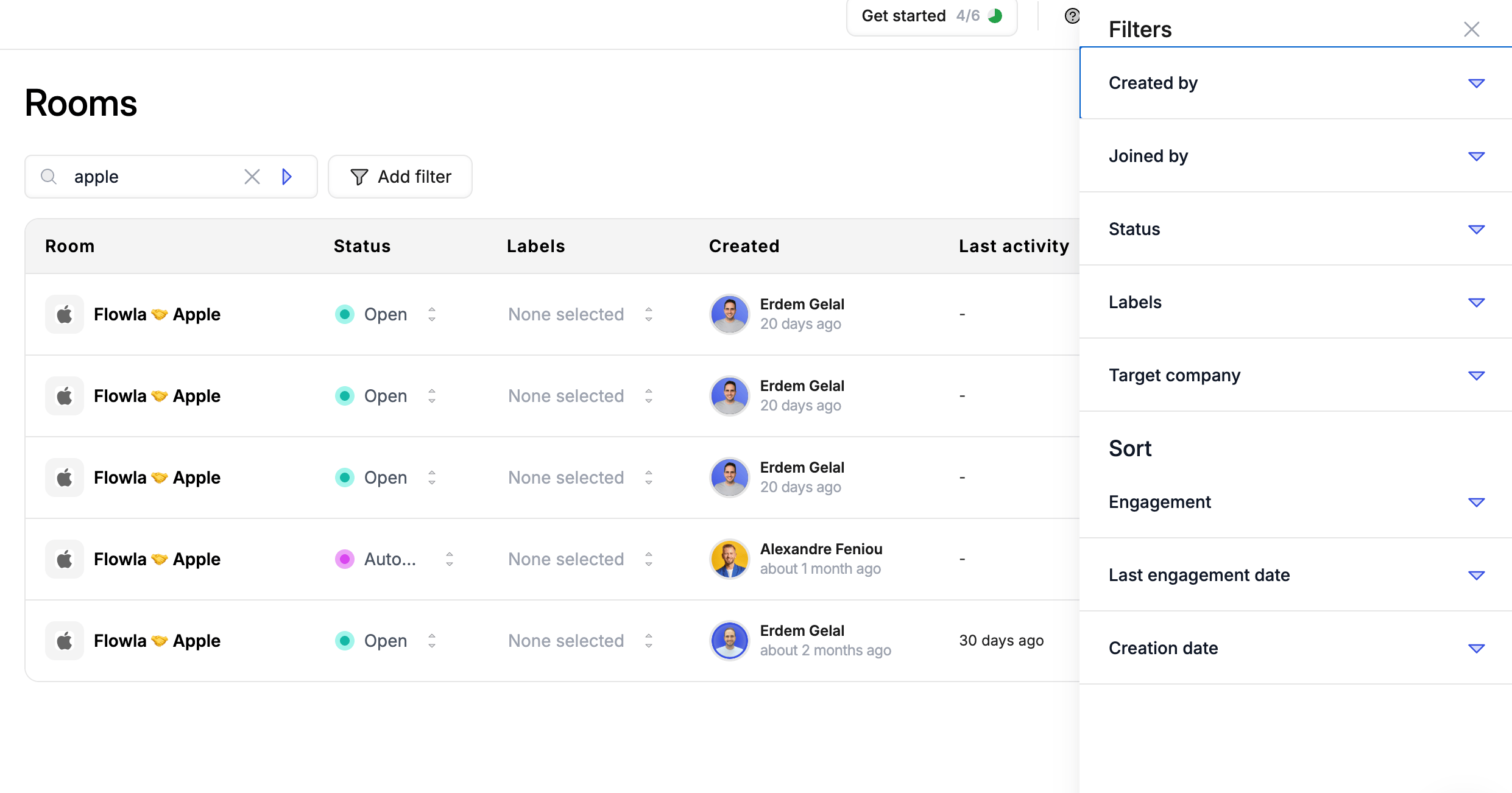
Narrow down your room list to find exactly what you're looking for.
**Available filters:**
| Filter | Description |
| ------------- | ------------------------------------------------------ |
| **Owner** | Show rooms owned by specific team members |
| **Joined by** | Show rooms joined or owned by team members |
| **Status** | Filter by room status (Active, Won, Lost, Draft, etc.) |
| **Labels** | Filter by custom labels you've applied |
| **Company** | Filter by target company |
### To apply filters:
This opens the filter panel.
Choose one or more filters to apply.
For example, filter by a specific owner and status at the same time.
This removes all active filters and returns to the full room list.
 Learn more about [organising rooms with labels and statuses](/rooms/room-statuses-&-labels).
***
## Sort rooms
Order your room list to surface what matters most.
| Sort by | Description |
| ------------------------ | -------------------------------- |
| **Engagements** | Most or least active rooms first |
| **Last engagement date** | Sort by most recent activity |
| **Created date** | Newest or oldest rooms first |
Click **Add filter** then on the right handside menu that appears, select your preferred order. Sorting by **Last engagement date** is particularly useful for identifying rooms that have gone quiet and may need a follow-up nudge.
***
## Dashboard views
Switch between views to see your rooms the way you prefer.
### List view
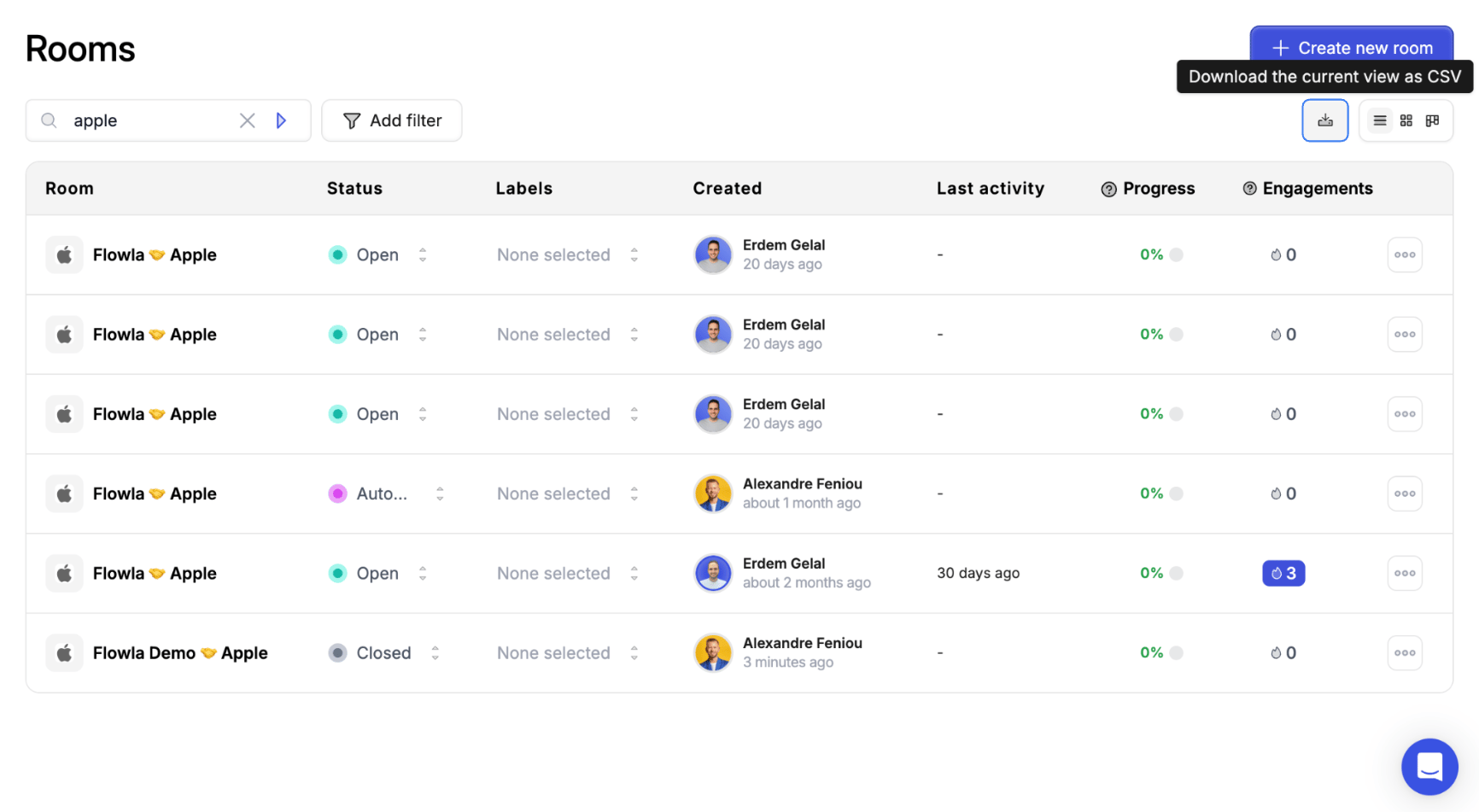
The default view — rooms displayed in a table with key details at a glance:
* Room name and company
* Status and labels
* Last activity
* Engagement count
* Owner
Learn more about [organising rooms with labels and statuses](/rooms/room-statuses-&-labels).
***
## Sort rooms
Order your room list to surface what matters most.
| Sort by | Description |
| ------------------------ | -------------------------------- |
| **Engagements** | Most or least active rooms first |
| **Last engagement date** | Sort by most recent activity |
| **Created date** | Newest or oldest rooms first |
Click **Add filter** then on the right handside menu that appears, select your preferred order. Sorting by **Last engagement date** is particularly useful for identifying rooms that have gone quiet and may need a follow-up nudge.
***
## Dashboard views
Switch between views to see your rooms the way you prefer.
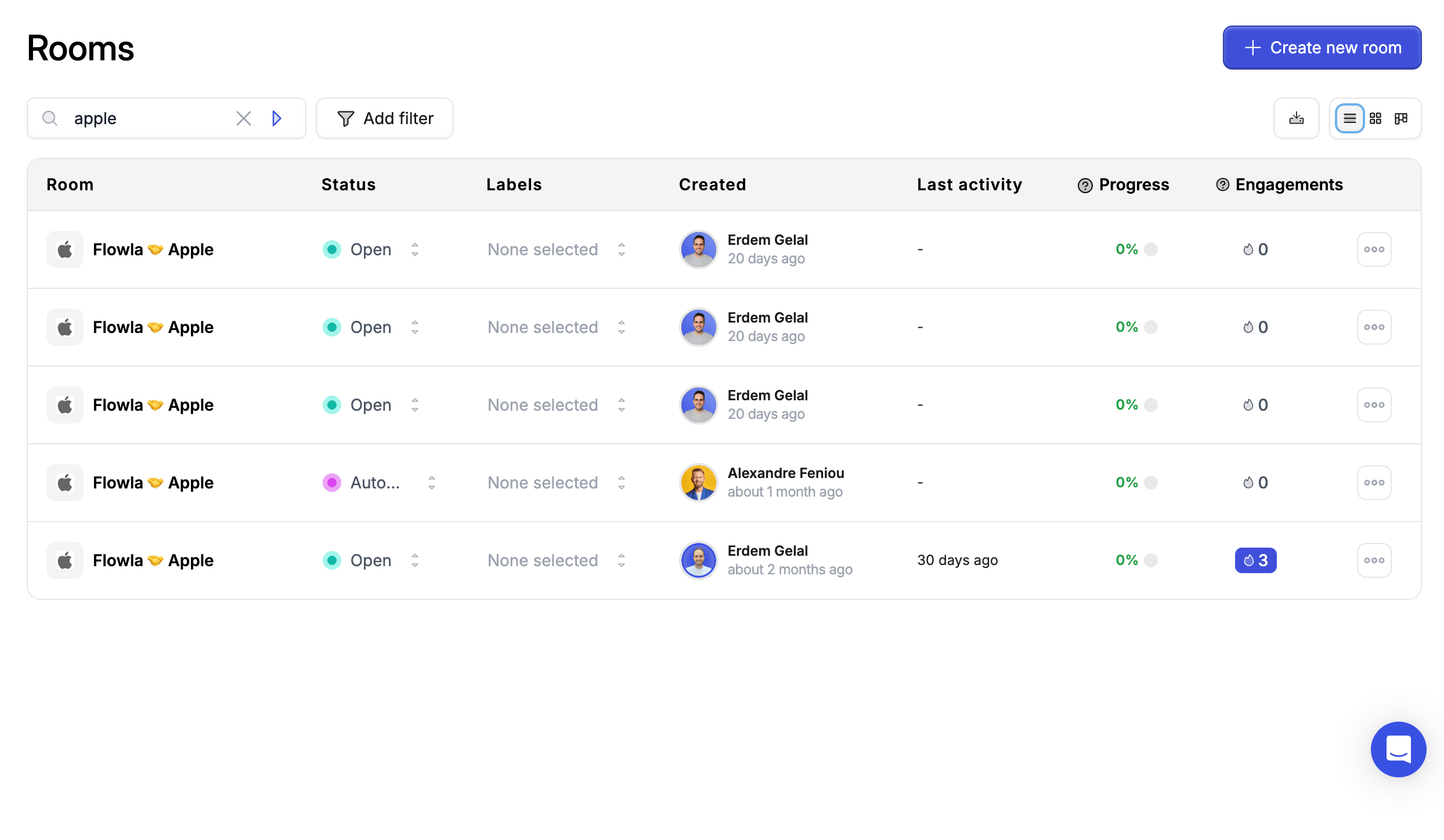
### List view
The default view — rooms displayed in a table with key details at a glance:
* Room name and company
* Status and labels
* Last activity
* Engagement count
* Owner
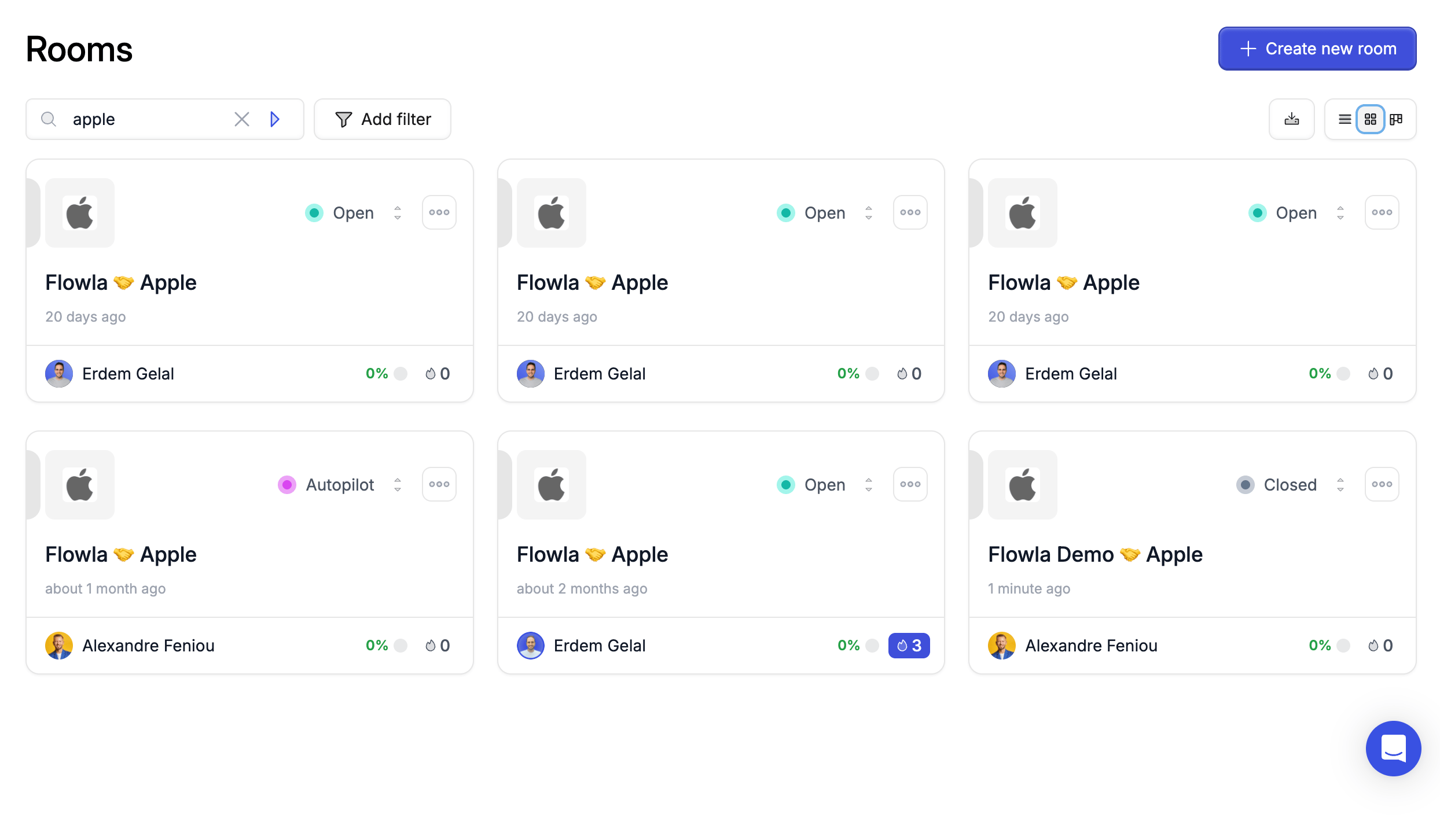
 ### Card view
See all rooms as cards:
* Room name and company
* Status and labels
* Engagement count
* Owner
### Card view
See all rooms as cards:
* Room name and company
* Status and labels
* Engagement count
* Owner
 ### Board view
Rooms organised as cards grouped by status — great for managers and RevOps teams who want a quick snapshot of how deals are distributed across pipeline stages:
* Drag and drop rooms between status columns
* Quickly see how your pipeline is distributed
### Board view
Rooms organised as cards grouped by status — great for managers and RevOps teams who want a quick snapshot of how deals are distributed across pipeline stages:
* Drag and drop rooms between status columns
* Quickly see how your pipeline is distributed
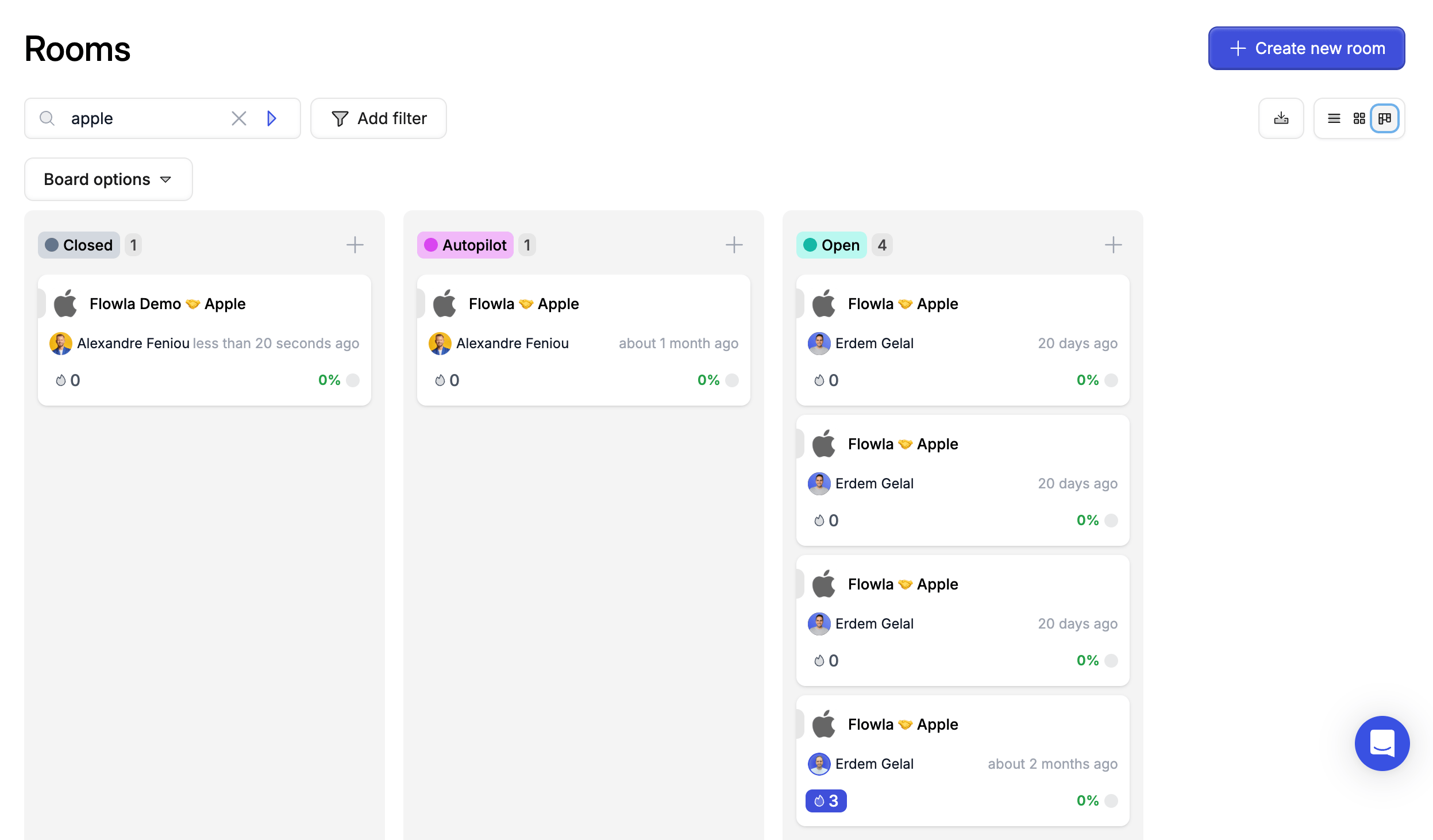 Click the view icons in the top right of the dashboard to switch between List, Board, and Card views.
***
## Notifications
Stay informed about activity across all your rooms without opening each one individually. From the dashboard, you can configure notification preferences that apply across your entire room list.
***
## Export room data
Export your room data for reporting, analysis, or sharing with stakeholders.
**What's included in an export:**
* Room list with metadata (name, company, status, dates)
* Engagement data (views, downloads, completions)
* Stakeholder information
* Action / task completion status
**To export:**
Only rooms matching your active filters will be included.
The file downloads immediately.
Click the view icons in the top right of the dashboard to switch between List, Board, and Card views.
***
## Notifications
Stay informed about activity across all your rooms without opening each one individually. From the dashboard, you can configure notification preferences that apply across your entire room list.
***
## Export room data
Export your room data for reporting, analysis, or sharing with stakeholders.
**What's included in an export:**
* Room list with metadata (name, company, status, dates)
* Engagement data (views, downloads, completions)
* Stakeholder information
* Action / task completion status
**To export:**
Only rooms matching your active filters will be included.
The file downloads immediately.
 **Common uses:**
* Create executive reports on pipeline activity
* Analyse engagement patterns in a spreadsheet
* Share room lists with team leads
* Import data into business intelligence tools
**Common uses:**
* Create executive reports on pipeline activity
* Analyse engagement patterns in a spreadsheet
* Share room lists with team leads
* Import data into business intelligence tools