

TL;DR
Actions are the interactive tasks in a Flowla room that guide users toward clear next steps — turning a room from a static document into a structured, outcome-driven experience. Most deals stall because next steps aren’t clear. Actions make them explicit: both parties know exactly what needs to happen and who’s responsible for it.What are actions?
Actions are the to-do items in your room. Unlike content (which informs), actions require completion and help move the process forward.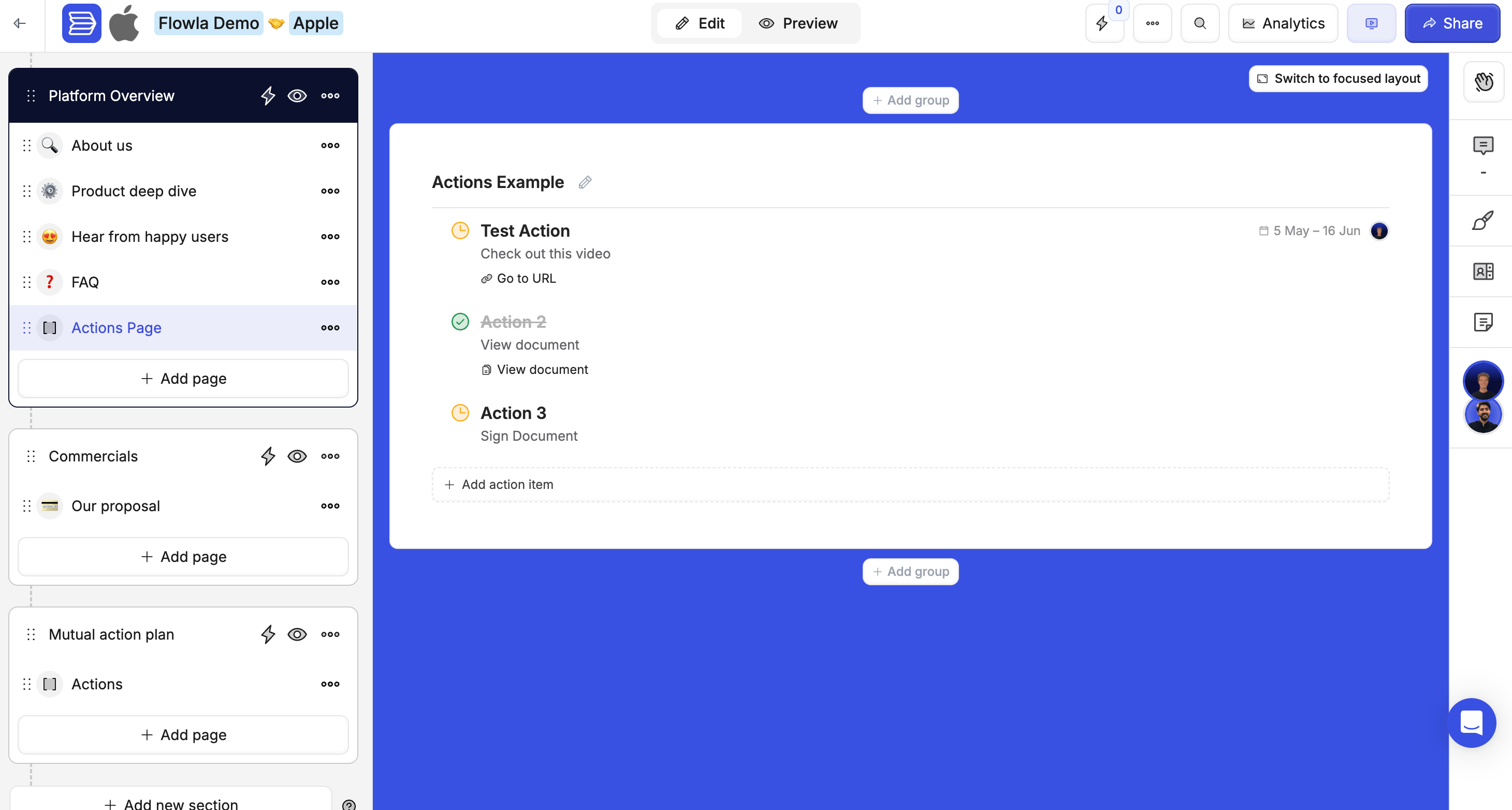
- Guide users through a process step by step
- Collect input or confirmations
- Track progress and completion rates
- Trigger workflows and automation
- Create accountability with assignments and due dates
Creating actions
1
Navigate to the section where you want to add an action
Open your room and go to the right section.
2
Click Add page
This adds a new page within the section.
3
Click Add block
Click Add block on the new page.
4
Select Action Plan
Choose Add Action Plan from the block options.
5
Configure the action
Click on the action and fill in the title, description, action type, assignee, and due date.
Types of actions
Prospect-facing actions
These are visible to external users — your prospects and customers. They drive the deal, onboarding, or project forward by making the next step unmissable.Internal actions
Internal actions are visible only to your team — completely hidden from buyers and external collaborators. This lets you manage behind-the-scenes work from the same room, without cluttering the customer’s view. How to mark an action as internal:1
Create or select an action
Open the action you want to make internal.
2
Click the three-dot menu (•••) in the top right
This opens the action options.
3
Select Mark as Internal Action
The action icon changes to indicate it’s internal-only.
Only team members invited to the room (or with org access) can see internal actions.
What customers see
Common internal action examples:
- Sales handoff: Brief the CS team, confirm technical requirements, get legal approval
- Deal preparation: Customise the proposal deck, schedule an internal deal review, prepare the demo environment
- Onboarding coordination: Create a customer Slack channel, send the welcome kit, schedule an internal kickoff sync
Action assignments
Assign actions to specific people to create clear accountability.
Assignees receive notifications when an action is assigned to them (if notifications are enabled). Reminders are sent for upcoming and overdue actions, and completion notifications keep everyone in the loop.
Due dates and reminders
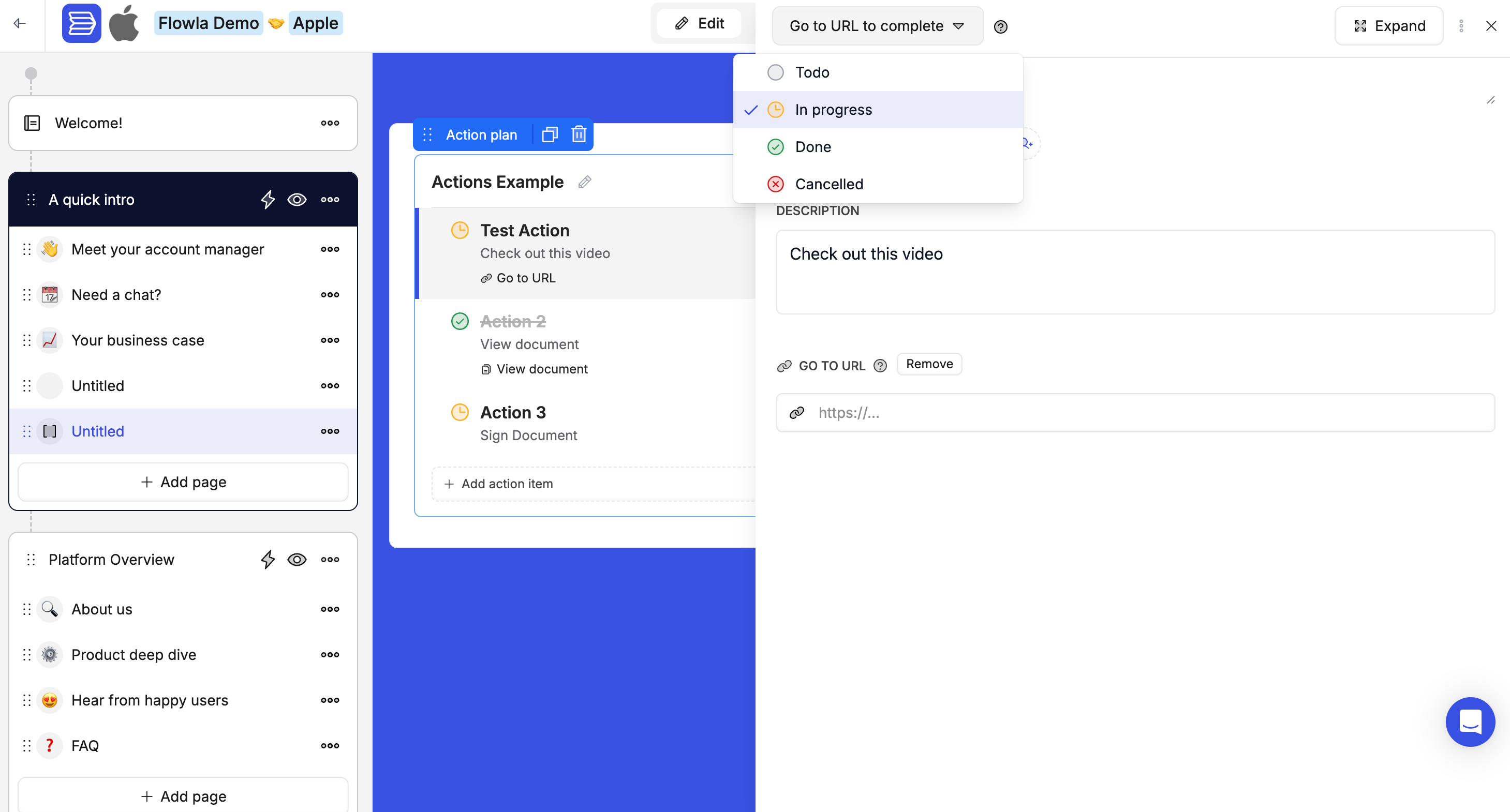
Set due dates to create urgency and accountability.- Set specific dates or relative dates (e.g. “3 days after room creation”)
- Automatic reminders go out before due dates
- Visual indicators show status at a glance
How actions work with automation
Actions can both trigger and be triggered by workflows. Actions as triggers:- Action completed → Send a notification
- Action becomes overdue → Alert the team
- Specific action done → Unlock the next section
- Automatically create actions when rooms are created
- Change action status based on CRM events
Best practices
- Use clear, descriptive names — “Review pricing proposal” is better than “Review document”
- Order actions logically — Arrange them in the sequence you expect completion
- Limit prospect-facing actions — Only include what’s truly necessary
- Use internal actions generously — Keep your team coordinated without cluttering the prospect view
- Set realistic due dates — Create urgency without being unreasonable
- Connect to workflows — Automate follow-ups and notifications for key actions
Troubleshooting
I can't get a customer to upload a file — only download
I can't get a customer to upload a file — only download
Likely cause: You’re using a standard content step instead of an action step.Fix: Use an Action step and select the File Upload action type. This lets your prospect upload a file directly into the room.
Can someone upload multiple files in one file upload question?
Can someone upload multiple files in one file upload question?
Likely cause: The current file upload action supports one file per field.Fix: Add multiple file upload action steps — one per file expected.