

Freeform editor
Groups and columns
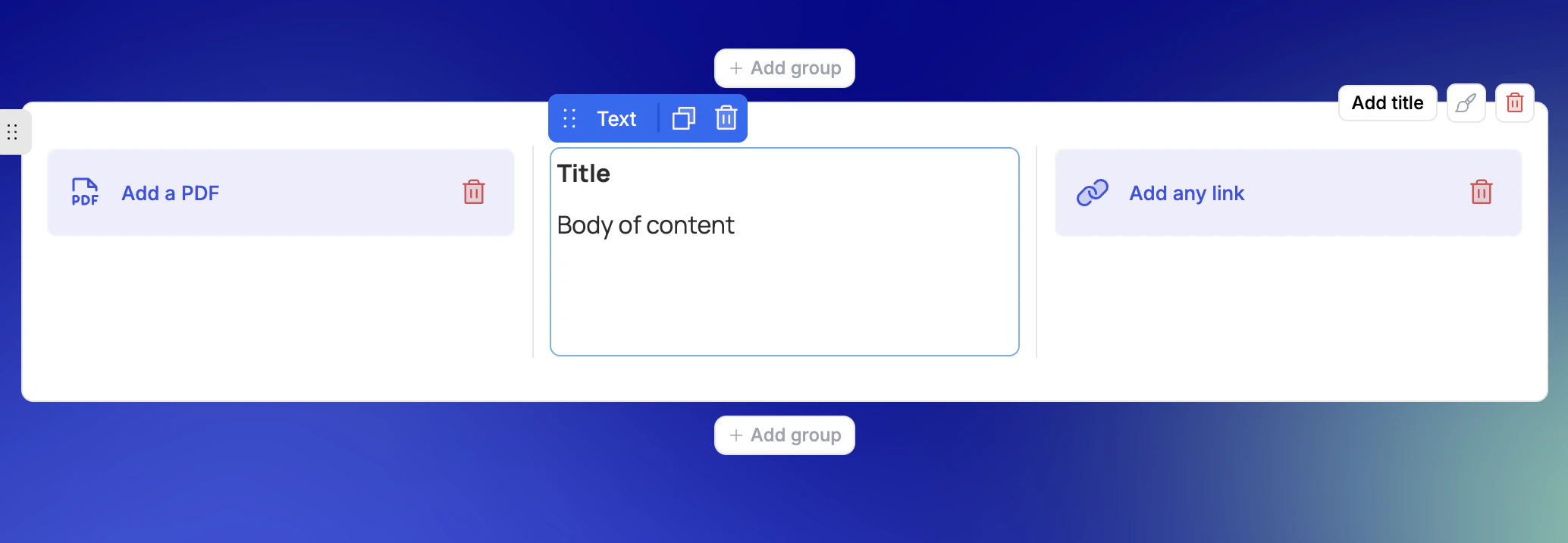
Content inside a room is organised into groups — the top-level containers that act as the building blocks of your layout.- Each group can have an optional header and supports up to 3 columns
- Build side-by-side layouts with flexible column arrangements
- Style groups individually or apply a style to the whole room
Select from library
Pull any previously saved asset into the editor using Select from library. Reuse approved content across rooms without re-uploading — any updates to the asset in the library reflect everywhere it’s used.You can also ask REX to do this for you. It can create sections and pages, add or reorganise content blocks, and pull the right asset straight from the library into a room based on what a specific stakeholder actually needs to see.
See all blocks & integrations
Clicking See all blocks opens the full integrations panel, where you can connect and embed content from over 50 third-party tools directly into your room — including Notion, Figma, YouTube, Zoom, Canva, Google Docs, Google Sheets, PowerPoint, Pitch, and more.Drag, reorder, and save
- Groups and blocks are freely draggable — reorder your layout at any time
- Pull assets from your library directly into the editor
- Save any block back to your library in one click from the block options
Meeting blocks
Meetings that sync into your rooms can be surfaced directly as content blocks inside the editor — connecting meeting intelligence with your buyer-facing room. This closes the loop between what was discussed on a call and what the prospect sees next, without any manual copy-pasting.Meeting list block
Add a meeting list block to display all meetings linked to a room, automatically populated as new calls are matched and synced.- The list stays in sync automatically — as new calls are matched to the room, they appear in the block without any manual action
- Meetings are linked from the room, not duplicated — updates to meeting data reflect everywhere it’s used
Single meeting block
Add a single meeting block to highlight a specific call, with the title, description, date, and attendees displayed cleanly inline.- A picker opens to let you select from the room’s matched meetings
- Makes it easy to pull in the right call without manual searching
AI blocks
AI blocks let you generate text and images directly inside a room, using your call transcripts as the source. Instead of manually writing a follow-up summary or business case after every call, the AI does it for you — grounded in what was actually said.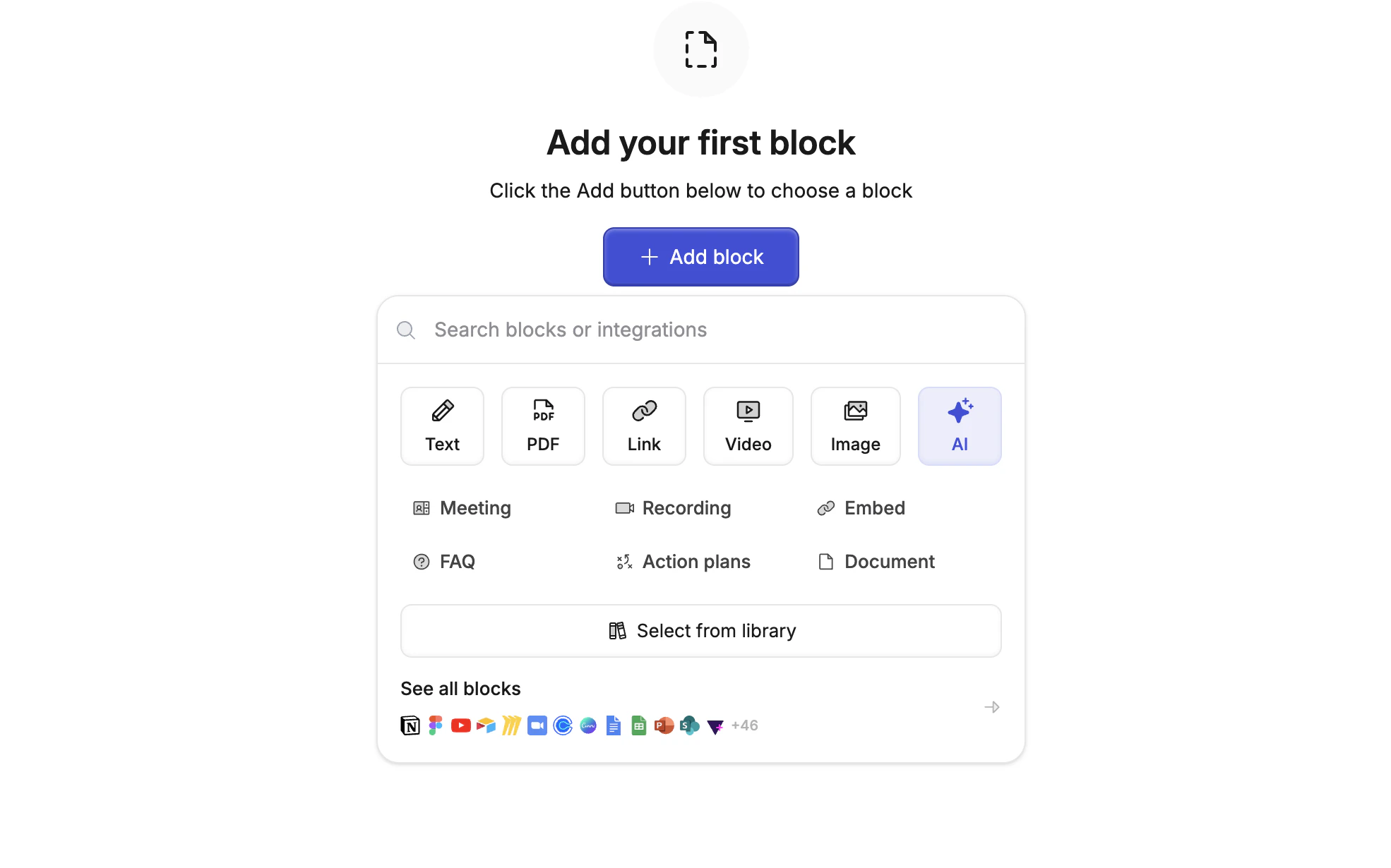
Output formats
- Set the output to Text to generate summaries, follow-ups, or other written content
- Set the output to Image to produce visuals — infographics, diagrams, or visual summaries — embedded directly in the room