

Why use templates
Without templates, every rep builds rooms differently — which means inconsistent experiences for your customers and wasted time rebuilding from scratch. Templates fix both. Templates are the foundation of a scalable sales and onboarding motion:- Consistency — Every rep uses the same proven structure and content
- Speed — Create new rooms in seconds instead of starting from scratch
- Best practices — Capture what works and make it easy to replicate
- Easy updates — Change the template once, and future rooms inherit improvements
- Team alignment — Sales, CS, and RevOps all work from the same playbook
Save a room as a template
1
Build your room
Create a room with all the sections, content, actions, and styling you want to standardise.
2
Open the [...] menu in the top right corner
This opens the room options dropdown.
3
Select Save as template
Choose this option from the dropdown menu.
4
Name your template
Give it a clear, descriptive name — for example, “Enterprise Deal Room”, “SMB Onboarding”, or “Renewal Template”.
Create a room from a template
1
Go to Templates
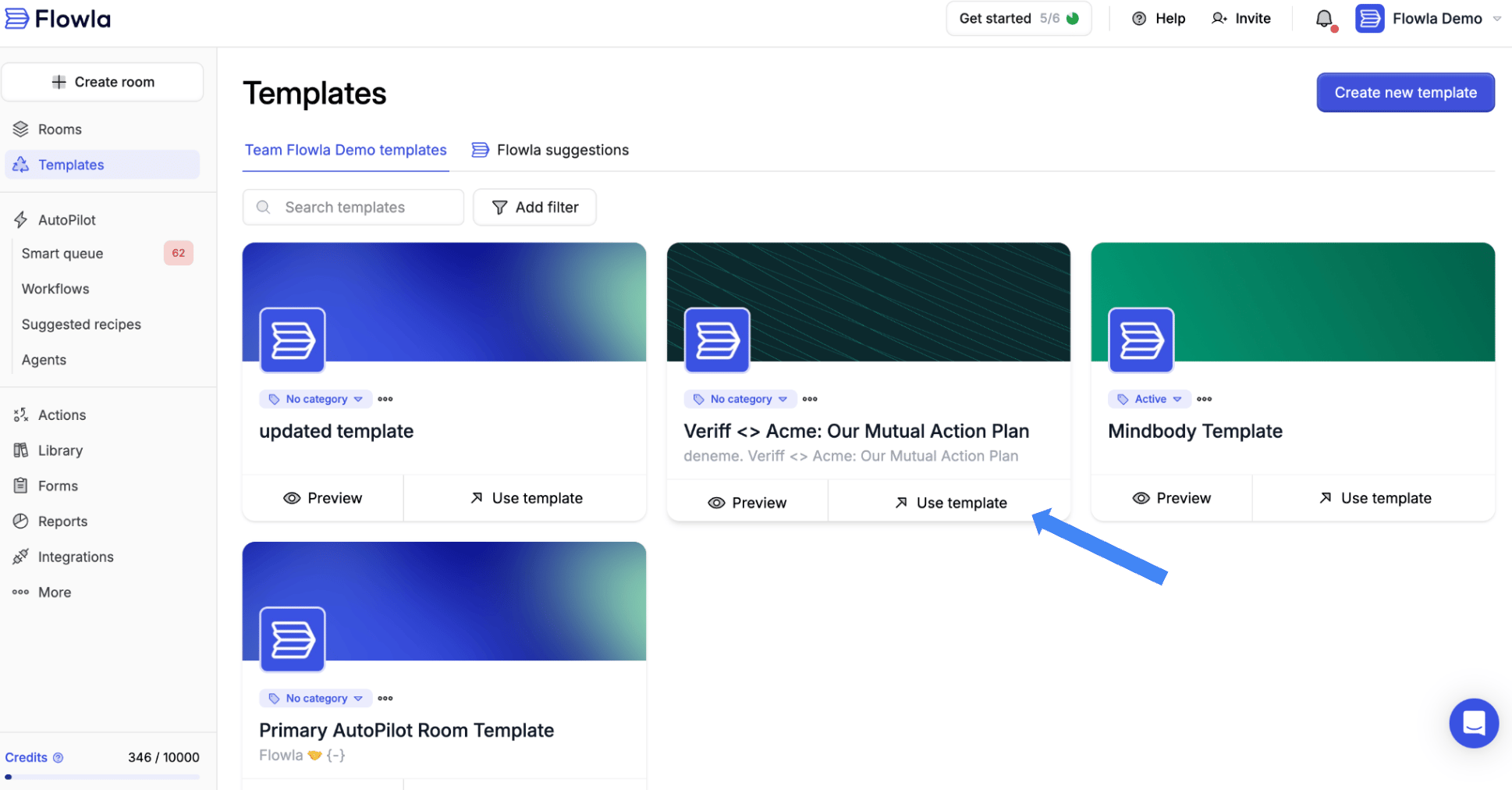
In the main navigation, click Templates to open the template gallery.
2
Select a template
Find the template you want to use and click Use template.
3
Set the target company
Enter or select the company the room is for. This populates company variables like
{{target_company_name}} and pulls in the company logo and branding.4
Fill in any custom variables
If the template includes custom variables (such as a pricing tier, go-live date, or project name), you’ll be prompted to fill them in here.
5
Create the room
Click Create room. Your room is ready — follow the edit link to review and personalise before sharing.
Manage templates
View all templates: Go to Templates in the main navigation to see all available templates. Edit a template: Open the template and make changes. Save to update it for future rooms — existing rooms already created from the template are not affected. This means you can improve your playbook over time without breaking anything already live with a customer. Delete a template: Remove templates that are no longer needed. This won’t affect rooms already created from that template. Duplicate a template: Create a copy to make variations — for example, “Enterprise Deal Room - EMEA” based on “Enterprise Deal Room”.Template best practices
-
Use variables — Include
{{target_company_name}},{{primary_contact_first_name}}, and{{room_creator_meeting_link}}for automatic personalisation - Structure with sections — Organise templates into clear stages that match your process
- Include placeholder content — Add sample content that guides users on what to customise
- Keep it focused — Don’t try to cover every scenario; create multiple templates for different use cases
- Review regularly — Update templates based on what’s working in your actual rooms
- Set the theme — Rooms created from a template inherit the template’s theme, so styling a template once keeps every room built from it on-brand
Troubleshooting
If I change a room built from a template, will it update all rooms?
If I change a room built from a template, will it update all rooms?
No — rooms and templates are independent after creation. Changes to a room don’t affect the template or other rooms. To update all future rooms, edit the template directly. Existing rooms are unaffected.
Can I duplicate a section into a template?
Can I duplicate a section into a template?
Likely cause: The duplicate option only shows “duplicate to another room.”Fix: Currently you can duplicate sections to other rooms but not directly into a template. Workaround: duplicate to a blank room, then save that room as a new template.
Can I add custom variables beyond the default ones?
Can I add custom variables beyond the default ones?
Likely cause: Only pre-defined variables (e.g. prospect name, company) are available by default.Fix: Custom variables may not be supported depending on your plan. Contact support to confirm available variable options.
How do I edit a template?
How do I edit a template?
Go to Library > Templates, find your template, and click Edit. Changes there will apply to all new rooms created from that template.
Can I insert library assets directly into a template?
Can I insert library assets directly into a template?
Yes — when editing a template, use the Add from Library option when adding a content block. This pulls in any saved asset from your library.
Can I make booking links dynamic per sales rep in a template?
Can I make booking links dynamic per sales rep in a template?
Likely cause: Templates use static links by default.Fix: This isn’t natively supported yet. As a workaround, each rep should create their own room from the shared template and update their booking link manually — or use a dynamic scheduling tool (e.g. Calendly with round-robin).