

Invite prospects
Share rooms with external stakeholders like prospects and customers.1
Copy and share the room link
Click Share → Copy link, thumbnail or QR code and send it via email, Slack, or any channel. Anyone with the link can access the room based on your access settings.
2
Send email invitations
Click Share → Invite by email, enter recipient email addresses, and customise the invitation message. Flowla sends branded email invitations on your behalf.
3
CRM-triggered invitations
Use workflows to automatically send room invitations when deals reach specific stages. Include personalised messaging using variables.
Share settings
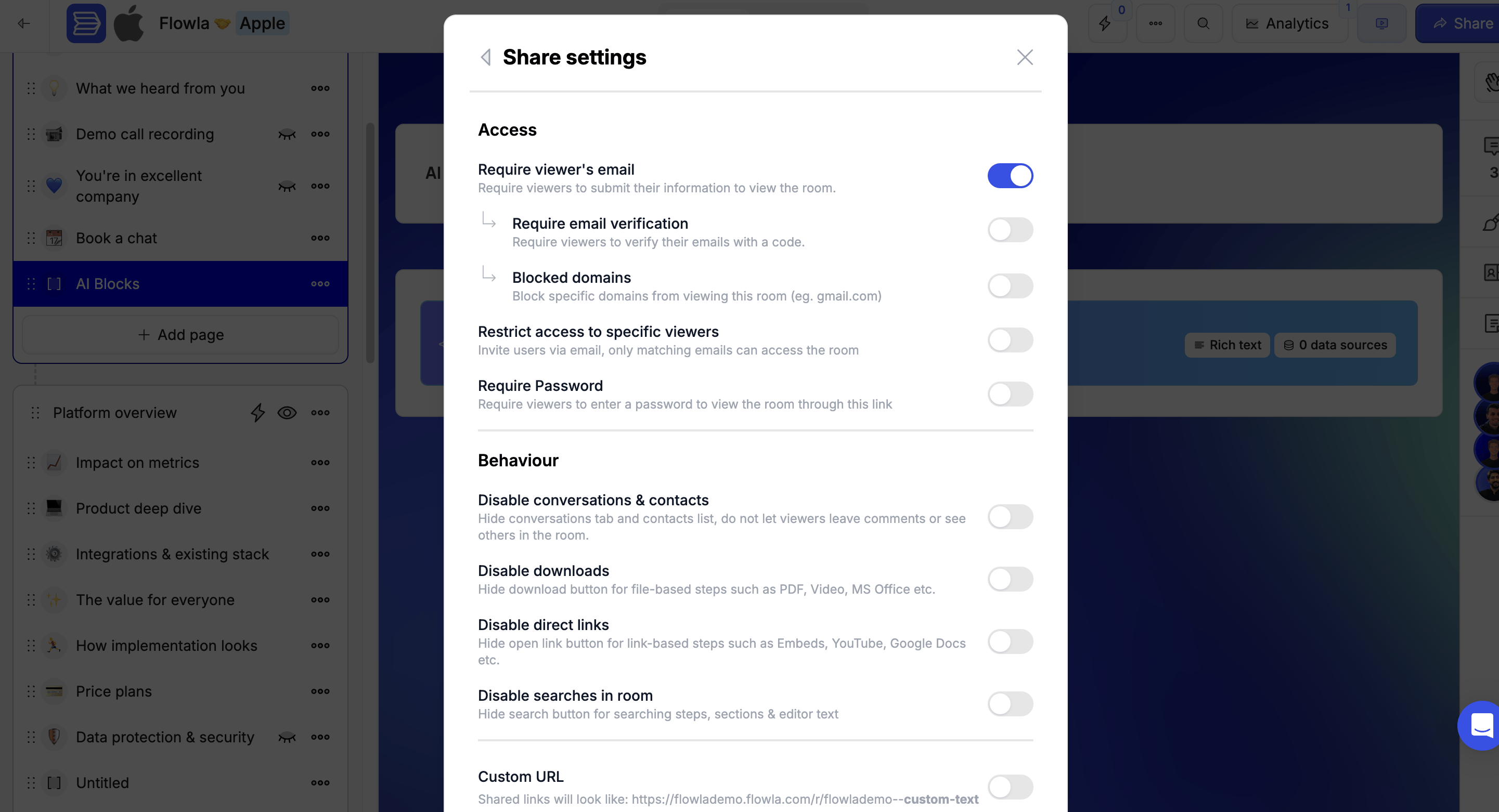
To open the Share settings menu, click Share in the top right corner of the room, then select Share settings.Require viewer’s email
This is the toggle you’ll use most often. Knowing who’s in your room is one of the most valuable signals in sales — it tells you which stakeholders are actively engaged so you can prioritise your follow-ups. Enabled: Visitors must enter their email address before viewing the room for the first time. This lets you:- Identify who viewed your room
- Track individual stakeholder engagement
- Spot potential stakeholders via Room Analytics
Require email verification
Available when Require viewer’s email is enabled. When turned on, Flowla sends a one-time verification code to the visitor’s email. They must enter the code before gaining access — confirming the email they submitted is valid.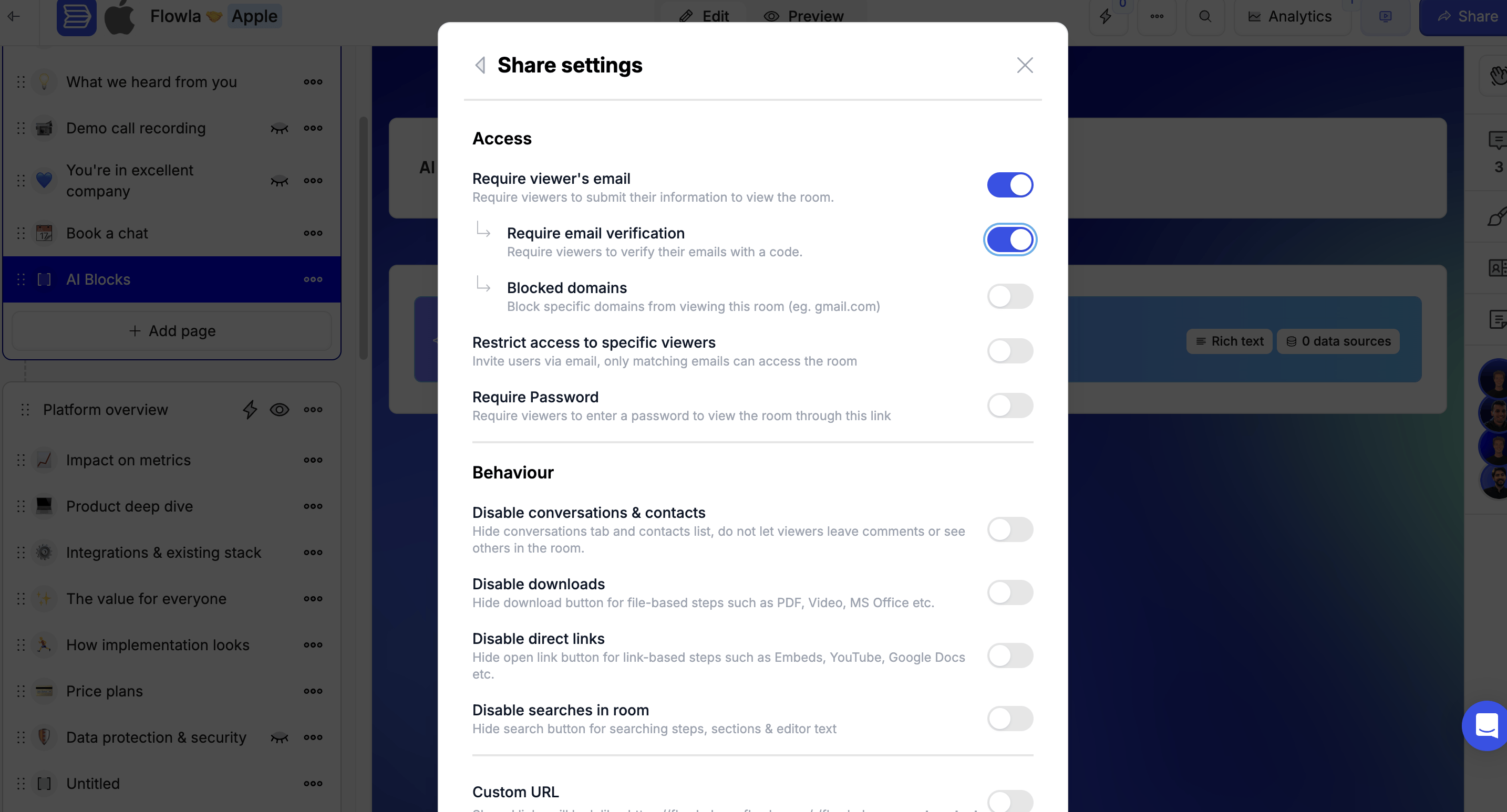
Blocked domains
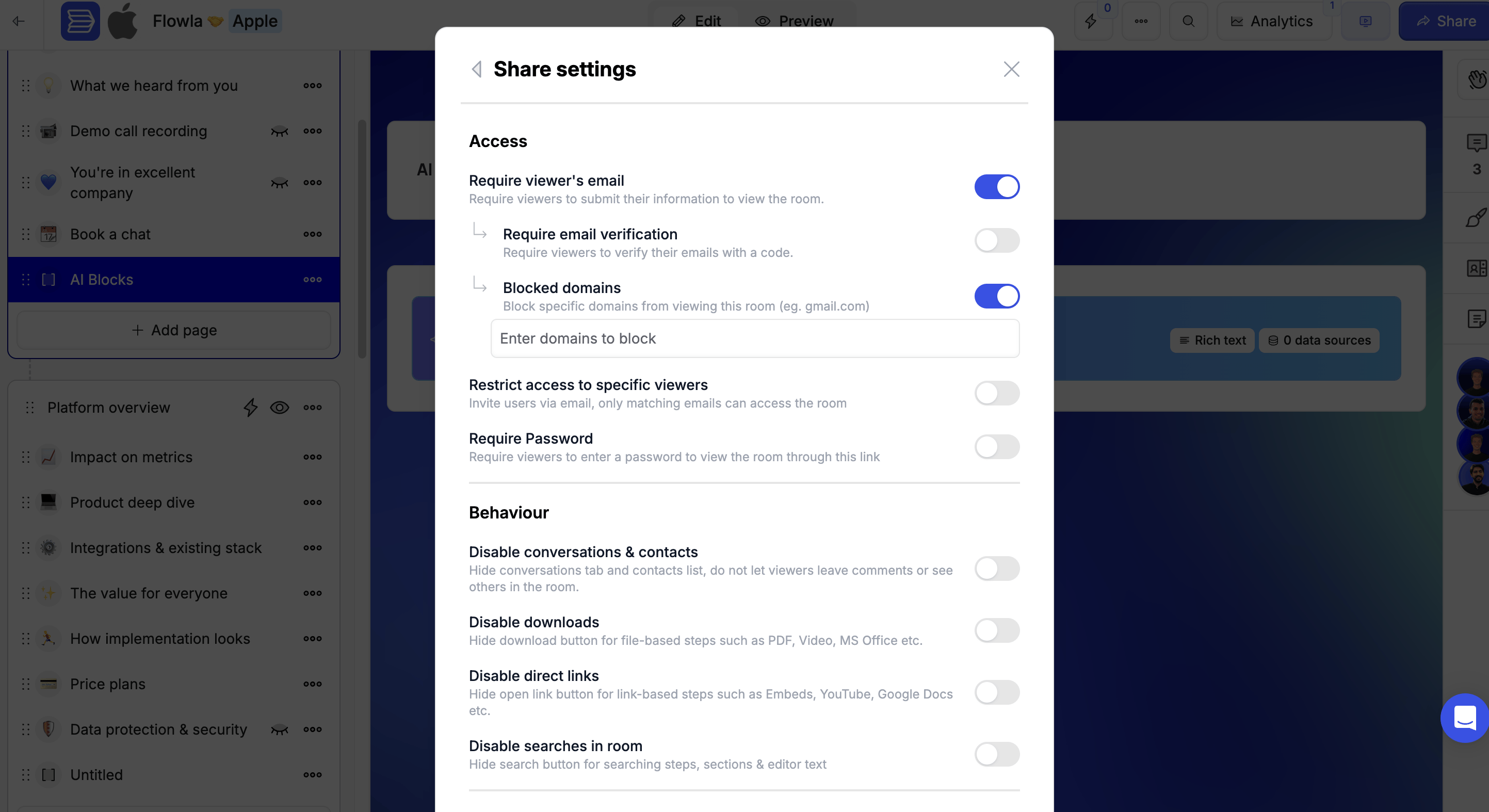
Available when Require viewer’s email is enabled. Block specific email domains from accessing the room. For example, addinggmail.com prevents anyone with a Gmail address from viewing the room — useful for keeping out competitors or anyone you don’t want accessing your content.
Restrict access to specific viewers
Use this when you need tight control — for example, with sensitive proposals, pricing documents, or NDAs where the wrong person seeing the content could be a problem. Enabled: Only viewers you’ve explicitly invited by email can access the room. Anyone else who tries to open the link will be denied, even if they have the URL. Disabled: Anyone with the link can access the room (subject to your other access settings).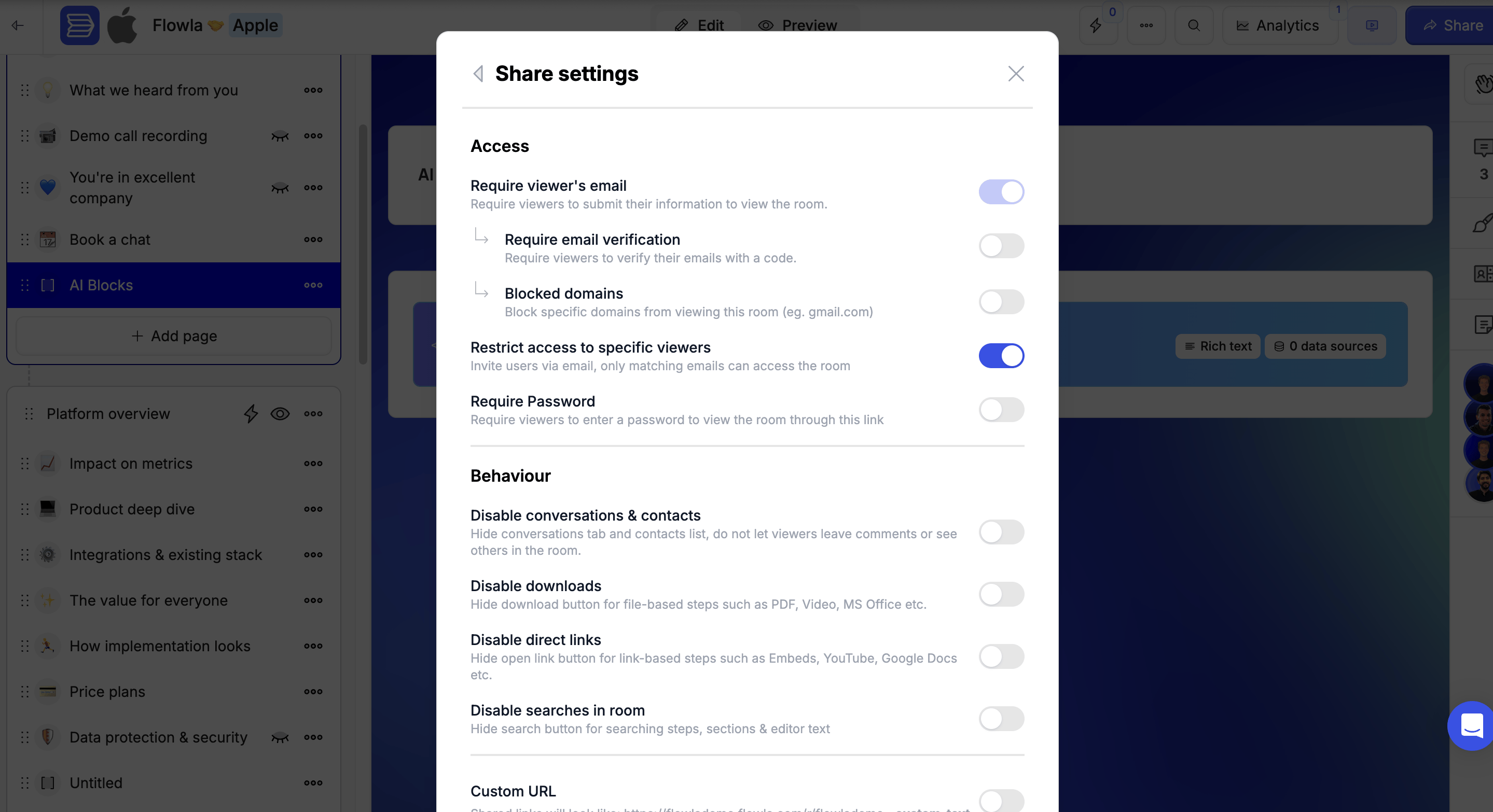
Require password
When turned on, visitors are prompted to enter a password before accessing the room. Set the password directly in the field that appears below the toggle.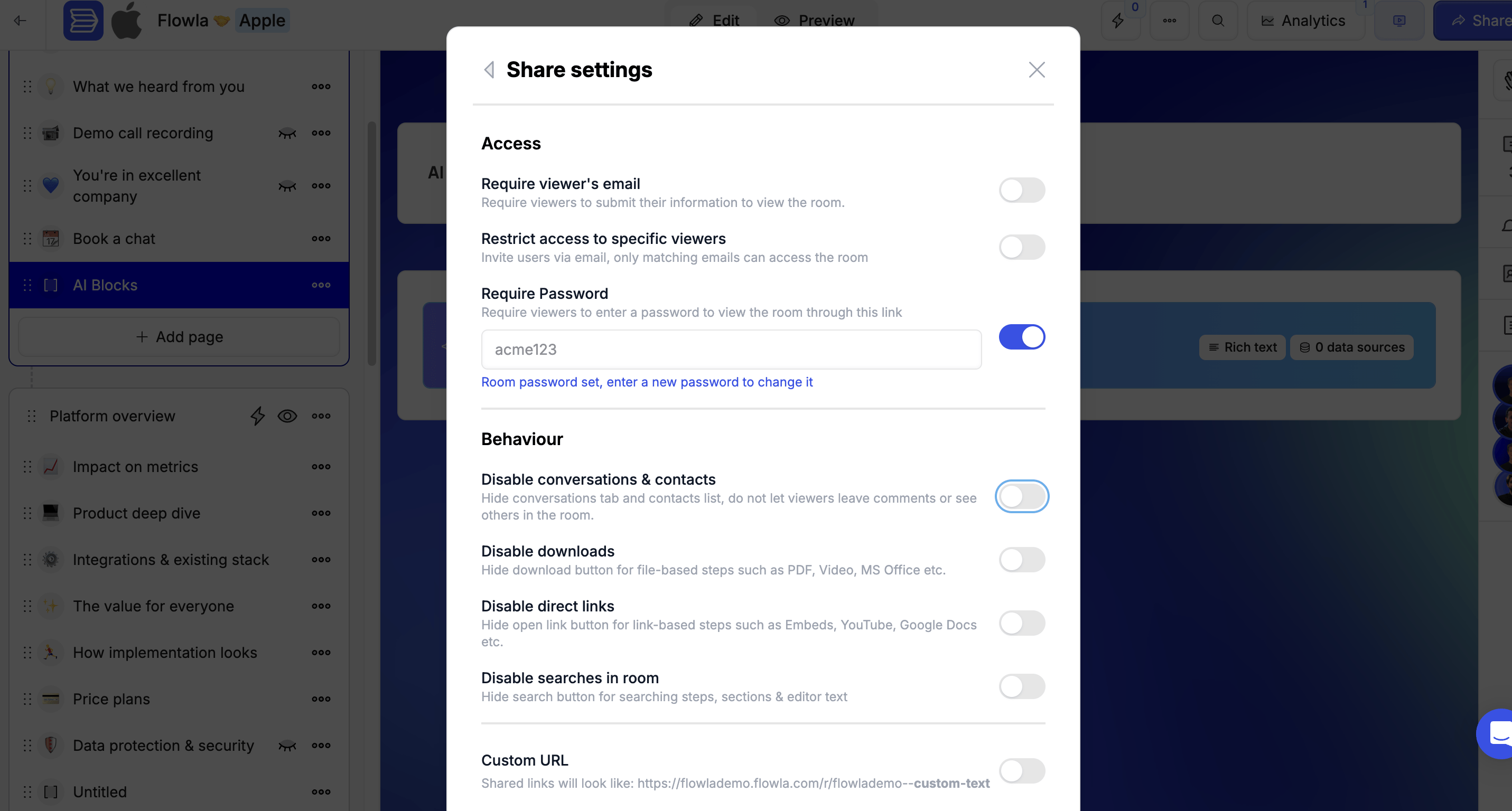
Disable conversations & contacts
Enabled: Viewers can leave comments in the social bar and see other people who have accessed the room. Comments and previous viewers are visible to everyone. Disabled: The social bar is hidden. Viewers can’t write comments or see who else has accessed the room. Disable this toggle when sharing a room with multiple target companies to keep each party’s experience separate.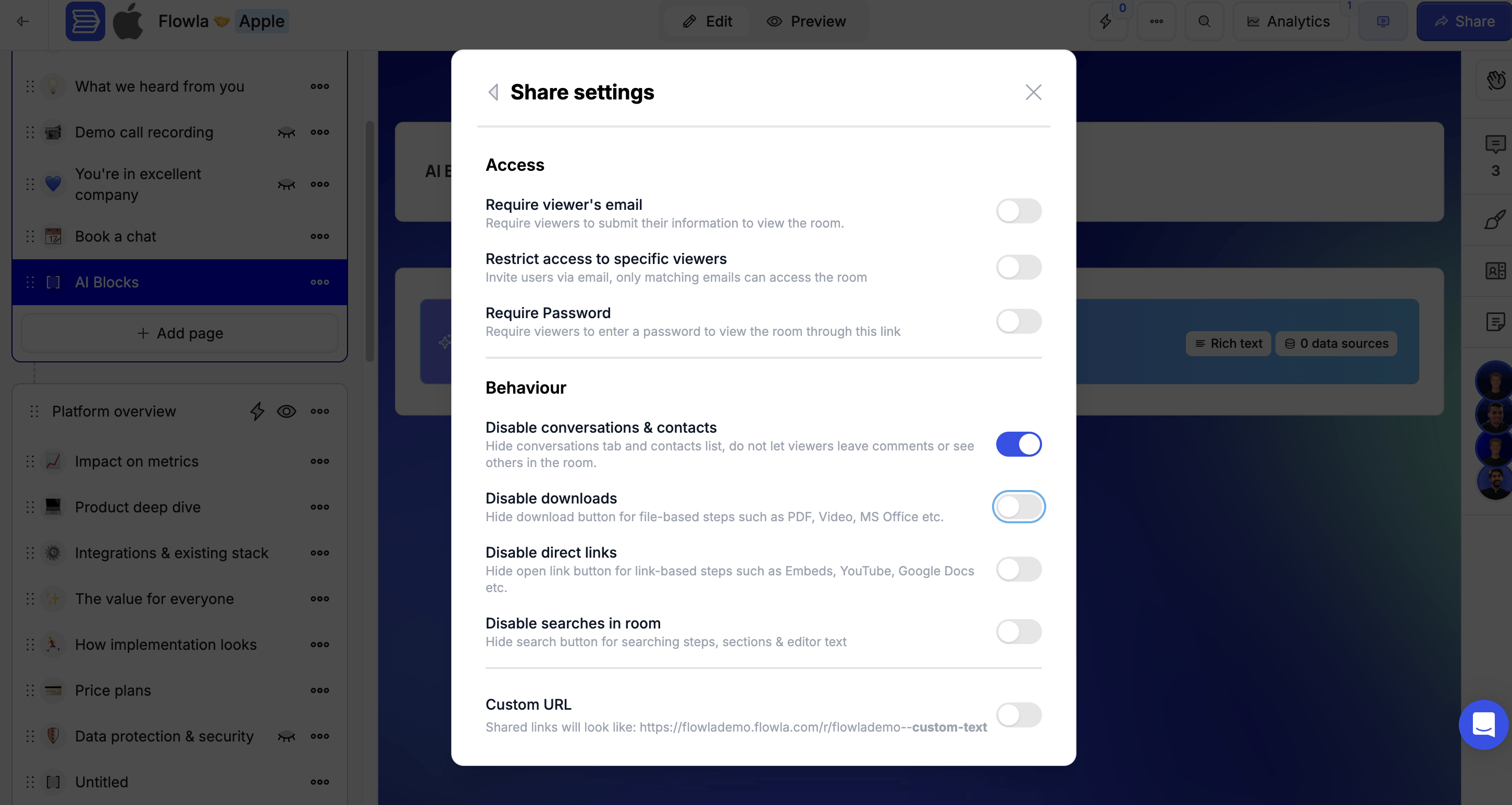
Disable downloads
When turned on, room viewers can’t download file-based content such as PDFs or videos.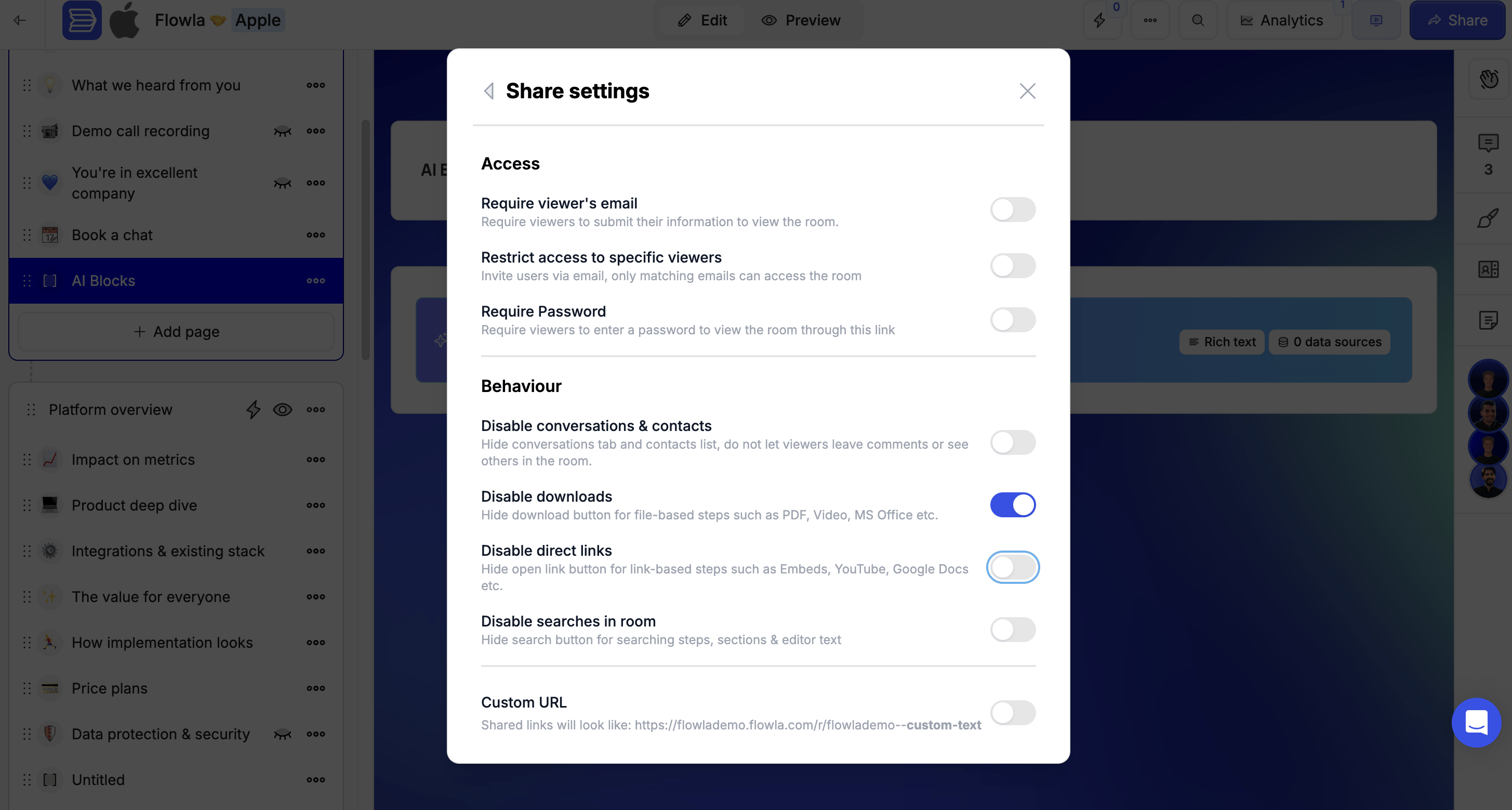
Disable direct links
When turned on, the Open Link button for embedded links is hidden. Viewers can’t leave Flowla and view the embedded content on an external platform (e.g. YouTube).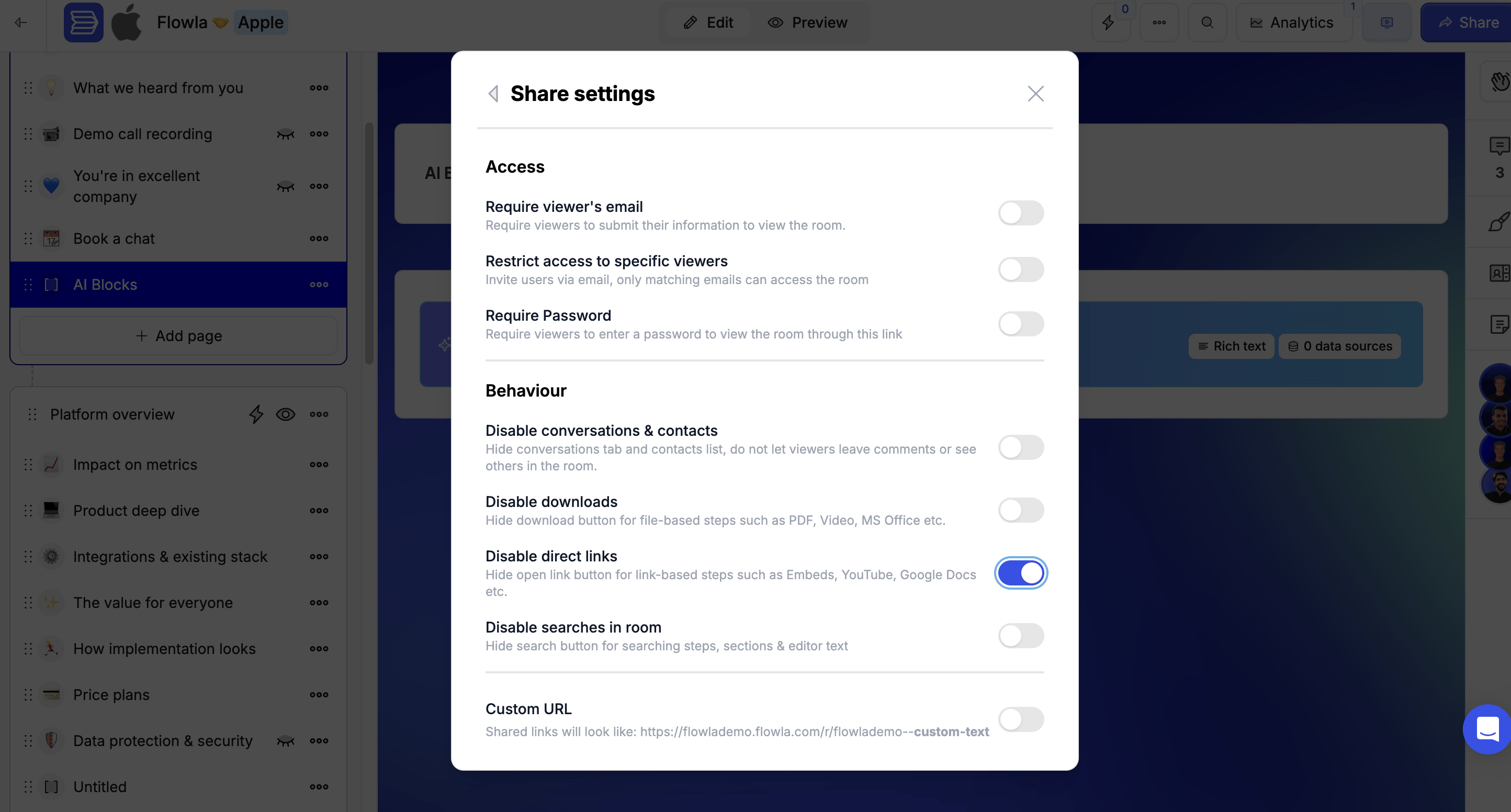
Disable searches in room
When turned on, the search button inside the room is hidden — viewers can’t search through steps, sections, or editor text.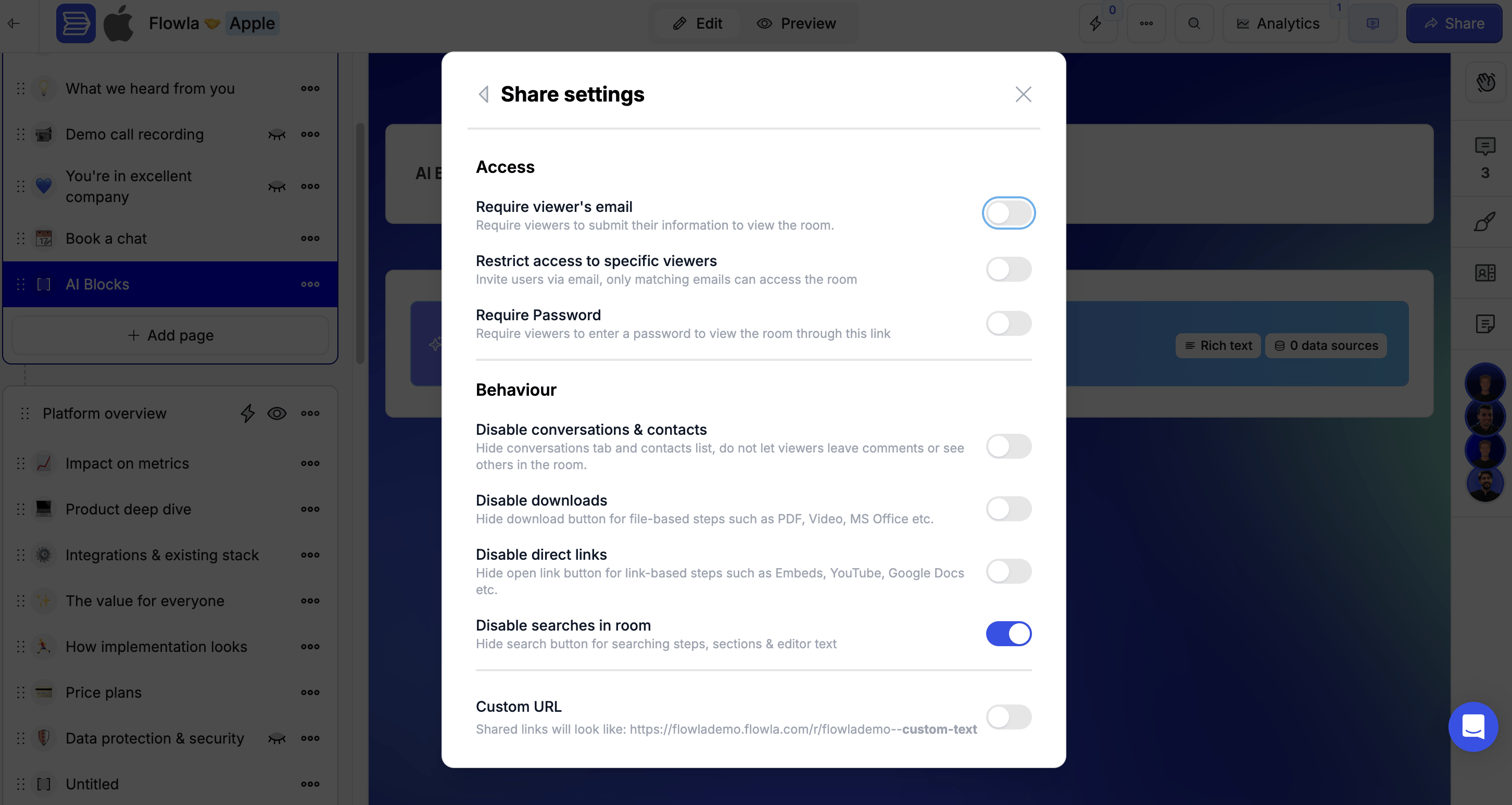
Troubleshooting
A prospect is getting an error when trying to open my room
A prospect is getting an error when trying to open my room
Likely cause: Could be a browser-side rendering error or a permissions issue.Fix: Ask the prospect to try in a different browser or incognito mode. If the issue persists, share the room URL and error message with Flowla support.
I'm getting a 403 error on the platform
I'm getting a 403 error on the platform
Likely cause: Session token issue or account-level access problem.Fix: Log out and log back in. Clear your browser cache. If the issue continues, contact support — it may be a platform-level incident.