Your deal rooms don’t have to look like a template anymore. With Themes, every room can look and feel like it belongs to your brand — or, even better, like it was built specifically for the buyer you’re sending it to. A room that looks polished and intentional builds trust faster, feels less generic, and shows the buyer you put real thought into their deal. That first impression matters, and now it’s just a click away.
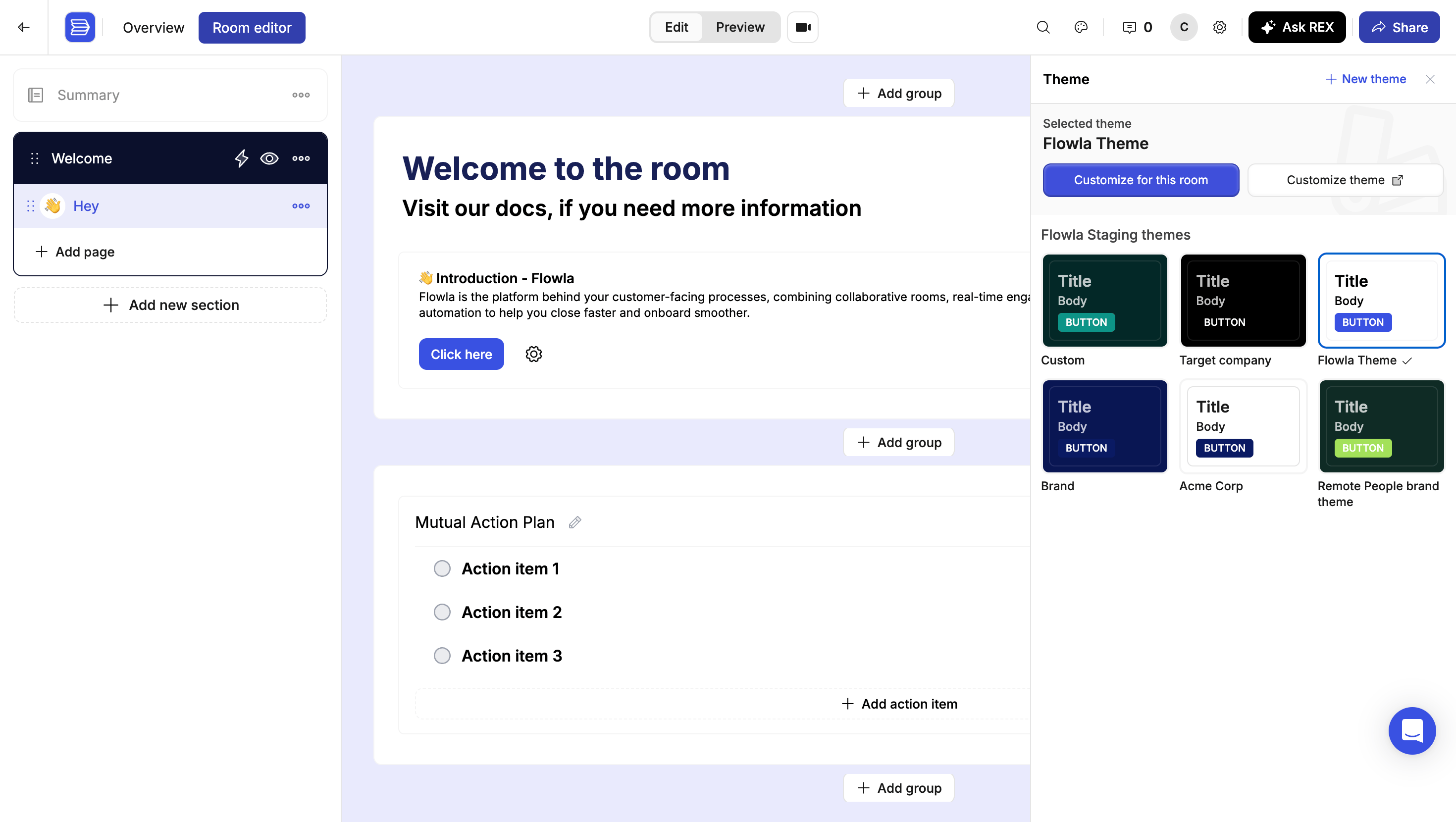
The Flowla room editor showing a room styled by a theme

A room in the editor with a theme applied — the header, navigation, canvas, groups, and blocks all follow the theme

How themes are organized

There are two kinds of themes, and knowing which one you’re editing is the whole trick:
  • Organization themes live in your workspace settings and can be applied to any room. Editing one changes every room that uses it.
  • Room themes belong to a single room. They’re created the moment you customize a theme for this room, and nothing you do to them affects anyone else.
Every organization starts with three themes already in place: The Brand theme is built from the colors and font in your organisation settings, and Target company follows the target company set on the room — so both stay correct without you touching them.

Apply a theme to a room

1

Open the theme panel

In the room editor, click the theme (palette) icon in the header. The panel lists your organization’s themes, with the currently selected one at the top.
2

Pick a theme

Click any theme card. It applies to the room immediately — no save step, no confirmation.
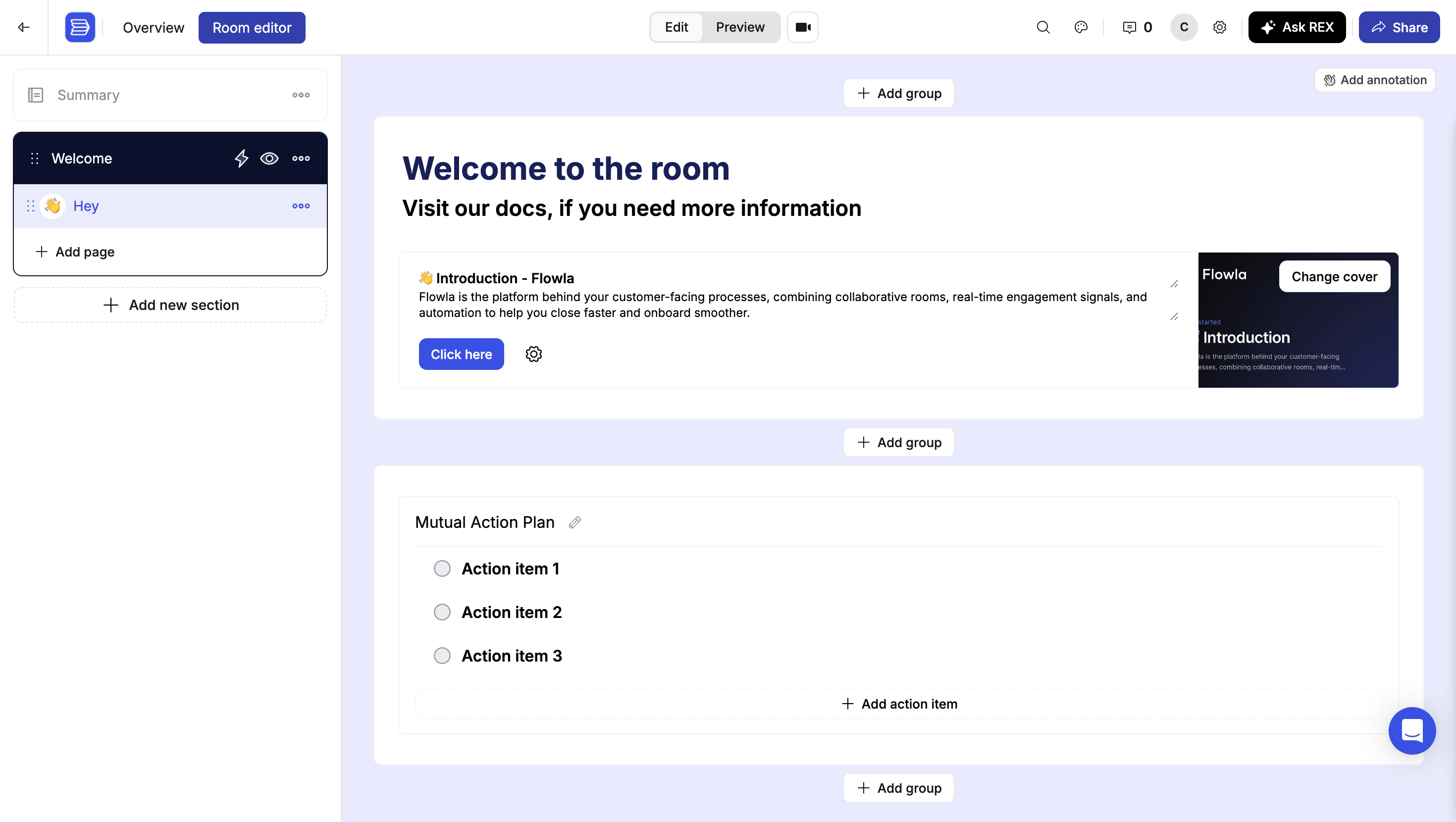
The theme side panel showing the selected Flowla Theme and a grid of organization themes including Custom, Target company, Brand, and Acme Corp

The theme panel: the selected theme up top, with all of your organization's themes below

From here you have two ways to change how things look, and they have very different reach:
  • Customize for this room — creates a room theme. Changes stay in this room.
  • Customize theme — opens the theme in workspace settings. Changes hit every room using that theme.
Customize theme edits an organization theme. If three rooms use it, all three change. When you only want to restyle the room in front of you, use Customize for this room.

Customize a theme for one room

Click Customize for this room and Flowla asks you to name the copy. Accept the suggested name or type your own, then click Continue.
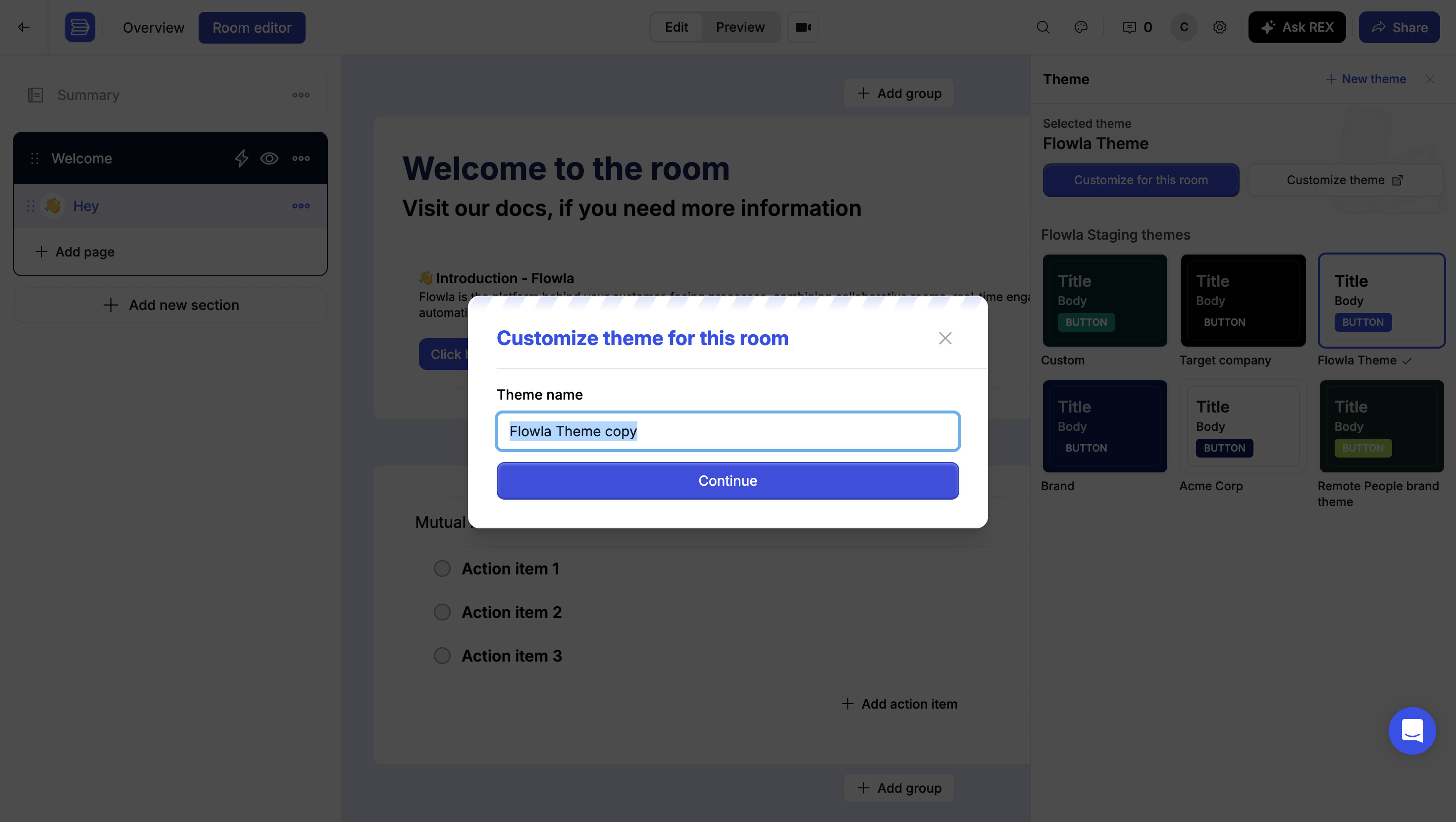
The Customize theme for this room dialog with a Theme name field pre-filled with Flowla Theme copy

Naming the room theme before you start editing

You now have a room theme — a private copy that only exists in this room. The customize panel opens with two buttons at the top:
  • Save changes — keeps your edits on this room theme.
  • Save as new theme — promotes the room theme into an organization theme so other rooms can use it.
Room theme edits aren’t saved automatically. Click Save changes before you leave the customize view. If you try to navigate away with unsaved changes, Flowla warns you first — so your work is never lost by accident.
A room theme isn’t a dead end — it travels with the room when you duplicate it, and it can be promoted into a template. See how new rooms get their theme.

The three values that drive everything

Themes expose a lot of variables. To keep that manageable, three top-level values sit at the top of the customize panel and generate everything below them:
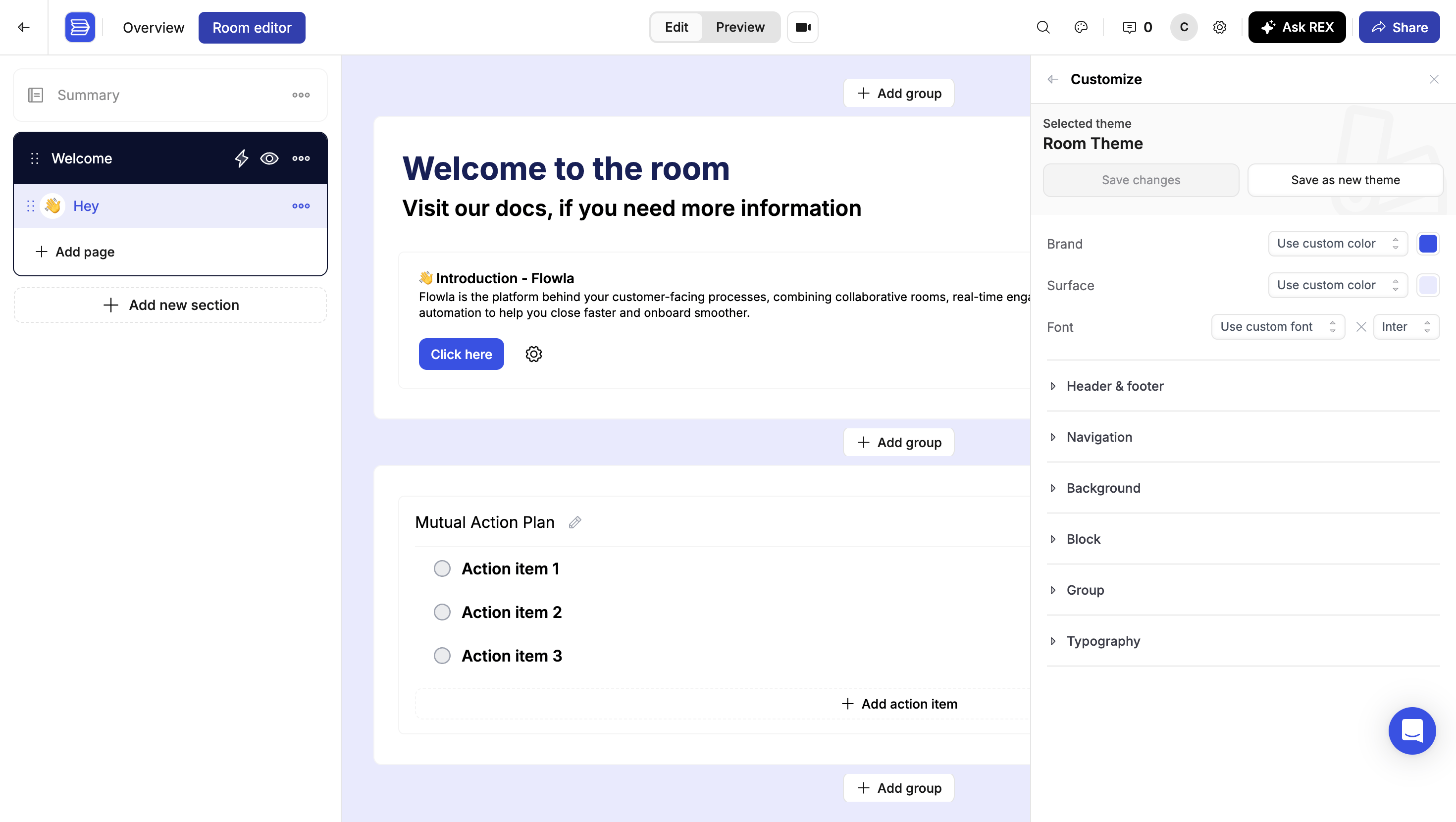
The Customize panel showing Brand, Surface, and Font controls above collapsible Header & footer, Navigation, Background, Block, Group, and Typography sections

Brand, Surface, and Font at the top of the customize panel, with the detailed sections collapsed underneath
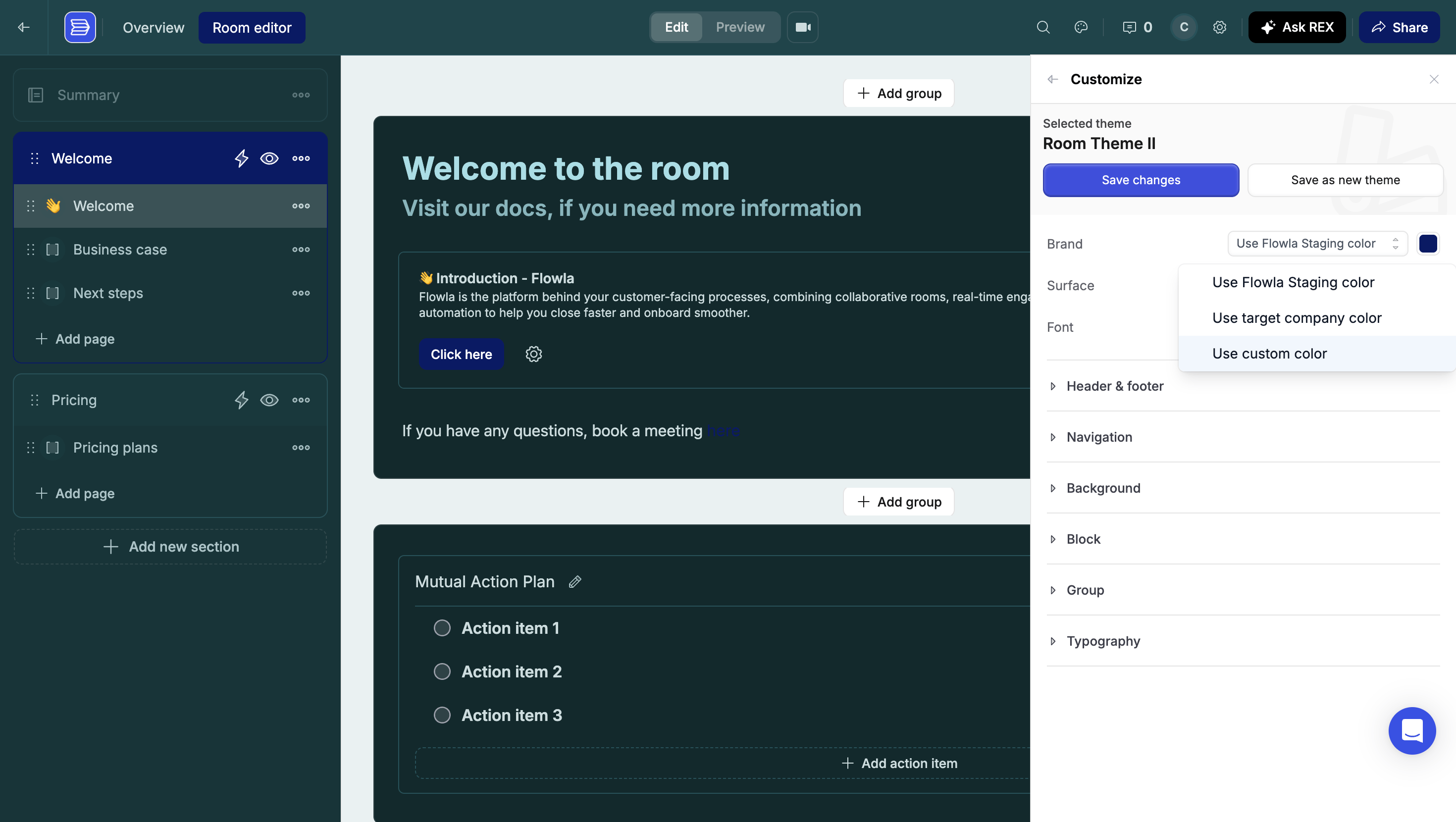
Brand and Surface can each pull from three sources:
The Brand dropdown open with options Use Flowla Staging color, Use target company color, and Use custom color

Choosing where a color comes from: your organization, the target company, or a custom value

  • Use [your organization] color — your own brand color.
  • Use target company color — the buyer’s brand color, resolved per room.
  • Use custom color — any color you pick.
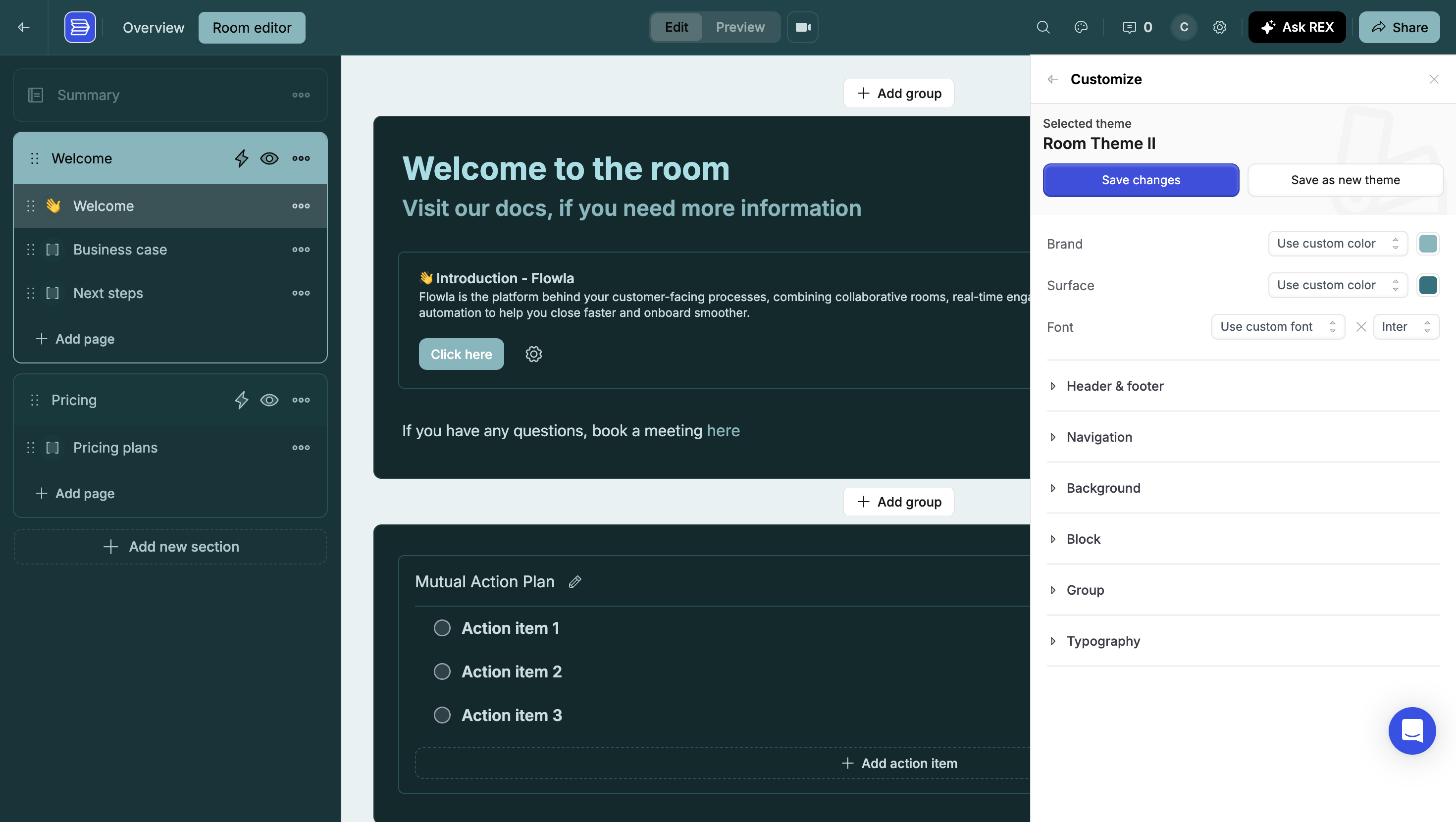
Set those three, and every untouched value below — header and footer, navigation, background, block, group, typography — regenerates to match.
A room restyled with a teal brand and surface color, showing the header, navigation, and blocks all updated

One Brand and Surface change repaints the whole room

Overrides and resetting

The moment you change a value in one of the detailed sections, it becomes an override: it stops following Brand, Surface, and Font, and keeps the value you set even if you change the three main values afterwards. Every overridden value has a Reset button next to it. Click it to hand control back to auto-generation. Values that are still auto-generated are labelled Auto generated, so you can always tell at a glance which parts of the theme you’ve taken manual control of.

Fine-tuning: every section explained

Below Brand, Surface, and Font sit six collapsible sections. Open any of them to override individual values. Background color, border color, primary background, and primary foreground for the bars at the top and bottom of the room. Every color and font family used by the room’s navigation — the section and page list your buyer clicks through.

Background

The color of the canvas behind everything else.

Block

The individual content cards inside a group: background color, border color, inner border, title and body font colors, secondary font color, primary button background and foreground, and font family.
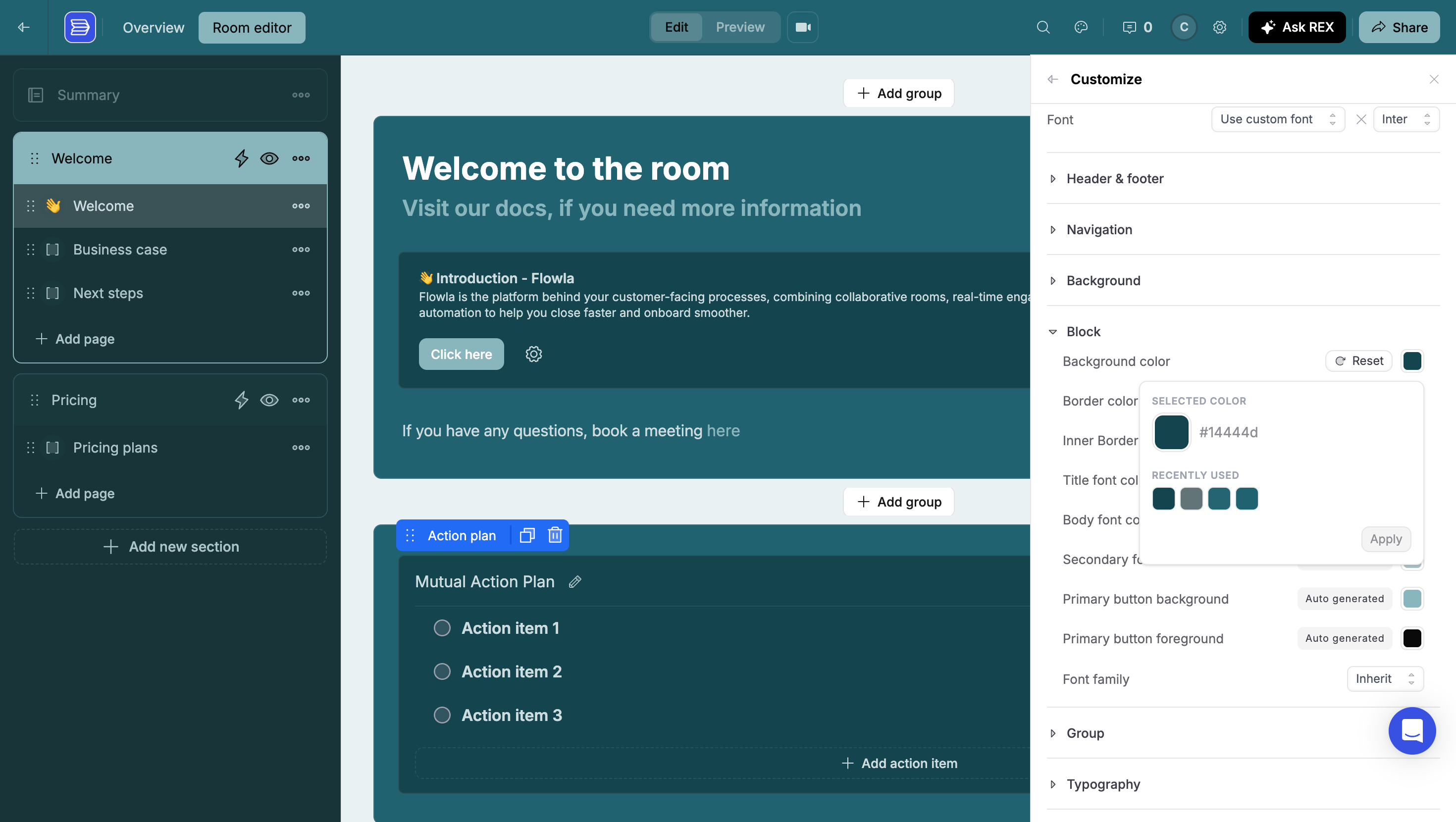
The Block section expanded showing background color, border color, inner border, font colors, primary button background and foreground, and font family

Block settings, with a color picker open and auto-generated button colors below

Group

The container that holds blocks: background color, border color, font and title colors, title and secondary font families, plus sliders for border radius, border weight, background opacity, and vertical spacing.
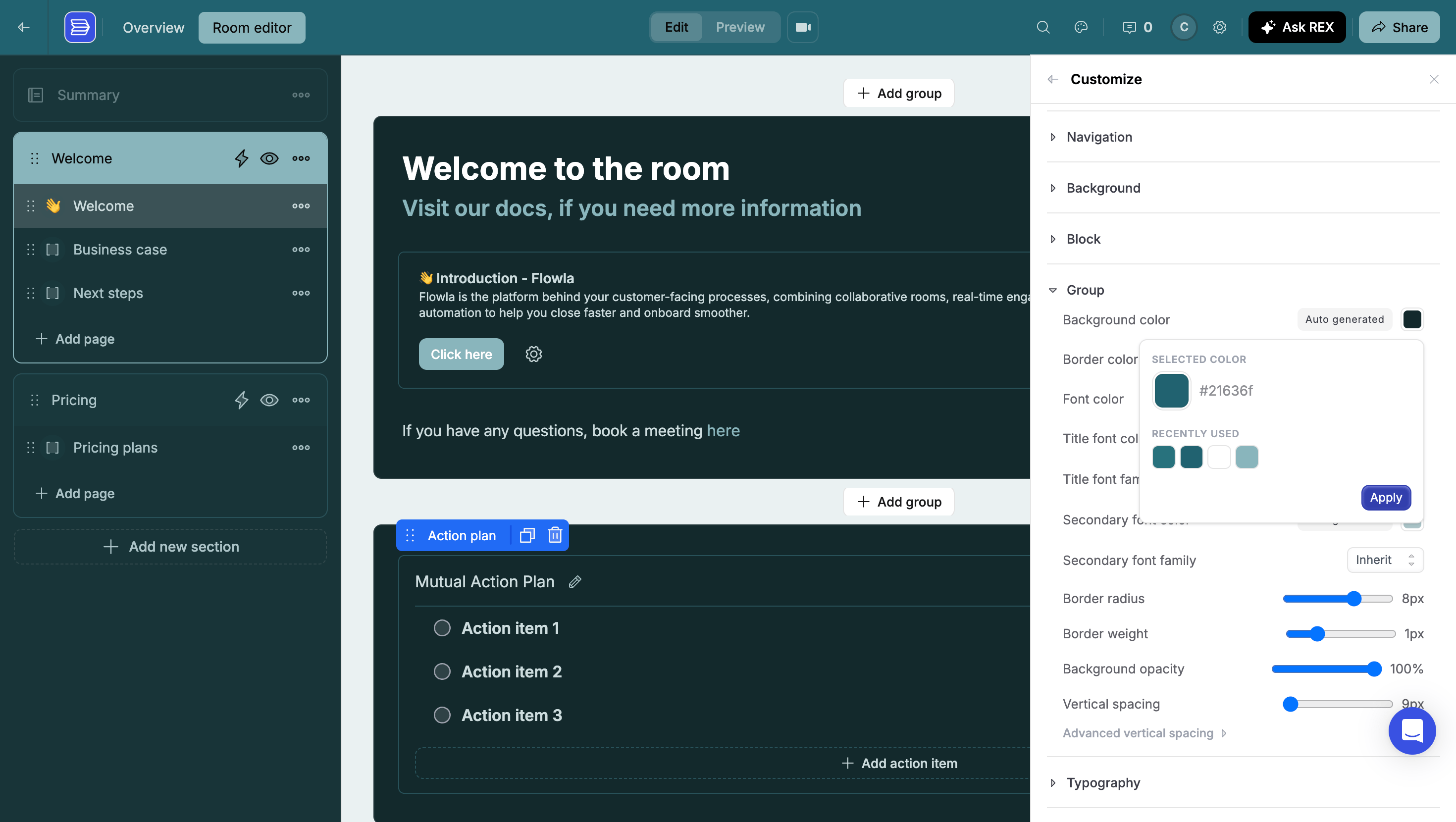
The Group section expanded showing color controls and sliders for border radius, border weight, background opacity, and vertical spacing

Group settings, including border radius, border weight, opacity, and vertical spacing sliders

Typography

Fonts and colors for the text in your blocks. Headings get a shared font and color, and Advanced headings breaks that down per level — H1, H2, and H3 each with their own font, weight, and color.
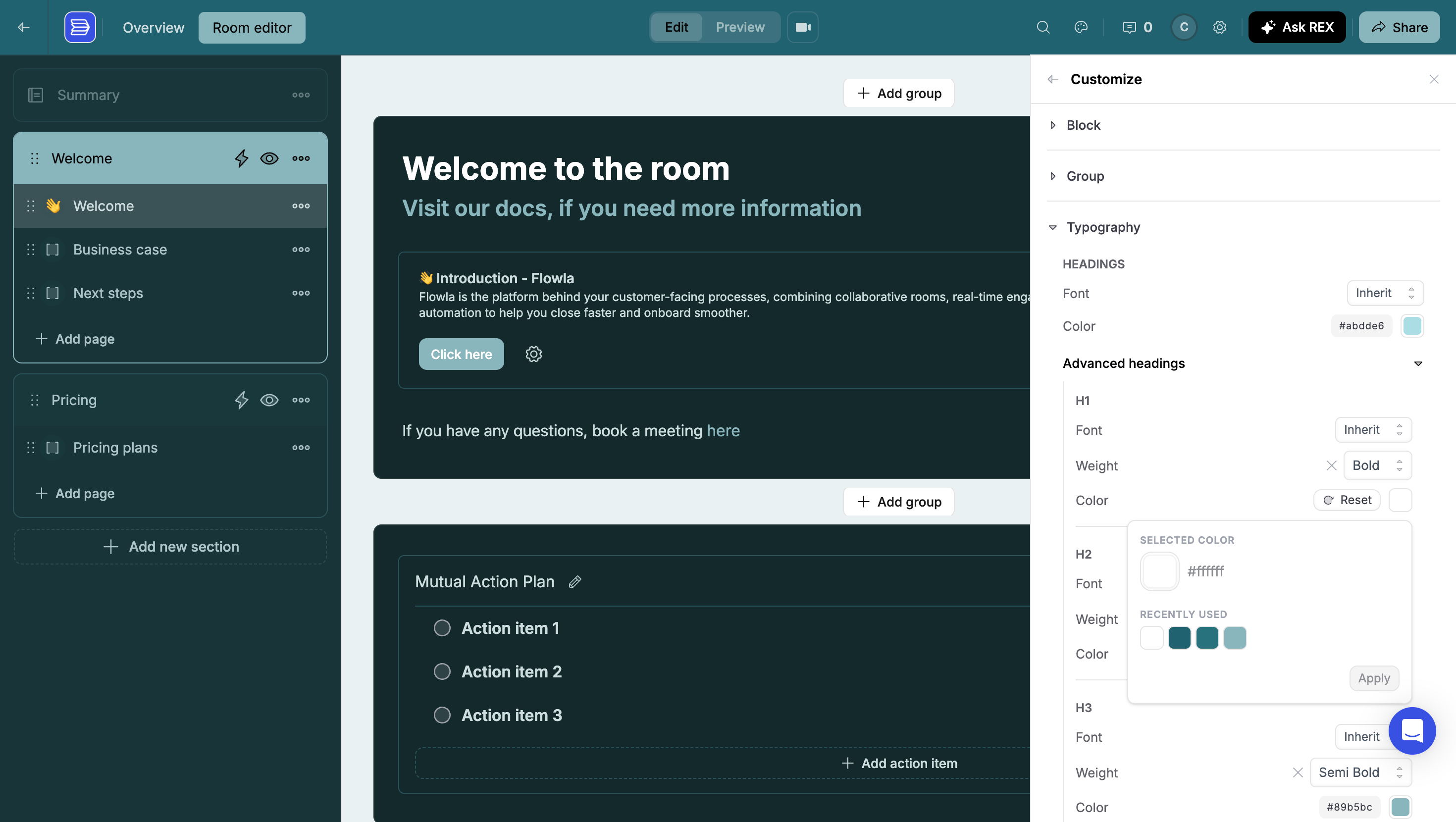
The Typography section expanded showing heading font and color plus Advanced headings controls for H1, H2, and H3

Typography with Advanced headings expanded: per-level font, weight, and color for H1, H2, and H3

The color picker keeps a Recently used row, which makes it quick to reuse the same handful of colors across sections instead of pasting hex codes over and over.

Promote a room theme to the whole organization

Happy with what you built in one room? Click Save as new theme, give it a name, and click Save. It becomes an organization theme, available in every room’s theme panel.
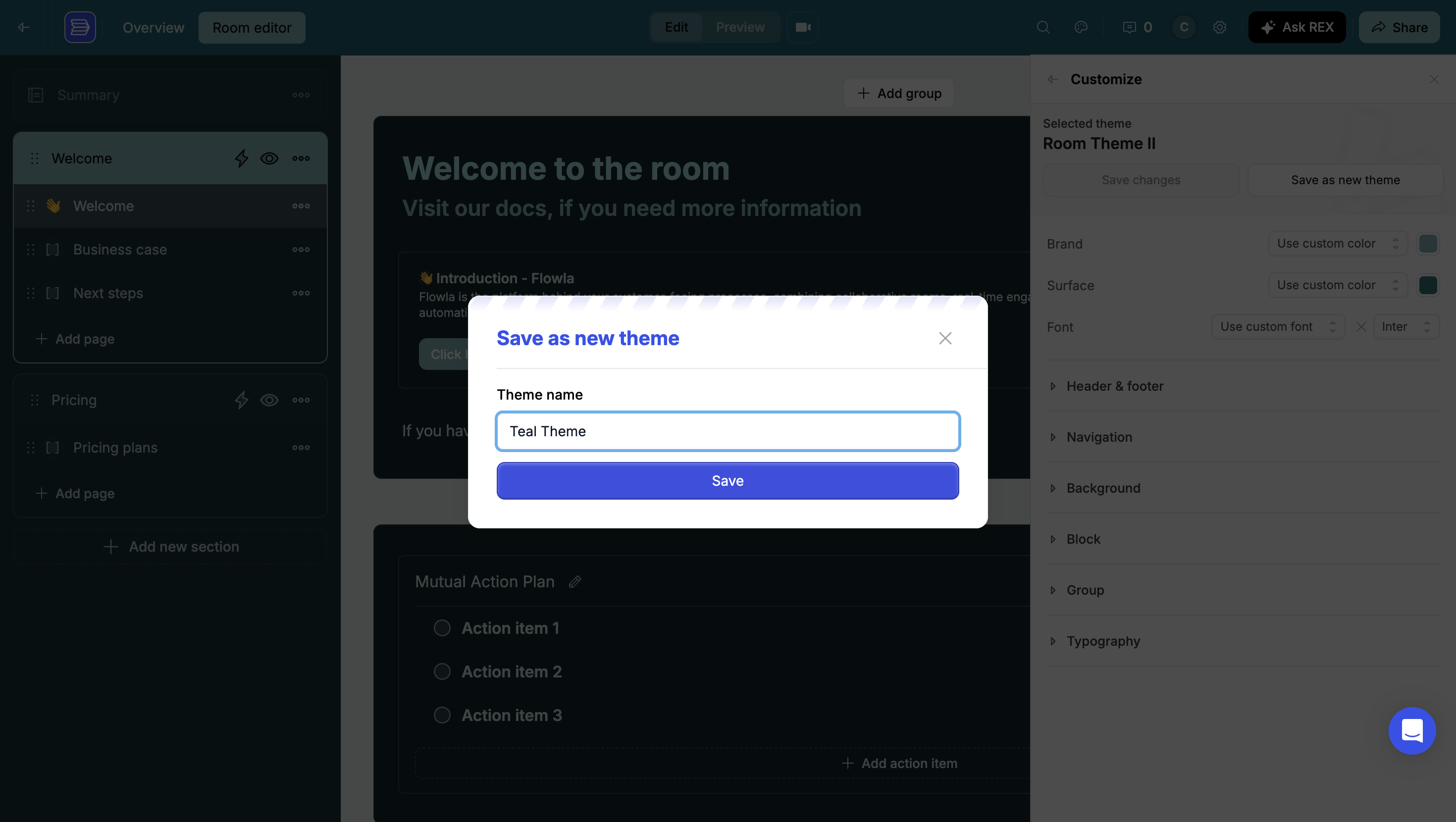
The Save as new theme dialog with the theme name Teal Theme entered

Promoting a room theme into a reusable organization theme
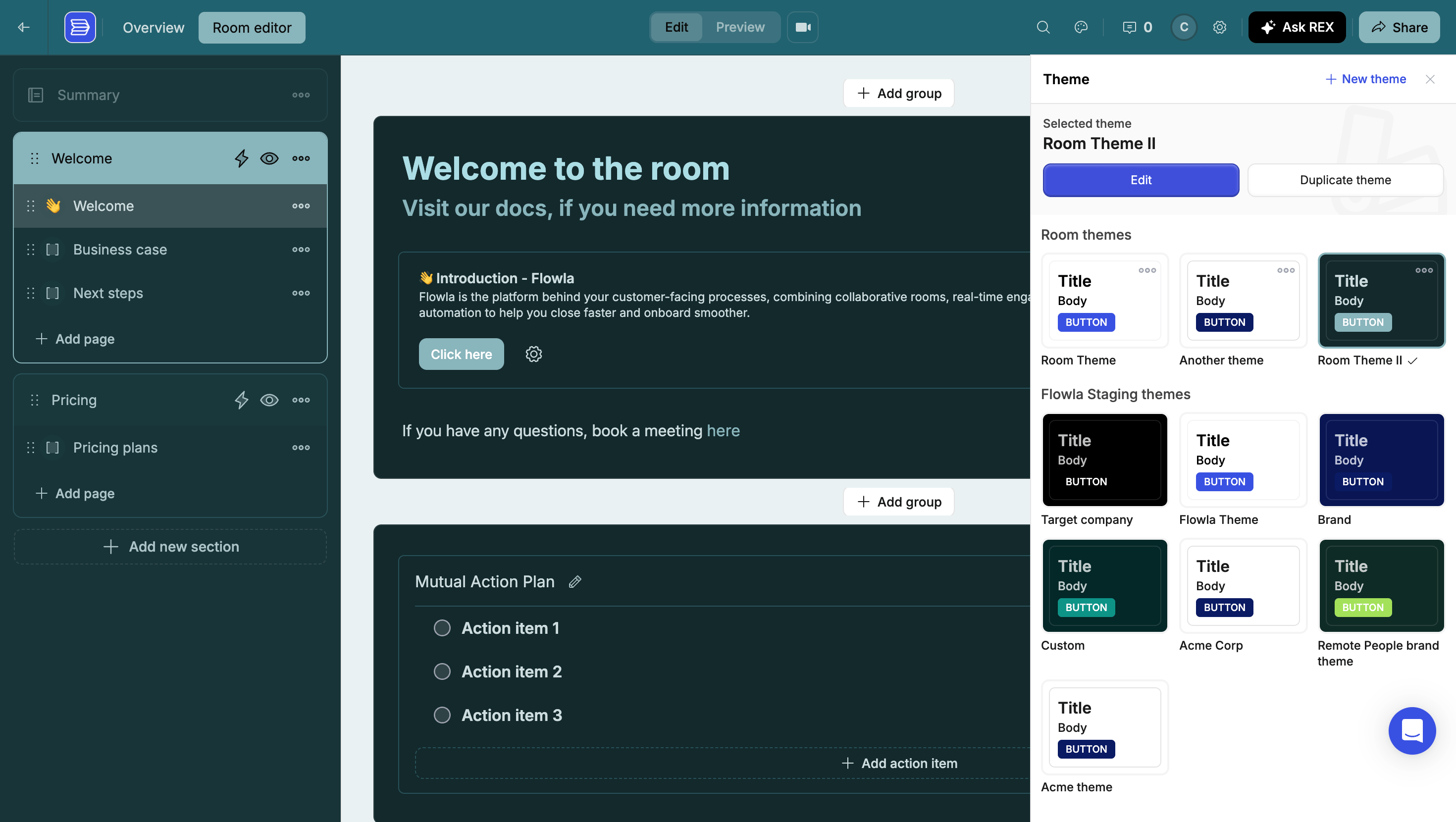
Once a room has its own themes, the theme panel groups them separately: Room themes at the top, your organization’s themes below. Selecting a room theme swaps the buttons to Edit and Duplicate theme.
The theme panel showing a Room themes section with Room Theme, Another theme, and Room Theme II above the organization theme grid

The theme panel with room themes listed above the organization's themes

Manage themes for the whole organization

Go to Settings → Themes to see every organization theme in one list. From here you can Edit any theme, or Set as default so new rooms start with it.
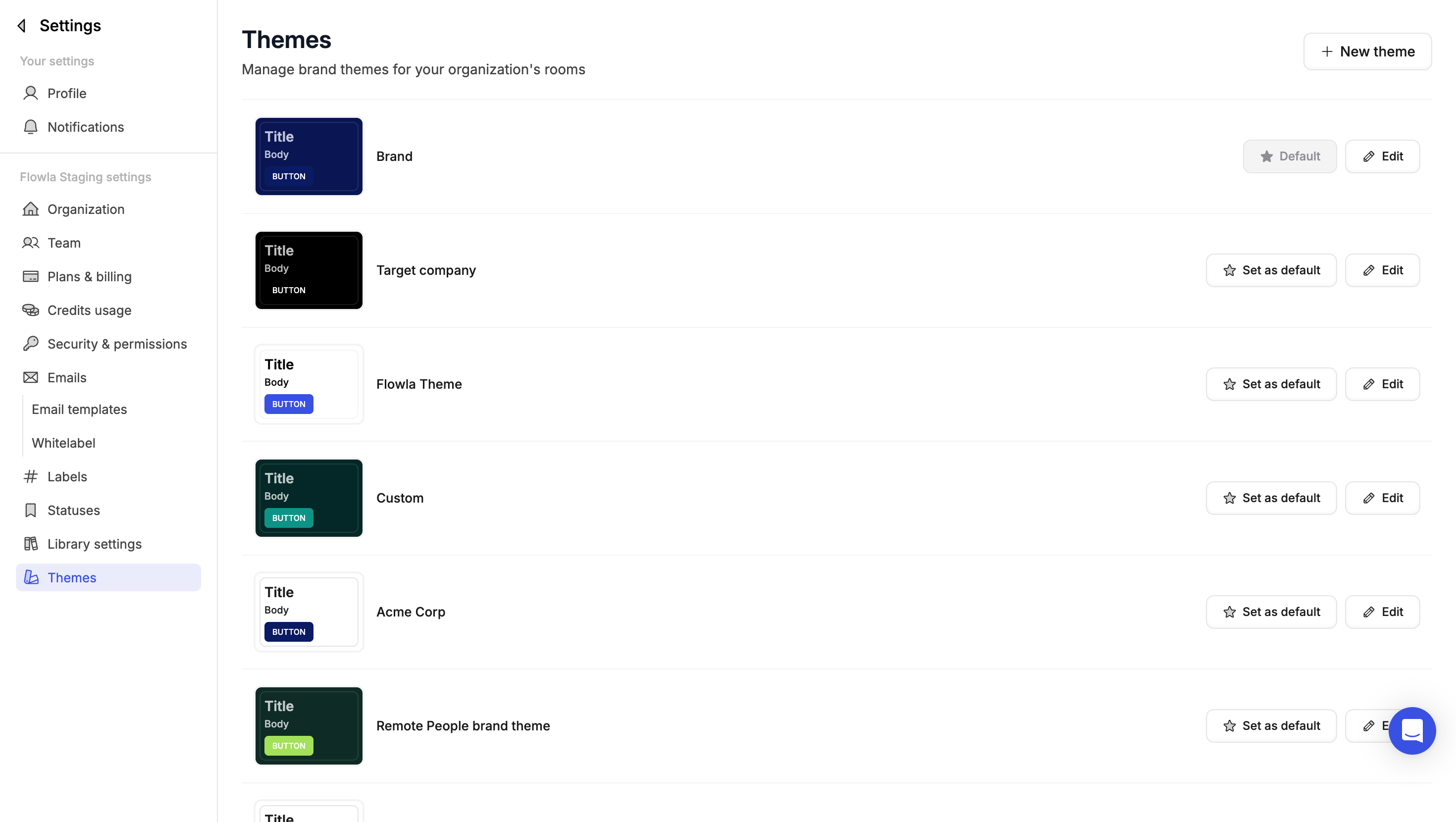
The Themes page in settings listing Brand, Target company, Flowla Theme, Custom, Acme Corp, and Remote People brand theme with Set as default and Edit buttons

Settings → Themes: every organization theme, with default and edit controls
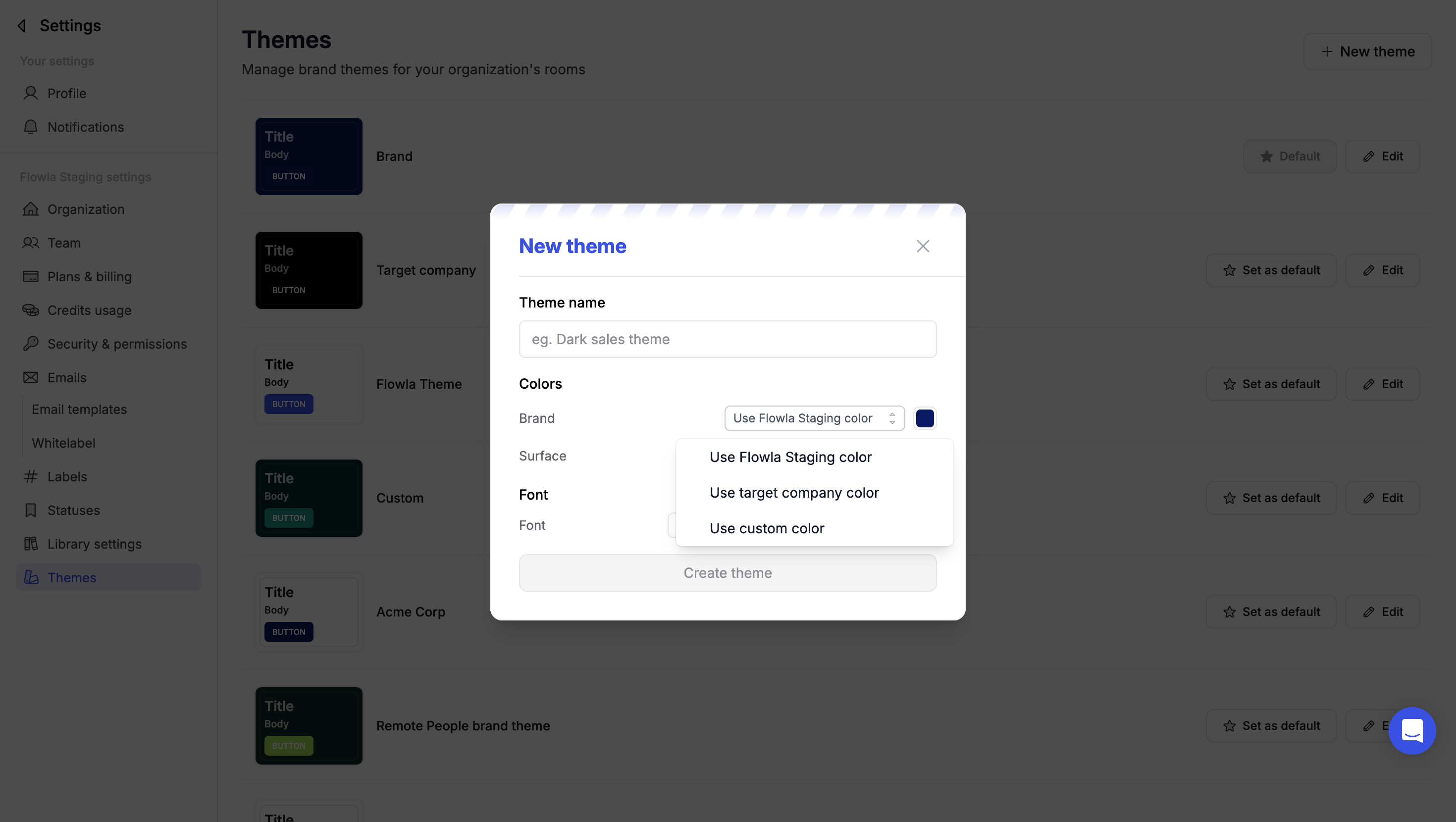
Click New theme to build one from scratch. Name it, choose where Brand and Surface get their colors, pick a font, then click Create theme — and fine-tune it from there.
The New theme dialog with a Theme name field, Brand and Surface color source dropdowns, and a Font selector

Creating an organization theme from scratch

Editing a theme here applies to every room using it. Rooms that have been customized with their own room theme are unaffected.

How new rooms get their theme

A new room never starts unstyled. Where its look comes from depends on how you created it: Duplication and templates behave the same way, and they carry room themes as faithfully as organization themes. Duplicate a room that’s on a room theme and the copy arrives on that same room theme, still private to it — nothing needs promoting first. That makes templates the lever for governing how new rooms look. Style a template once, and every room built from it inherits that theme — so the whole team ships on-brand rooms without anyone opening the customize panel.
Two ways to standardize, depending on how tightly you want to hold the reins:
  • Set as default in Settings → Themes covers rooms started from scratch.
  • Themed templates govern the rooms your team actually creates day to day, and let different templates carry different looks — one for new business, another for onboarding.

Which one should I use?