

Target company
Each room is usually dedicated to one company. Setting a target company personalises the room automatically: it pulls in the company’s branding, fills in company-related variables, and keeps your dashboard organised. Prospects notice when content speaks directly to them — a room that shows their logo and uses their company name feels intentional, not generic.Select a target company when creating a room
During room creation, on the Choose company step: Option A: Create or select a company in Flowla Search by domain or name to quickly create and link a target company.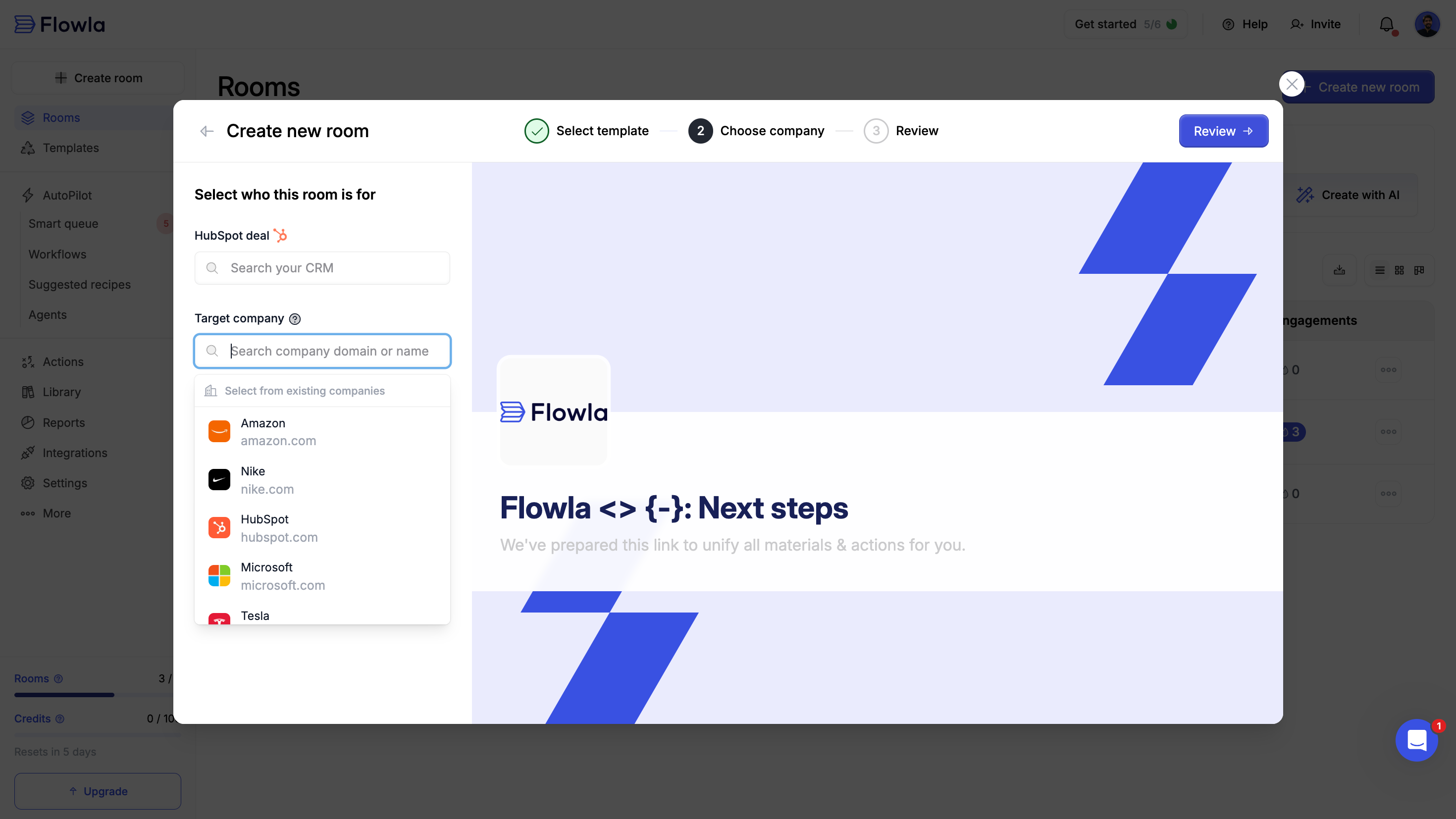
- Flowla automatically pulls the deal’s company information, including branding and logo
- Deal information syncs to your room
- Room engagement data syncs back to your CRM
Change the target company on an existing room
1
Open the room and go to the Summary step
Navigate to the room you want to update.
2
Click the company logo
This opens the company settings panel.
3
Select Link another company
Search for or create a new target company.
Edit company details inside a room
1
Open the room and go to the Summary step
Navigate to the room with the company details you want to update.
2
Click the company logo
This opens the company settings panel.
3
Click Edit [company name]
Update the company name, logo, or other details.
4
Save your changes
Changes apply immediately to the room.
Manage companies centrally
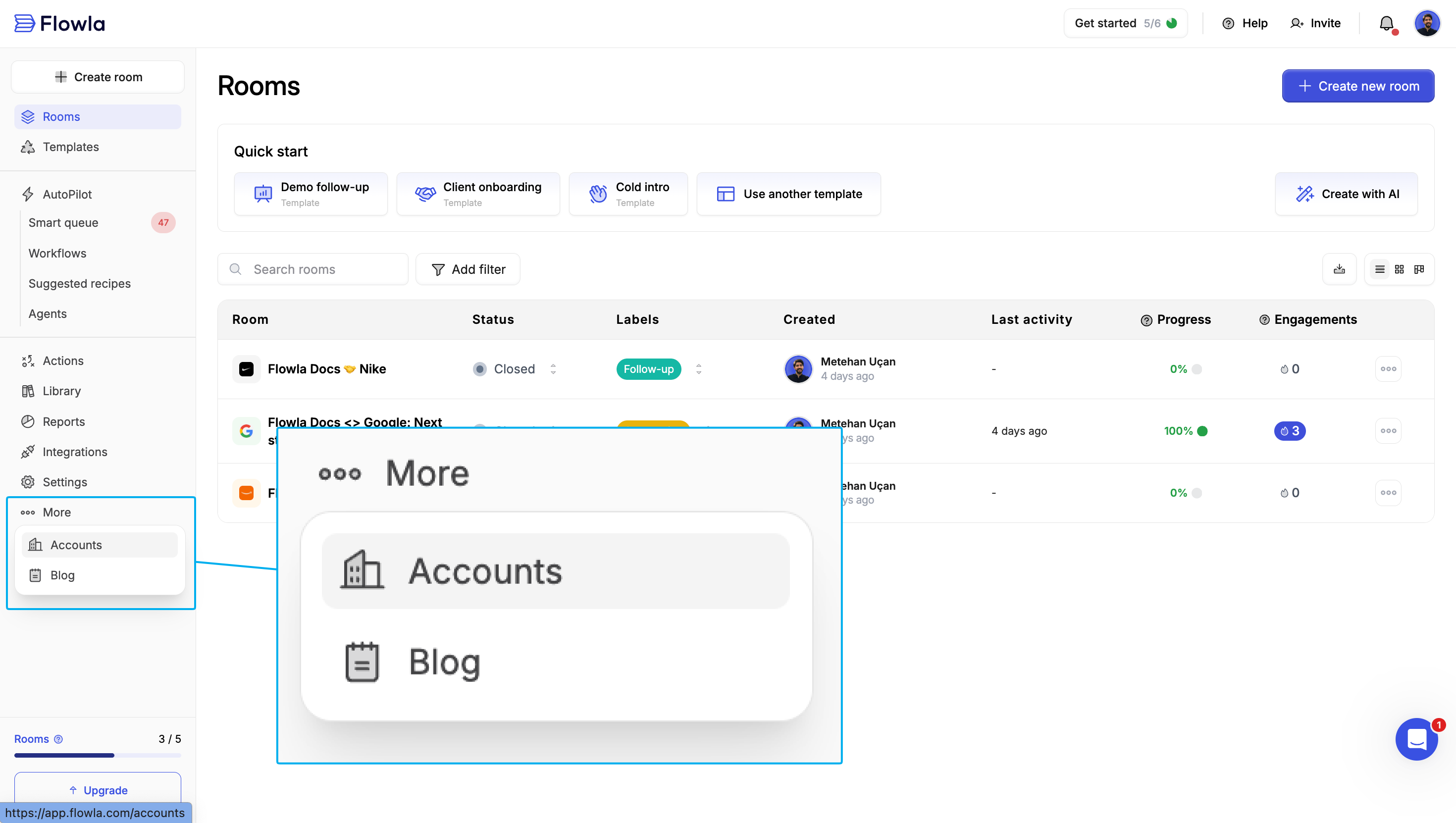
Go to More → Accounts to manage all your companies in one place:- Update company information across all associated rooms
- Merge duplicate companies
- Add or update company logos
Target company and CRMs
Target companies are automatically pulled from the deal’s associated company in HubSpot, Salesforce, and Attio. When a room is linked to a CRM deal:- The target company syncs from the deal’s company record
- Company logo and details are pulled in automatically
- Changes in the CRM update the room’s target company
Room style
Everything about how a room looks — backgrounds, navigation colours, fonts, blocks, groups, and typography — is now controlled by Themes. A well-styled room reinforces your brand and helps your prospect feel like they’re in a professional, curated space, not just another shared Google Doc. Open the theme panel from the palette icon in the room editor header to apply a theme, or customise one for a single room.Themes
Apply your brand, mirror your buyer’s, or fine-tune every colour and font in the room.