

- List, the table of confirmed room contacts, plus a separate Identified contacts table for people REX has spotted but hasn’t fully confirmed yet.
- Map, a visual stakeholder and org-chart view, built automatically from what REX already knows about the deal.
Contacts List
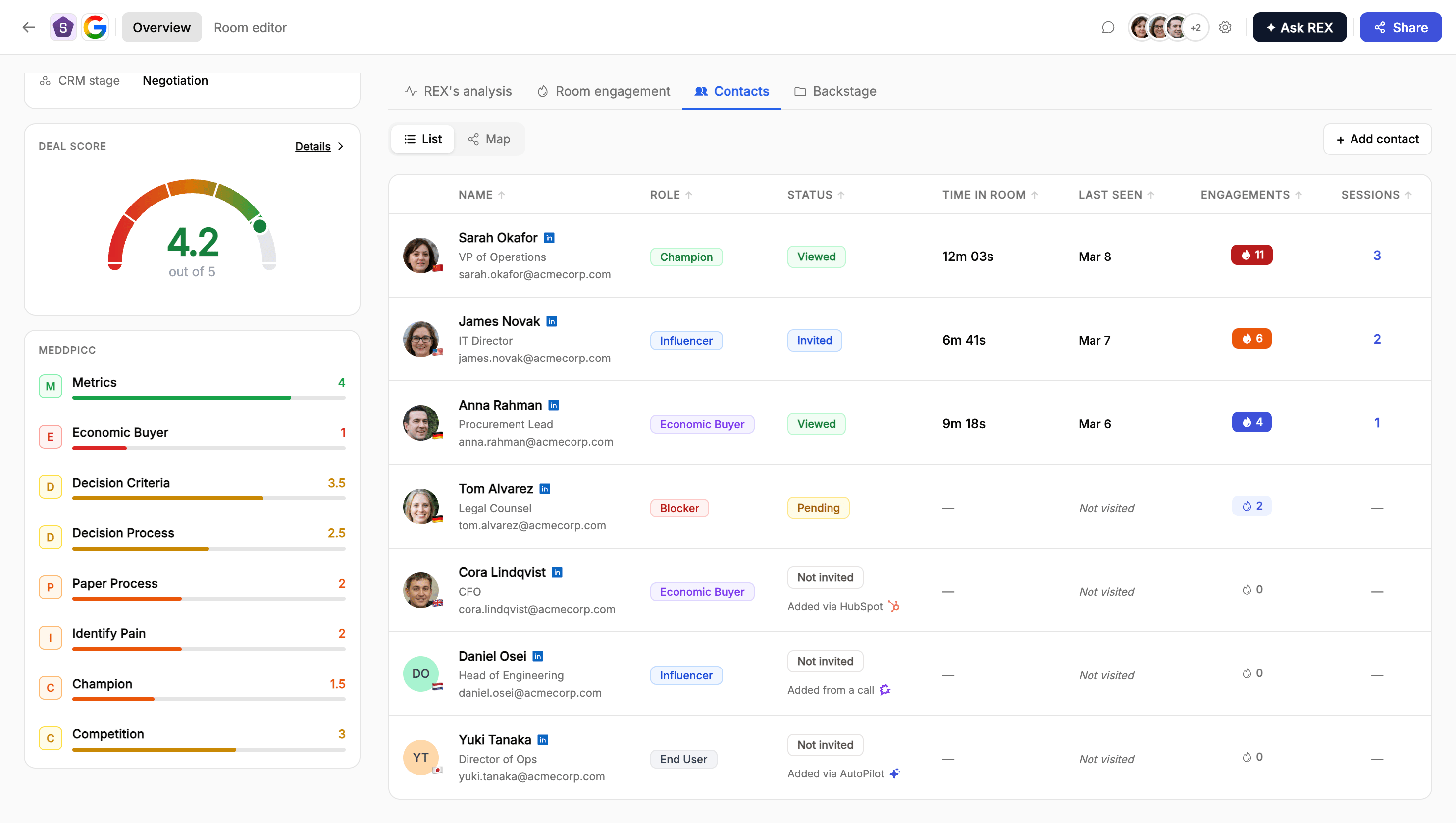
The Contacts tab in List view, showing confirmed room contacts with role, status, and engagement columns
Identified contacts
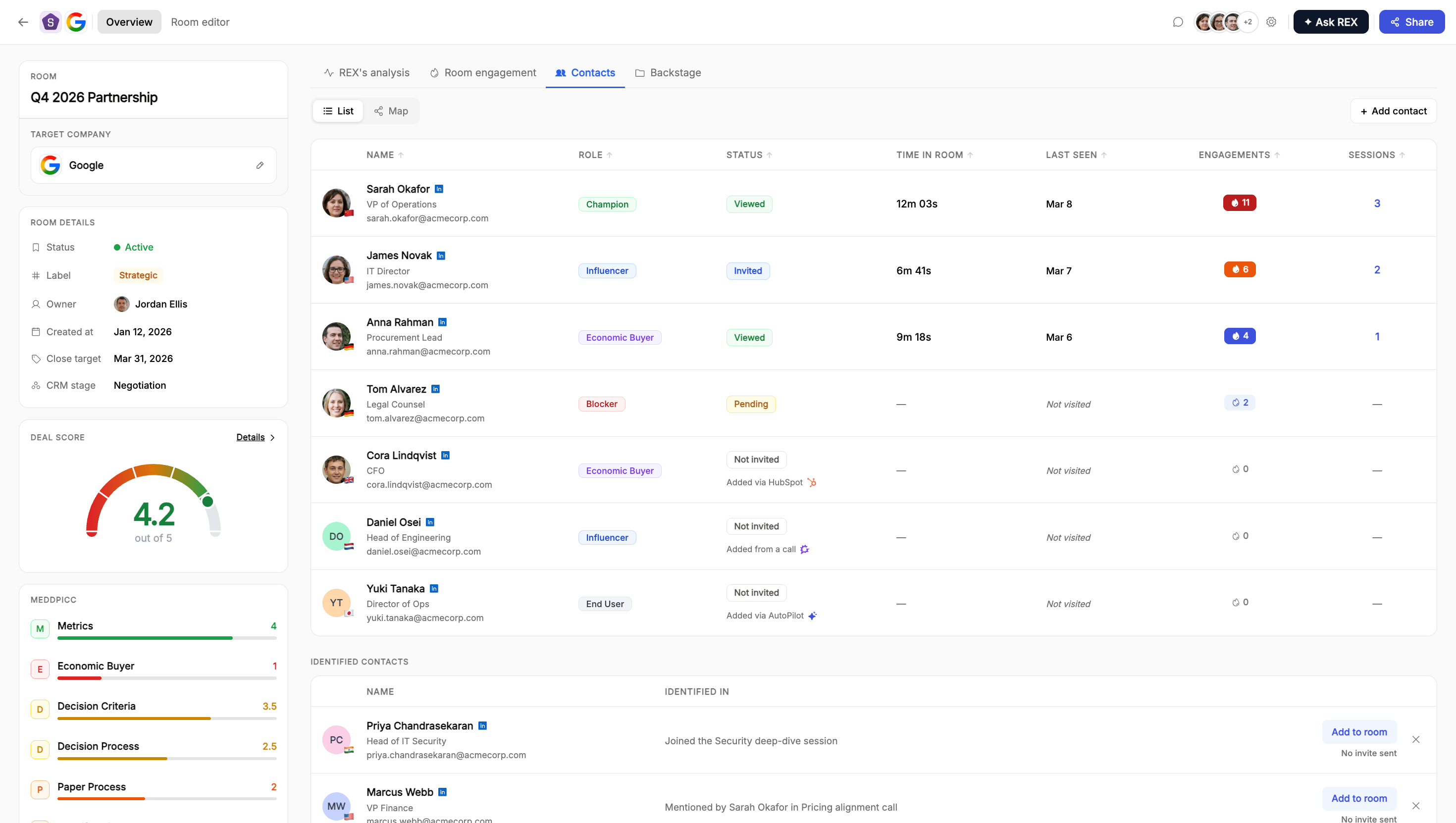
The Identified contacts table below the main contacts list, with an Add to room action for each unconfirmed person
- Add to room, promoting them into the main contacts list.
- Dismiss, if they’re not actually relevant to this deal.
Contact detail sheet
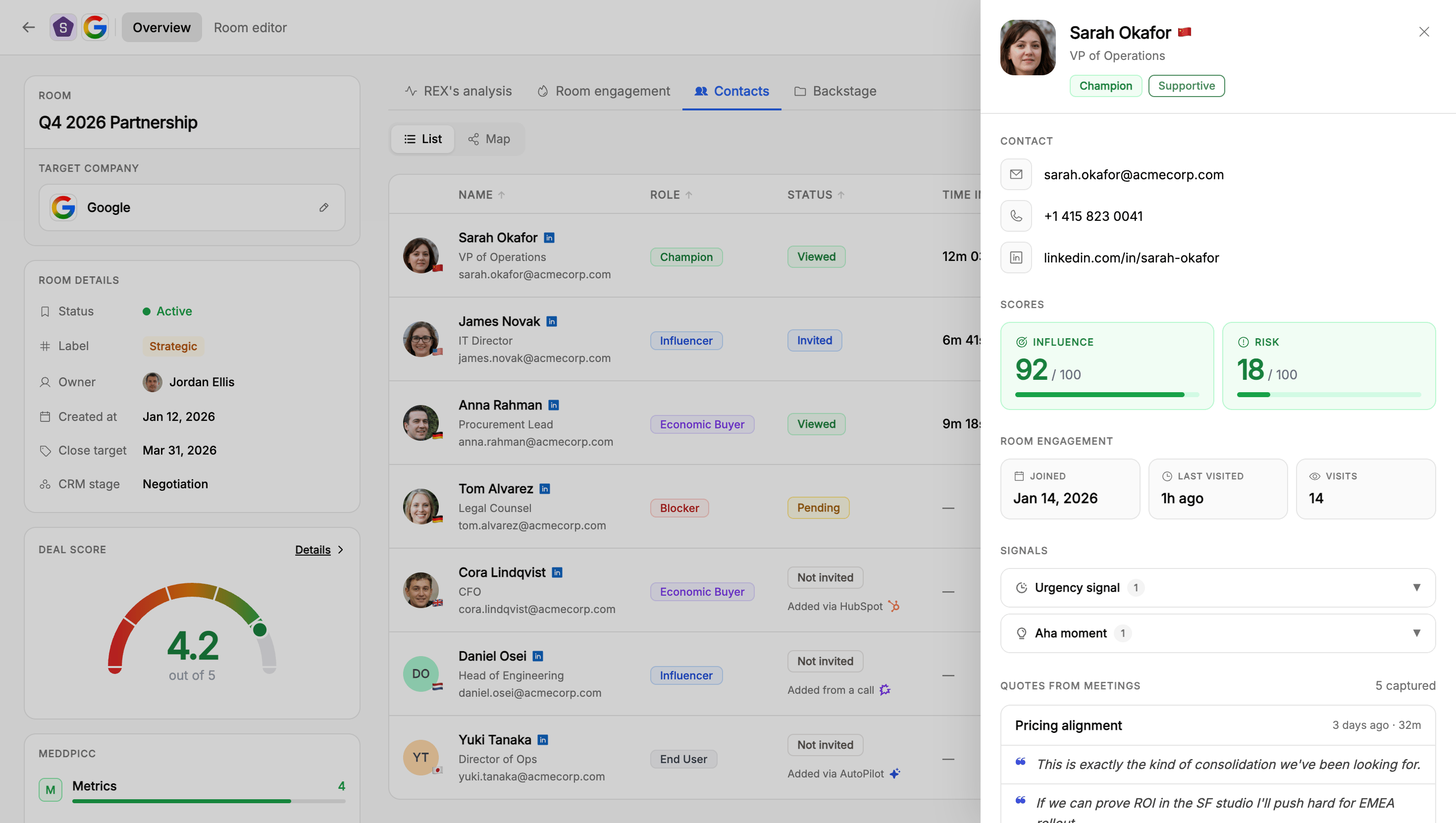
The contact detail sheet, showing their info, influence and risk scores, room engagement, signals, and the quotes behind them
- Contact: email, phone, and LinkedIn.
- Scores: an Influence score (how much this person’s opinion carries weight in the decision) and a Risk score (how much of a concern they currently represent), each out of 100.
- Room engagement: when they joined, when they last visited, and how many visits total.
- Signals: the specific signal types tied to this person, expandable for detail.
- Quotes from meetings: the actual quotes captured from calls that back up their role, sentiment, and scores, each with which meeting it came from and when.
Contact Map
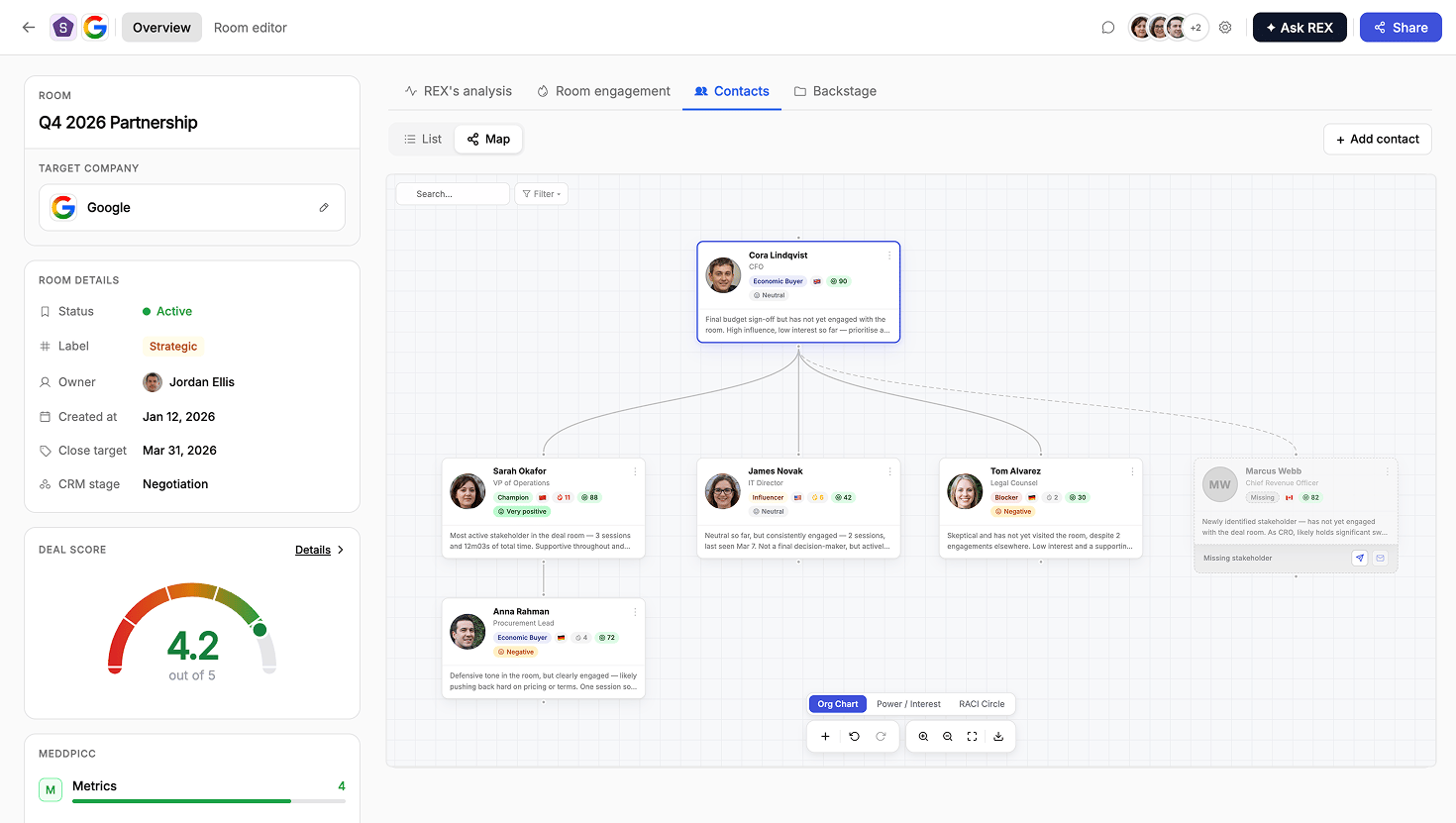
The Contact Map canvas, showing person cards arranged as a reporting tree
Building the map
REX builds the map from two inputs: the contact details you already have (name, title, department) and what’s said in meeting transcripts. See where REX’s data comes from for how those transcripts get in. People still sitting in Identified contacts aren’t shown on the map until they’re promoted onto the main list.Reporting lines
Lines on the map represent only the org-chart hierarchy, meaning who reports to whom. These are inferred carefully, in order of confidence:Explicit statements in a call or transcript
Title and department hierarchy
Node cards
Each person on the map shows their name, title, and LinkedIn (when known), plus their buying role, an influence indicator, and their current sentiment or engagement with the deal. Stakeholders who are referenced but haven’t joined the room yet are flagged directly on the map as missing, rather than left out.Enrichment and privacy
When REX identifies someone it doesn’t have full details on, it first tries to fill in the gaps (title, company, and so on) automatically using available enrichment data.- If a real email address is found this way, that person is added to the room directly, without sending them an invitation.
- If no email can be found, you’ll be prompted to enter one yourself.
Editing the map
Everything on the map can be changed by hand. Add or remove people, rename them, change their title, role, influence, or sentiment, draw or remove a reporting line, or drag a card to reposition it. You can also just type an instruction in plain language, like “Sarah reports to the CTO,” and the map updates accordingly.The canvas
The map is a draggable canvas of person cards, with your layout staying stable across refreshes so you don’t lose your bearings.- A top bar lets you search for a stakeholder and filter the view.
- A toolbar covers adding a node, undo and redo, zoom, fit-to-screen, and export.
- You can switch how the map is laid out between Org Chart (the default reporting tree), Power / Interest, and RACI Circle, depending on which lens is more useful for the conversation you’re having.
How different roles use this
Sales reps
Sales reps
- Check the List for gaps in your buying committee. A deal with no confirmed Economic Buyer or Champion is a flag to go find one.
- Check Identified contacts for people REX has spotted but you haven’t confirmed. It’s a quick way to catch a stakeholder you didn’t know was in the mix.
- Use the Map’s reporting lines to understand who influences whom, and tailor your talking points to each person’s role and sentiment.
- Open a contact’s detail sheet before a call to review their influence and risk scores and the actual quotes behind them.
- Correct anything the map got wrong. Rename a role, fix a reporting line, or drag someone into place. Your corrections stick even as new calls come in.
- If someone’s shown as “missing,” that’s your cue to get them into the room.
Onboarding & CS teams
Onboarding & CS teams
- Check the List to see who on the customer’s side is actually engaged during rollout. A room with only the original champion showing activity, and no end users, is a sign adoption hasn’t spread past the person who bought it.
- Use the Map to track who owns the relationship going forward, especially when your original champion changes roles or a new admin takes over.
- Identified contacts is where new stakeholders surface as they get pulled into onboarding calls or start showing up in the room. Confirm the ones you’ll actually be working with.
- Watch for “missing” stakeholders on the map. Someone referenced as the eventual admin or power user who’s never joined the room is worth chasing down before go-live.
- A contact’s detail sheet is a fast way to check whether a specific user has engaged with training material or is still at zero visits, without digging through a separate LMS or support tool.
Managers
Managers
- Use the Map in deal reviews to quickly check buying-committee coverage. Is there a confirmed Economic Buyer? A Champion? Anyone marked as a Blocker?
- A deal with a thin or unconnected map, meaning few reporting lines and several “missing” stakeholders, is a sign the rep hasn’t yet mapped the account. Worth flagging before a forecast conversation.
- Because reps’ manual corrections are sticky, a well-maintained map is a decent proxy for how well a rep actually understands the account.
- A long-standing Identified contacts list nobody’s confirmed or dismissed is a sign the rep isn’t reviewing the tab regularly.
FAQ
Will I ever see a guessed email address on the map?
Will I ever see a guessed email address on the map?
How does REX decide who reports to whom?
How does REX decide who reports to whom?
If I fix a wrong reporting line or role, will it stay fixed?
If I fix a wrong reporting line or role, will it stay fixed?
What's the difference between the contacts list and Identified contacts?
What's the difference between the contacts list and Identified contacts?
What happens to a stakeholder REX knows about but who isn't in my CRM yet?
What happens to a stakeholder REX knows about but who isn't in my CRM yet?
Can I add someone to the map manually?
Can I add someone to the map manually?
What's in a contact's detail sheet?
What's in a contact's detail sheet?
Can I switch how the Map is laid out?
Can I switch how the Map is laid out?