

- Current Version
- Legacy Version
Overview
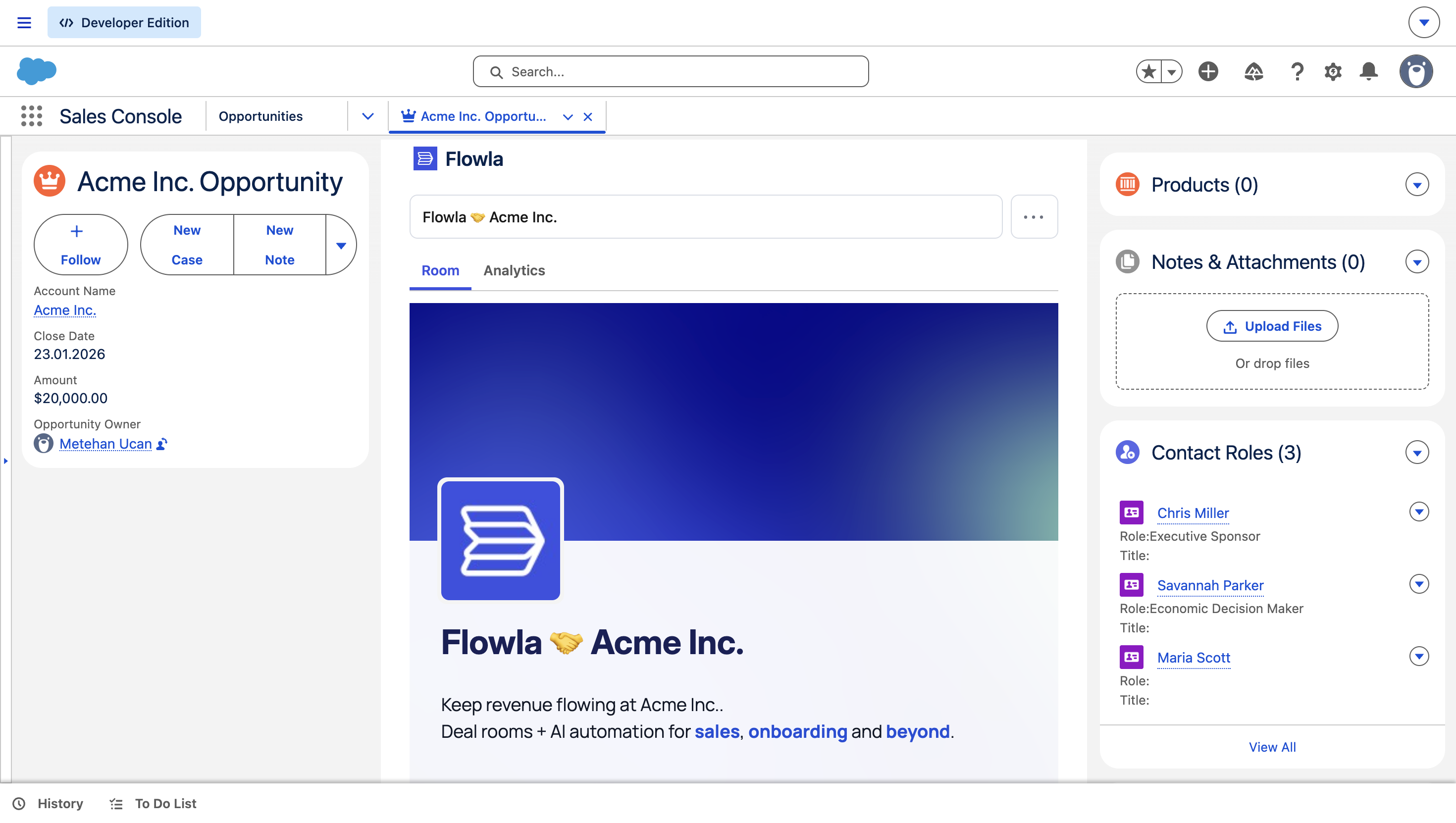
Connect Salesforce to Flowla and your deal rooms and CRM stay in sync — no manual work required. Pull in opportunity, contact, and account data to personalise rooms automatically, and push buyer engagement back into Salesforce so your CRM always reflects what’s happening in the deal.The Flowla Salesforce integration enables automatic two-way synchronisation of opportunity, contact, and account data between Salesforce and Flowla. This allows your team to:- View and manage rooms inside your opportunities
- Pull in CRM data to personalize rooms automatically
- Push Flowla engagement data (views, form submissions, completions) back into Salesforce
Setup Instructions
Prerequisites
Before you begin, make sure you have:- Salesforce Edition: Enterprise, Unlimited, or Developer edition (the integration requires API access, which is not available on Salesforce Essentials)
- Salesforce Admin access: You need admin-level permissions to install packages and modify page layouts
Step 1: Install the Flowla Managed Package
The managed package installs the Flowla component, configures trusted URLs, sets up API permission sets, and creates the necessary external credentials — all automatically.1
Install the Flowla managed package
Use this installation link — you will be redirected to the Salesforce AppExchange / package installer.
2
Select Install for All Users
Choose Install for All Users so every user can see Flowla data on their opportunity records, then click Install.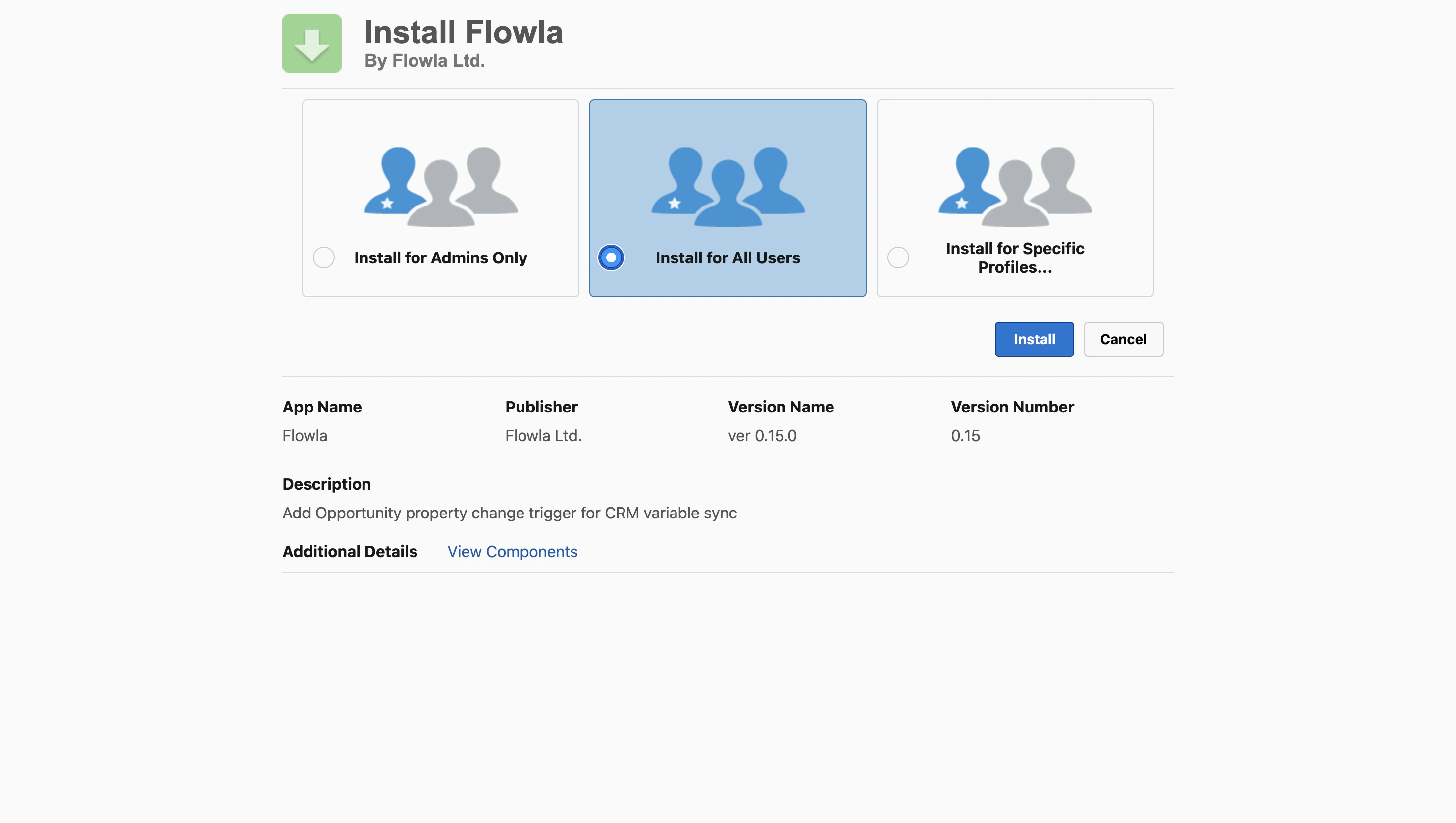
3
Approve Third-Party Access
If prompted, check the box and click Continue — this allows the package to communicate with Flowla’s API.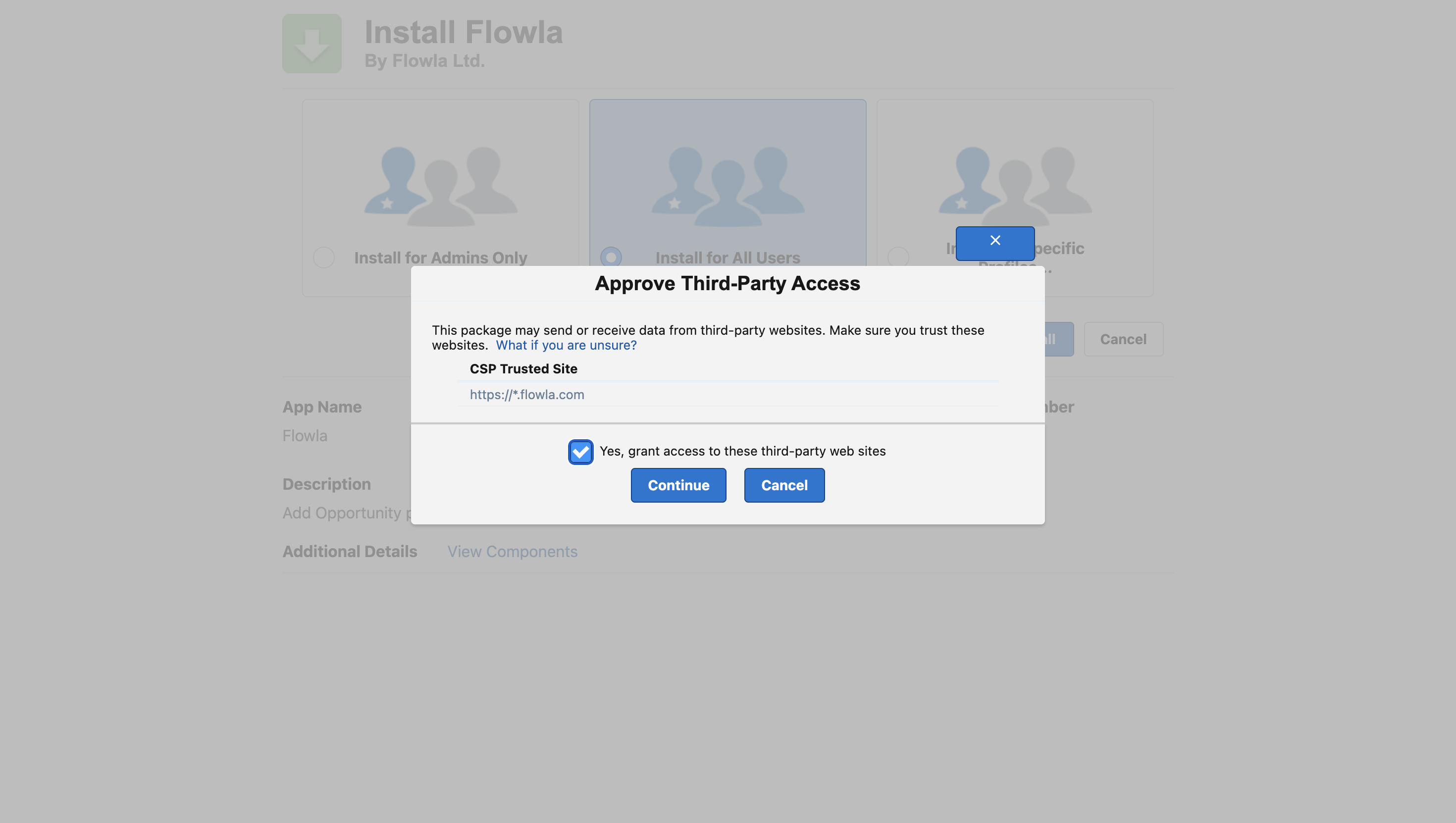
4
Wait for the confirmation email
Salesforce will send a confirmation email once installation is complete. This may take a few minutes.
To verify: go to Setup → Installed Packages and confirm Flowla is listed as Installed.
Step 2: Connect Salesforce to Flowla
This step links your Salesforce org to your Flowla workspace. The OAuth connection automatically handles API credential setup and user assignments that were previously done manually.1
Open Integrations in Flowla
In the left sidebar, click Integrations. Find Salesforce and click Connect.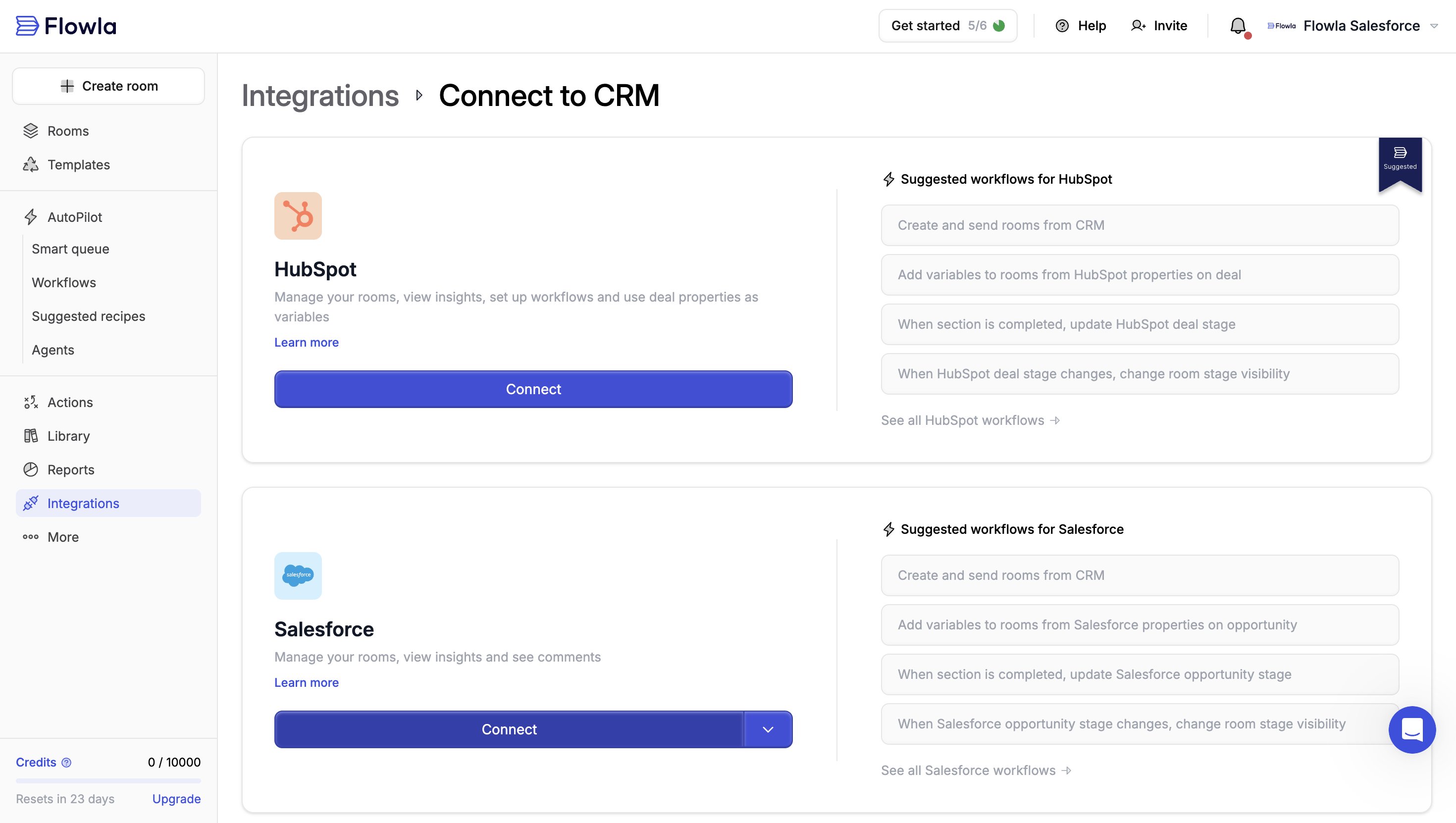
2
Log in with a Salesforce admin account
You will be redirected to Salesforce’s OAuth login screen. Log in with a Salesforce admin account — the account used here determines the API access level for the integration.Use a dedicated integration user or admin account — not a personal user account. If that user is deactivated, the integration will break. The connecting user must have API Enabled and admin rights in their Salesforce profile.
3
Allow permissions
Review the permissions Flowla is requesting and click Allow. You will be redirected back to Flowla and the Salesforce CRM card should be connected.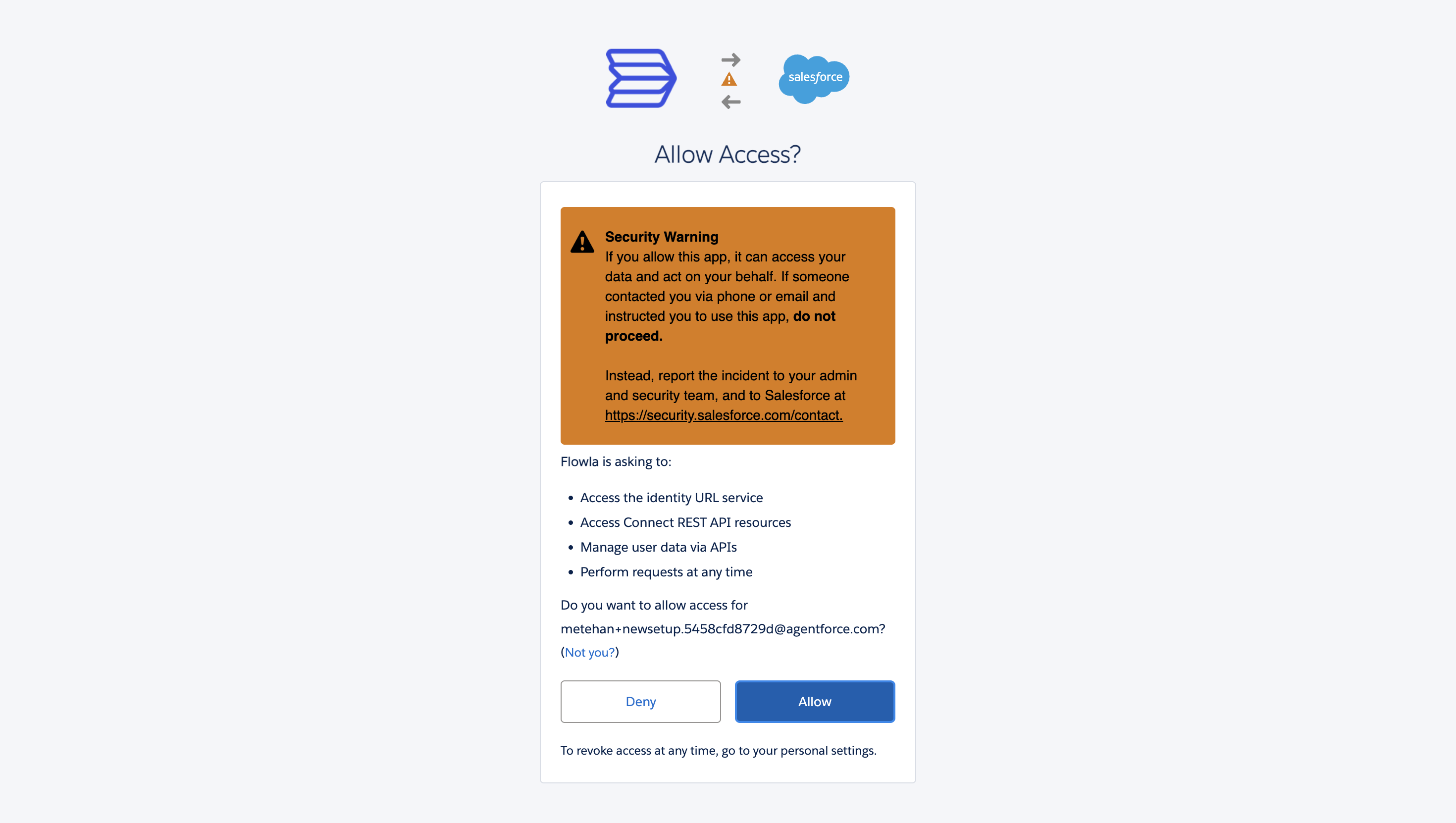
Step 3: Add the Flowla Component to the Opportunity Page Layout
This step embeds the Flowla widget directly inside your Salesforce opportunity records so users can see Flowla room and detailed activity without leaving Salesforce.1
Open Edit Page on an Opportunity
Open the Sales Console app, navigate to any Opportunity record, click the gear icon (⚙) in the top-right corner, and select Edit Page.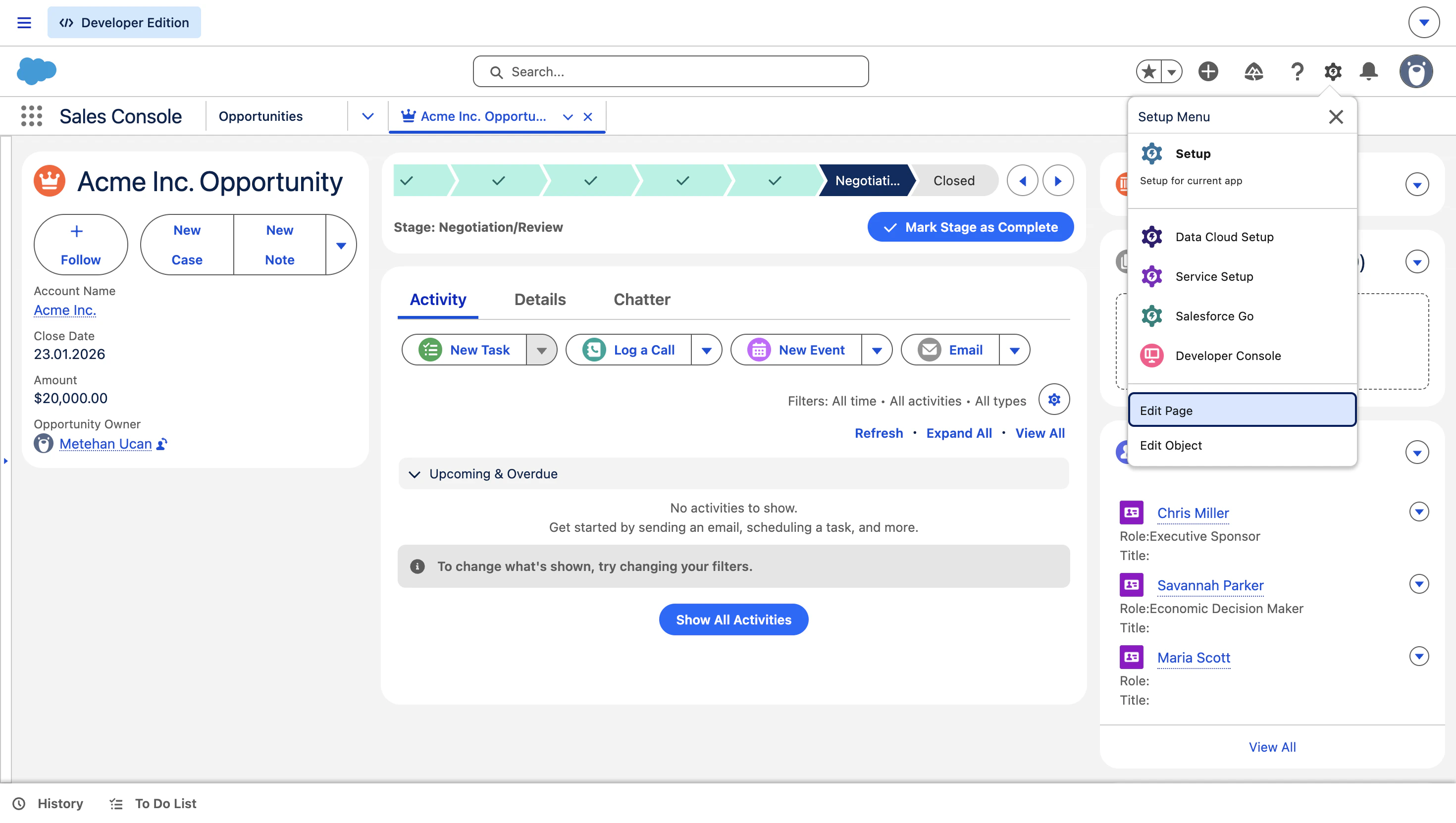
2
Add the Flowla Aura Component
In the Lightning App Builder, find the Flowla Aura Component in the left-hand panel (search for “Flowla”) and drag and drop it onto your preferred location on the layout.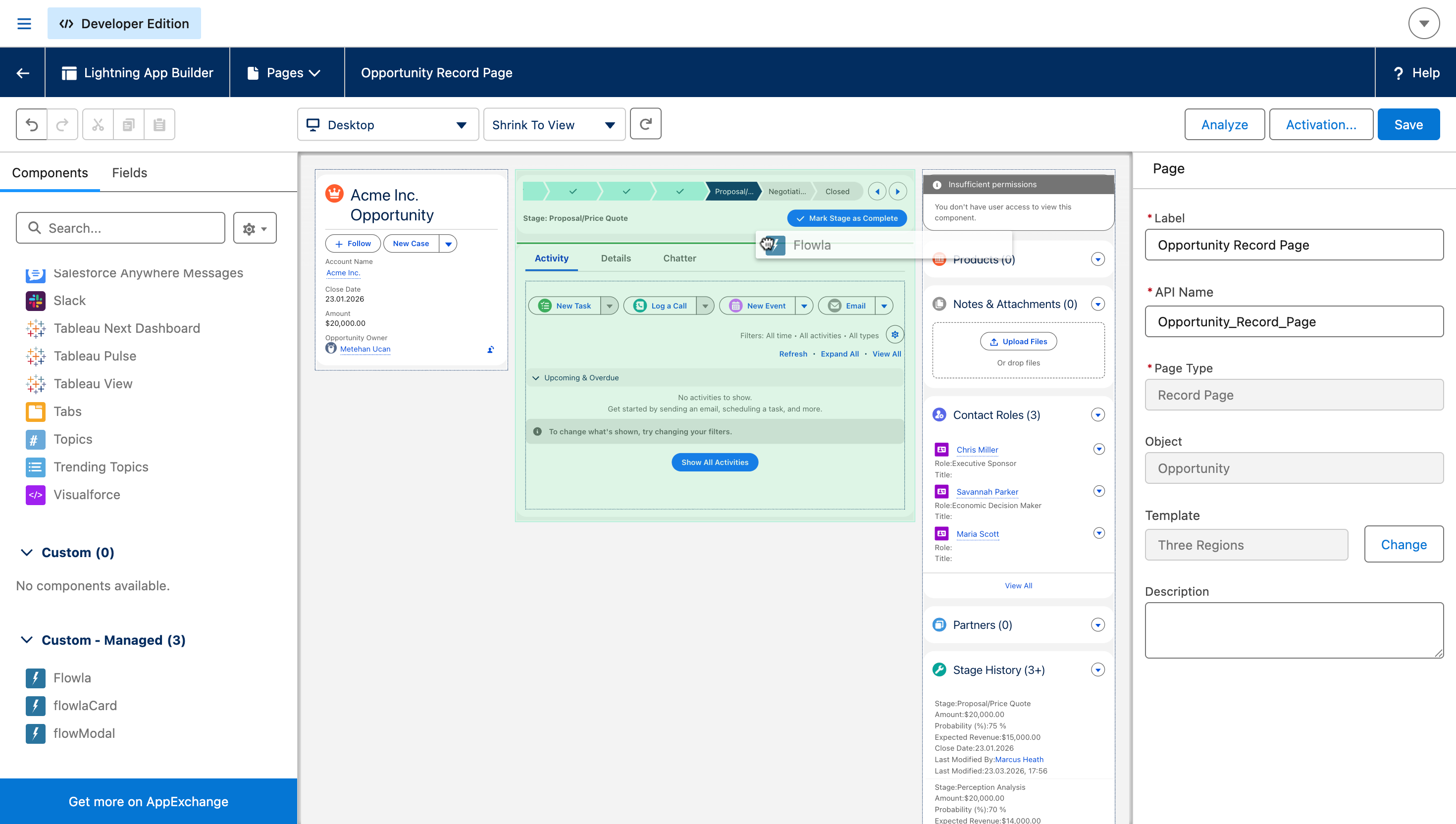
3
Save and activate
Click Save. When prompted to activate, select Assign as App Default so the change applies to all users, then click Back to exit the builder.
To verify: open any Opportunity record — the Flowla widget should appear in the position you placed it. If the opportunity is linked to a Flowla room, engagement data will appear automatically.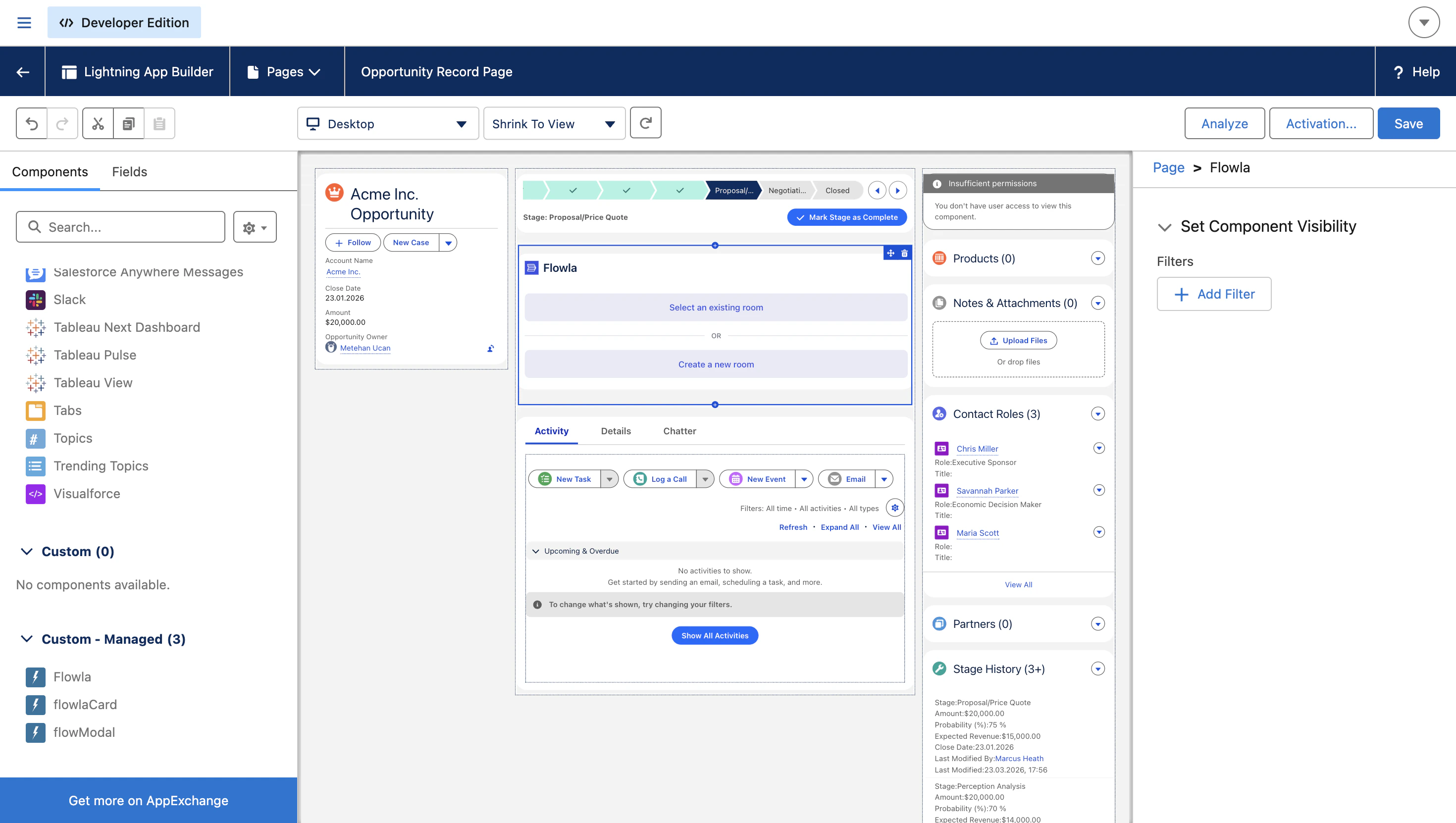
CRM Integrations
- Stale variable fix: When the primary company or contact on a deal changes, all synced CRM variables now refresh immediately. No more outdated names, emails, or fields showing the previous contact’s data (HubSpot & Salesforce)
Meeting list & single meeting blocks
Meetings that auto-sync into your rooms can now be surfaced directly as content blocks inside the editor — closing the loop between meeting intelligence and your buyer-facing rooms.- Add a meeting list block to display all meetings linked to the room, automatically populated as new calls are matched and synced
- Add a single meeting block to highlight a specific call — title, description, date, and attendees rendered cleanly inline
- Meetings are linked from room, not duplicated — any update to the meeting data reflects everywhere it’s used
- When you add a meeting block, a picker opens to select from the room’s matched meetings, making it easy to pull in the right call without manual work
- The meeting list stays in sync automatically — as new calls are matched to the room via auto-sync, they appear in the block without any manual action
Mapping Salesforce properties to variables
Any Salesforce property — from opportunities, contacts, or accounts — can be mapped to a Flowla variable and used anywhere in your rooms and templates.1
Open CRM settings
In the left sidebar, click Integrations, then click CRM settings.
2
Open Salesforce settings
Find Salesforce and click Settings.
3
Go to the Sync from Salesforce tab
Click the Sync from Salesforce tab.
4
Select a Salesforce object
Search for or select the object you want to pull from: Opportunity, Contact, or Account.
5
Find the property
Browse or search for the specific property within that object (for example, Close Date or any custom property on the object).
6
Name the Flowla variable
Edit the variable name as you’d like it to appear in Flowla, then click Add.
This works for any property on standard objects (Opportunity, Contact, Account), including custom properties you’ve added to those objects. For Salesforce custom objects, use an Autopilot workflow to pull the data instead — see Salesforce automations.
FAQ & Troubleshooting
Can't connect Flowla to Salesforce
Can't connect Flowla to Salesforce
This almost always comes down to one of the following. Check them in order:
- The Flowla managed package hasn’t been installed yet. Installing the package (Step 1 above) is what registers Flowla’s Trusted URLs, permission sets, and external credentials in your org — connecting (Step 2) before that step is done can fail with an Unauthorized error. Fix: Install the package first and confirm it shows as Installed under Setup → Installed Packages, then retry Connect.
-
Flowla isn’t allow-listed as a Trusted URL. If your org’s CSP settings block requests to domains that aren’t explicitly trusted, the OAuth redirect back to Flowla can get blocked.
Fix: Go to Setup → CSP Trusted Sites and confirm
https://app.flowla.comandhttps://api.flowla.comare both listed with the required CSP directives checked. Installing the managed package should add these automatically — if they’re missing, add them manually. - The Salesforce user completing the connection is missing required permissions. The account used to connect determines the integration’s API access — it needs API Enabled and admin rights on its Salesforce profile. A limited or deactivated user will fail here. Fix: Reconnect using a dedicated integration user or admin account with API Enabled and admin permissions.
- Login IP restrictions on the org or profile. If your Salesforce org or the connecting user’s profile restricts login IP ranges, Flowla’s OAuth request can be rejected as unauthorized even with valid credentials. Fix: Ask your Salesforce admin to check Setup → Network Access (Trusted IP Ranges) and the connecting profile’s Login IP Ranges, and allow Flowla’s servers or temporarily relax the restriction while connecting.
- Your Flowla session expired mid-authorization. If the Salesforce login/consent screen takes a while (SSO, MFA, or waiting on IT approval), your Flowla session can time out before the redirect back completes. Fix: Make sure you’re freshly logged into Flowla, then restart the Connect flow from the Integrations page in one continuous pass rather than resuming an old tab.
The Flowla card is not showing data for a linked Opportunity for all users
The Flowla card is not showing data for a linked Opportunity for all users
Likely cause: API credentials were not automatically configured during the OAuth connection.Fix: Set them up manually in Salesforce:
- Go to Setup → search for Named Credentials → click the External Credentials tab
- Find and click Flowla API, then scroll to Principals → FlowlaAPIPrincipal → Edit
- Under Authentication Parameters, add: Parameter Name
ApiKey, Value = your API key from Flowla → Integrations → Salesforce → Settings & more - Click Save, then refresh the Opportunity page
Only one specific user cannot see Flowla room data on Opportunities (other users are fine)
Only one specific user cannot see Flowla room data on Opportunities (other users are fine)
Likely cause: That user is missing the Flowla API permission set assignment in Salesforce.Fix: Go to Setup → Permission Sets → Flowla API → Manage Assignments → Add Assignment. Search for the affected user, click Assign, and ask them to refresh the page.