

Embed code or Link preview?
The Embed option in the block menu offers two choices:Add an Embed code block
1
Open the block menu
In the room editor, click Add block on the page.
2
Choose Embed, then Embed code
Select Embed, then Embed code.
3
Add your content
Fill the block in one of three ways:
- Write or paste your HTML in the Code tab.
- Click Upload HTML to use an HTML file.
- Click Create with REX and describe what you want. REX builds it and shows you the result for review.
4
Preview and size it
Switch to the Preview tab to check the result, then adjust the sizing so it fits your room.
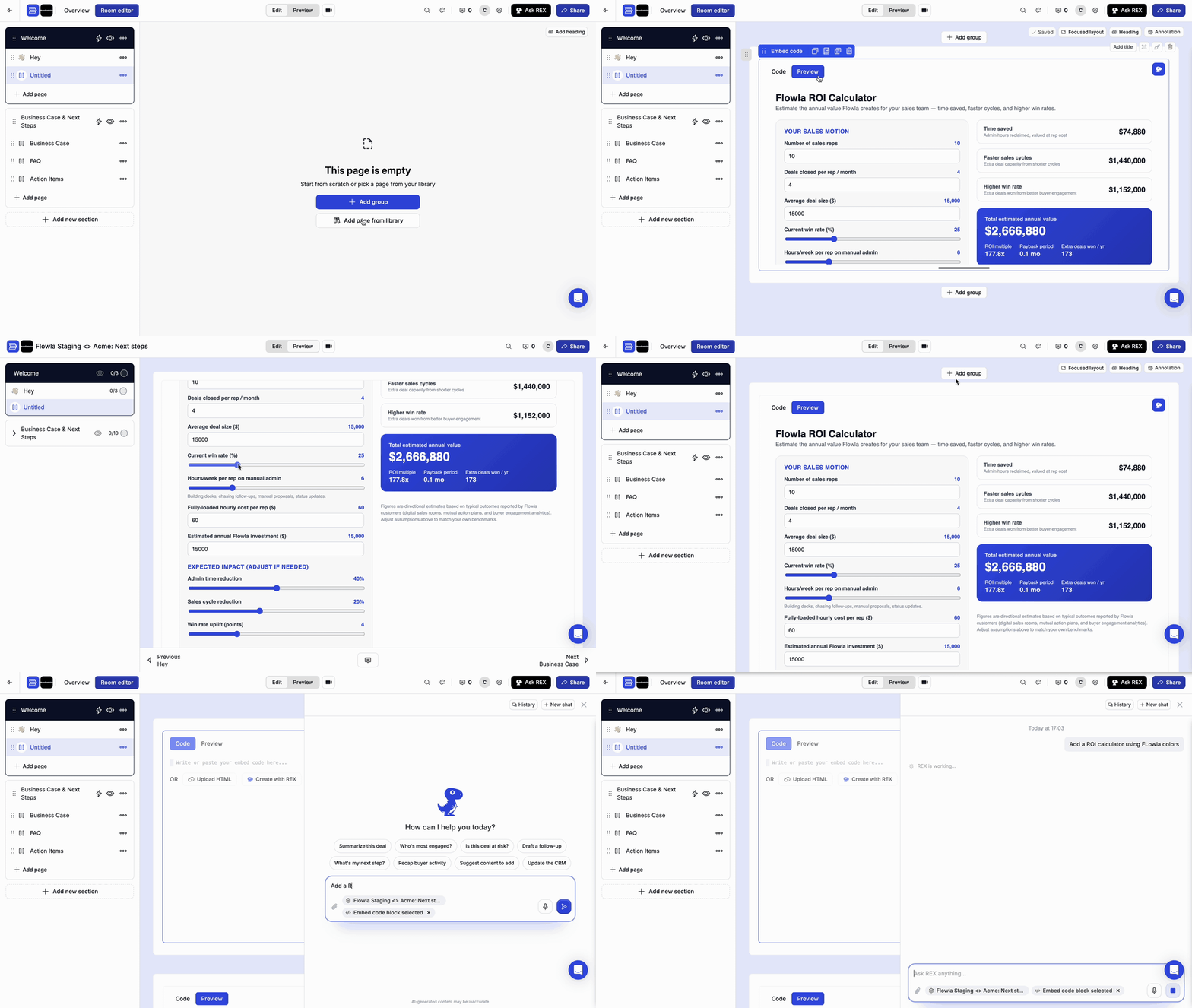
An ROI calculator in an Embed code block, then starting a new one with Create with REX
Troubleshooting
My embed looks cut off
My embed looks cut off
Adjust the block’s sizing until the full content is visible, and check the Preview tab before publishing.
I only have a URL, not HTML
I only have a URL, not HTML
Use Link preview instead. It embeds any webpage as a live preview. Some sites block embedding; for those, use a link instead.