TL;DR
Trigger Flowla workflows from Attio events — like a deal stage changing or an attribute being updated — to automatically create rooms, personalise content, and keep your CRM in sync.Why it matters
Attio tracks every stage of your deal pipeline. When something changes there, that’s the right moment for Flowla to act. By using Attio as a trigger, you can:- Create a personalised room the moment a deal reaches a new stage — auto-fill company name, contact details, and deal data so your team hits the ground running
- Update Attio when something happens inside the room — when a buyer completes an action or section, automatically log it as an engagement note on the deal record
- Keep both platforms in sync — room views, action completions, and content engagement flow back to Attio automatically, so your CRM always reflects real buyer activity
What you can use as triggers
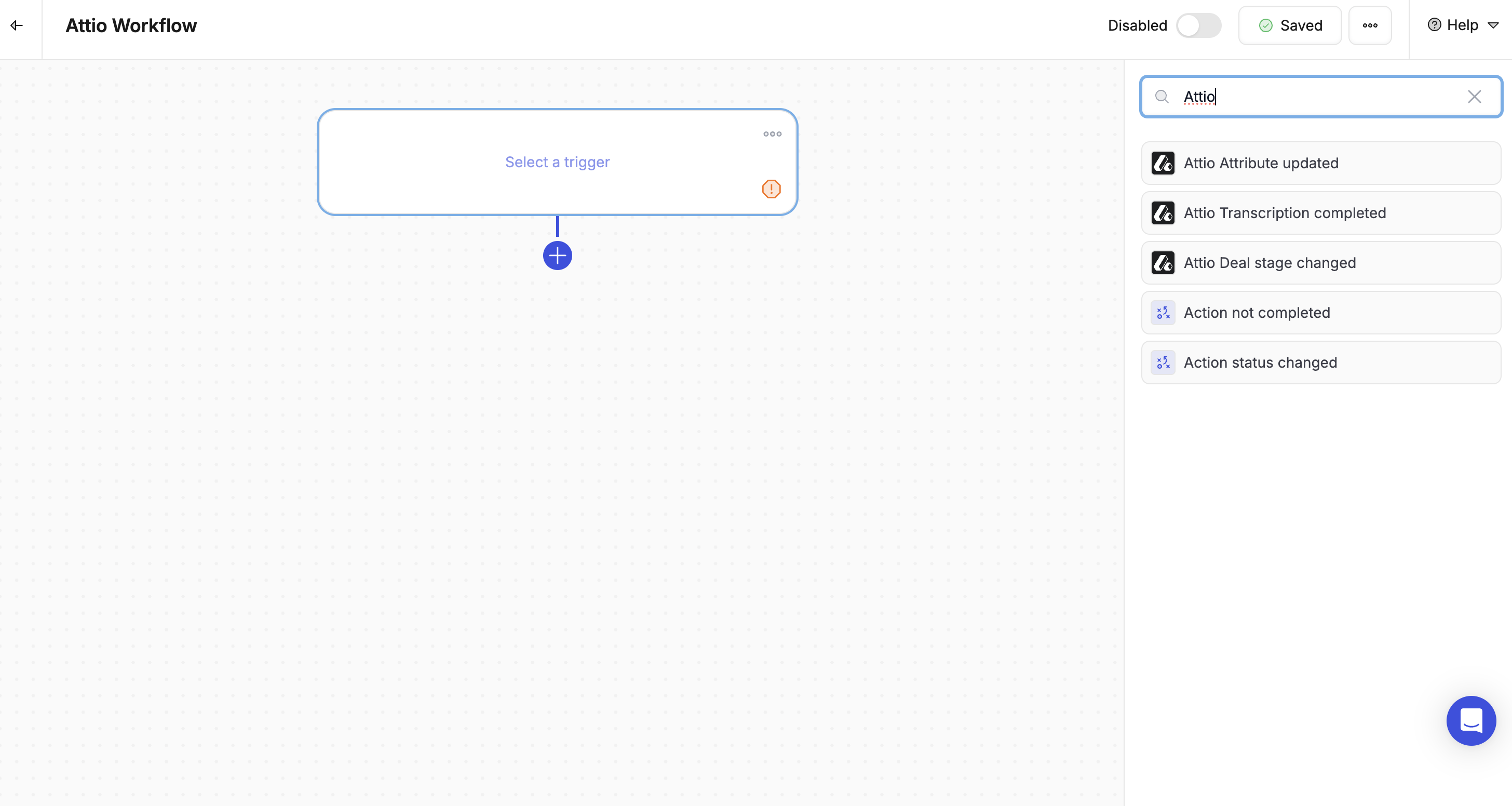
Flowla currently supports the following Attio-triggered workflows:- Deal Stage Changed — when a deal moves to a specific stage (e.g. In Progress or Closed Won), trigger room creation or content updates
- Attribute Updated — when a deal or contact attribute is updated in Attio, trigger room actions or personalisation updates
Actions you can trigger from Attio events
Using the Attio triggers above, you can:- Create a room from a template
- Assign the room creator based on the deal owner
- Fill variables using company, contact, or deal data from Attio
- Unlock room sections based on deal stage progression
- Log room activity back into Attio as engagement notes
How to set it up
1
Go to Workflows
In Flowla, navigate to Workflows in the main navigation.
2
Create a new workflow
Click + Create New Workflow then Add Trigger.
3
Choose Attio as the trigger
Select Attio as the trigger type, then choose the event:
- Deal stage changed
- Attribute updated — e.g. a specific field value changing
4
Add your actions
Add the actions you want to trigger:
- Create a room from a template
- Unlock a section
- Change the room’s status
- Add CRM data as variables